Menu Bar
 |
File
This menu contains commands for saving, importing, exporting and removing files.
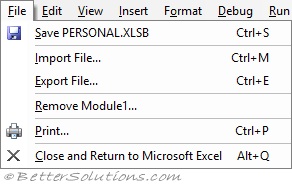 |
Save Personal.xlsb - (Ctrl + S). Saves the current project and all of its modules and forms with your document.
Import File - (Ctrl + M). Displays the Import File dialog box. Lets you add an existing module or form to your project.
Export File - (Ctrl + E). Displays the Export File dialog box. Lets you extract the active module or form to a separate external file. This is disabled if no module or form is active in the Project Explorer.
Remove Module - Permanently deletes the active module or form. This is disabled if no module or form is active in the Project Explorer. You cannot undo this action so it is worth exporting modules first. You will always be asked if you want to export before the item is removed.
Print - (Ctrl + P). Displays the Print dialog box. Prints the active module or form.
Close and Return to Excel - Closes the editor and returns you to the host application. The editor will be hidden but will remain in memory.
Edit
This menu contains commands for formatting and writing code in the code editor.
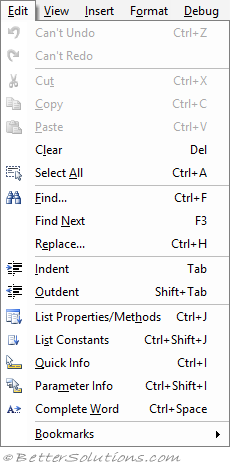 |
Undo Typing - (Ctrl + Z). Reverses the last action. You can also use the shortcut key (Alt + Backspace). You cannot undo a Cut operation.
Redo Action - Restores the last action. You can restore up to 20 edits.
Cut - (Ctrl + X). Removes the item and places it on the Clipboard. This is disabled if there is nothing selected. You can also use the shortcut key (Shift + Delete).
Copy - (Ctrl C). Copies the item and places it on the Clipboard. This is disabled if there is nothing selected. You cannot undo the Copy command in the Code window. You can also use the shortcut key (Ctrl + Insert).
Paste - (Ctrl + V). Inserts the item currently on the Clipboard. You can undo the Paste command in the Code window. You can also use the shortcut key (Shift + Ins).
Clear - (Del). Deletes text one character at a time.
Select All - (Ctrl + A). Selects all of the code in the active Code window or all the controls on a form.
Find - (Ctrl + F). Displays the Find dialog box allowing you to search for particular text.
Find Next - (F3). Finds the next occurrence of the last item searched for. Displays the Find dialog box if you have not displayed the Find dialog box first.
Replace - (Ctrl + H). Displays the Replace dialog box allowing you to search and replace particular text.
Indent - (Tab). Shifts all the lines (in the current block) to the next tab stop.
Outdent - (Shift + Tab). Shifts all the lines (in the current block) to the previous tab stop.
List Properties/Methods - (Ctrl + J). This displays tooltip intellisense showing a list of methods and properties. This is called Auto List Members in the Options dialog box. You can also use the shortcut key (Ctrl + Space).
List Constants - (Ctrl + Shift + J). This displays tooltip intellisense showing a list of the built-in enumeration constants.
Quick Info - (Ctrl + I). This displays tooltip intellisense showing the signature for the method containing the cursor. This is called Auto Quick Info in the Options dialog box.
Parameter Info - (Ctrl + Shift + I). This displays tooltip intellisense showing the list of arguments for the active method. The cursor must be forward of the open bracket for this to work.
Complete Word - (Ctrl + Space). Fills in the rest of the word you are typing once you have entered enough characters for the editor to identify the correct word.
Bookmarks - This menu contains the commands: Toggle Bookmark, Next Bookmark, Previous Bookmark, Clear All Bookmarks.
View
This menu contains commands for showing and hiding the different components.
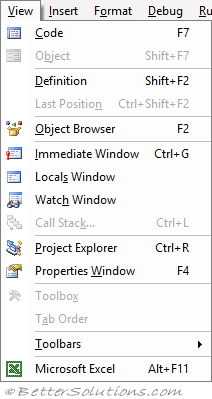 |
Code - (F7). Displays the Code Window to write, display and edit the VBA code.
Object - (Shift + F7). Displays the active item.
Definition - (Shift + F2). Displays the location in the code where the variable, subroutine or function is defined. If the definition is in a referenced library, then the Object Browser is displayed.
Last Position - (Ctrl + Shift + F2). Allows you to quickly navigate to the previous location in your code. The position will cycle through the last 8 locations.
Object Browser - (F2). Displays the Object Browser window if it is not displayed.
Immediate Window - (Ctrl + G). Displays the Immediate window if it is not displayed.
Locals Window - Displays the Locals window if it is not displayed.
Watch Window - Displays the Watch window if it is not displayed.
Call Stack - (Ctrl + L). Displays the Call Stack dialog box. This is only available when you are stepping through code.
Project Explorer - (Ctrl + R). Displays the Project Explorer window if it is not displayed.
Properties Window - (F4). Displays the Properties window if it is not displayed.
Toolbox - Displays the Toolbox floating windows when you have a Userform selected.
Tab Order - Displays the Tab Order dialog box when you have a Userform selected. Lets you change the order in which the controls are activated.
Toolbars - This menu contains the checkboxes: Debug, Edit, Standard, Userform, Customize.
Microsoft Excel - (Alt + F11). Toggles the view between the Microsoft Excel application window and the VBA editor.
Insert
This menu contains commands for inserting subroutines, functions and different types of modules.
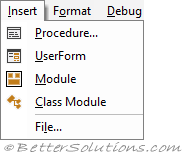 |
Procedure - Displays the Add Procedure dialog box. Lets you insert a new subroutine, function, or property procedure into the active module.
Userform - Inserts a Userform into the active project.
Module - Inserts a new standard Code Module into the active project.
Class Module - Inserts a new Class Module into the active project.
File - Displays the Insert File dialog box. Lets you insert the codes of a text file into the code window.
Format
This menu contains commands for designing and arranging controls on a UserForm.
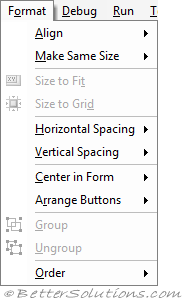 |
Align - Displays a submenu of commands for aligning multiple UserForm controls. This menu contains the commands: Lefts, Centers, Rights, Tops, Middles, Bottoms, to Grid. This is only available when you have a userform selected.
Make Same Size - Displays a submenu of commands for sizing multiple UserForm controls. This menu contains the commands: Width, Height, Both. This is only available when you have a userform selected.
Size to Fit - Changes the height and width of an object to fit its contents.
Size to Grid - Adjusts the height and width of the selected object to fit the nearest gridlines in the form. You can change the size of your grid on the General tab of the Options dialog box.
Horizontal Spacing - Displays a submenu of commands for adjusting the horizontal spacing between multiple UserForm controls at once. This menu contains the commands: Make Equal, Increase, Decrease, Remove.
Vertical Spacing - Displays a submenu of commands for adjusting the vertical spacing between multiple UserForm controls at once. This menu contains the commands: Make Equal, Increase, Decrease, Remove.
Center in Form - Displays a submenu of commands for centring one or more selected UserForm controls on a UserForm's central axes. This menu contains the commands: Horizontally, Vertically.
Arrange Buttons - Displays a submenu for arranging one or more selected buttons along the bottom or edge of a UserForm. This menu contains the commands: Bottom, Right.
Group - Creates a group of the selected objects which can then be moved and formatting as a single unit.
Ungroup - Ungroups the objects that were previously grouped.
Order - Displays a submenu for altering the order of a selected UserForm control. This menu contains the commands: Bring To Front, Send To Back, Bring Forward, and Send Backward.
Debug
This menu contains commands for debugging and stepping through code.
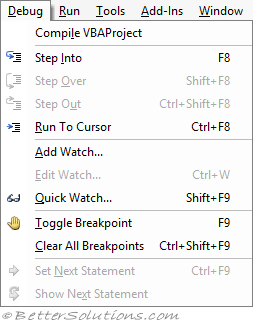 |
Compile VBAProject - Compiles your project and checks for any syntax errors.
Step Into - (F8). Executes code one statement at a time.
Step Over - (Shift + F8). Executes the next code statement. The only difference between this and 'Step Into' is when the current statement contains a call to a procedure. Only available when in break mode.
Step Out - (Ctrl + Shift + F8). Executes the remaining lines of a function in which the current execution point lies. The next statement displayed is the statement following the procedure call. All of the code is executed between the current and the final execution points. Only available when in break mode.
Run to Cursor - (Ctrl + F8). When in design mode, this selects a statement further down in your code where you want execution to stop. Your application will run from the current statement to the selected statement and the current line of execution margin indicator, Margin Indicator icon appears in the Margin Indicator bar. This is useful to avoid stepping through unnecessary code.
Add Watch - Displays the Add Watch dialog box. Lets you add watch expressions to the Watches window.
Edit Watch - (Ctrl + W). Displays the Add Watch dialog box. Lets you edit or remove watch expressions.
Quick Watch - (Shift + F9). Displays the Quick Watch dialog box. Lets you display the current value of the selected expression.
Toggle Breakpoint - (F9). Sets or removes a breakpoint at the current line. You can't set a breakpoint on lines containing comments, declaration statements, or blank lines.
Clear All Breakpoints - (Ctrl + Shift + F9). Removes all the breakpoints in the active project. Your code might still be interrupted if you have any watch expressions or have the Break on All Errors option selected.
Set Next Statement - (Ctrl + F9). Moves the execution point to a different line of code. This line of code can be before or after the currently selected statement. You can only use this within the same subroutine or function. You can also drag the Current Execution Line margin indicator to the line of code you want to execute.
Show Next Statement - Highlights the next statement that is going to be executed.
Run
This menu contains commands for testing code and displaying userforms.
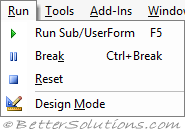 |
Run Sub/Userform - (F5). Runs the current procedure if the cursor is in a procedure or runs the form if a form is currently active. This command becomes the Continue command when you are in break mode. If a Code window or a UserForm is not active, this command becomes the Run Macro command. While you are stepping through your code this becomes the Continue command.
Break - (Ctrl + Break). Stops execution of a program while it's running and switches to break mode
Reset - Clears the Call Stack and clears the module level variables.
Design Mode - Toggles design mode. Design mode is the time during which no code from the project is running and events from the host or project will not execute. You can leave design mode by executing a macro or using the Immediate window.
Tools
This menu contains commands for accessing additional references and user options.
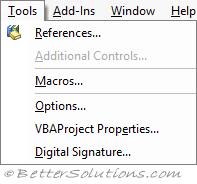 |
References - Displays the References dialog box. Allows you to select another application's objects that you want available in your code by setting a reference to that application's object library.
Additional Controls - Displays the Additional Controls dialog box where you can add controls or insertable objects (such as a Microsoft Word Document).
Macros - Displays the Macros dialog box. Allows you to run, edit, or delete the selected macro.
Options - Displays the Options dialog box.
VBAProject Properties - Displays the VBAProject dialog box.
Digital Signature - Displays the Digital Signature dialog box.
Add-ins
This menu contains commands for loading and unloading additional COM add-ins.
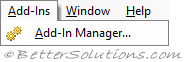 |
Add-In Manager - Displays the Add-In Manager dialog box. Lets you register, load and unload add-ins and set their load behaviour.
Window
This menu contains commands for quickly switching between all the open windows.
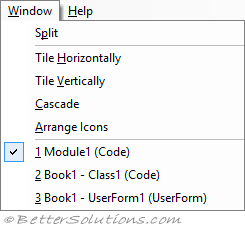 |
Split - Toggles splitting the Code window in half horizontally. Only available when the Code window is active.
Tile Horizontally - Tiles all open document windows in your project horizontally.
Tile Vertically - Tiles all open document windows in your project vertically.
Cascade - Rearranges all open document windows in your project so they overlap in a cascade.
Arrange Icons - Arranges the icons of any document windows you have minimized, neatly at the bottom left of the window.
Window List - Displays all your project's open document windows.
Help
This menu contains commands for accessing the built-in help files.
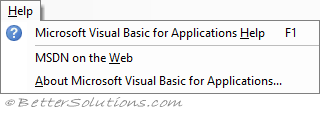 |
Microsoft Visual Basic Help - (F1). Displays the Excel Help window.
MSDN on the Web - Displays the msdn home page (learn.microsoft.com).
About Microsoft Visual Basic - Displays the About Microsoft Visual Basic dialog box.
© 2026 Better Solutions Limited. All Rights Reserved. © 2026 Better Solutions Limited TopPrevNext