Toolbars
Visual Basic Toolbar
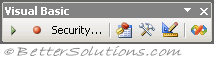 |
Macros - Displays the (Tools > Macro > Macros) dialog box allowing you to run, edit, or delete macros.
Record New Macro - Displays the (Tools > Macro > Record New Macro) dialog box allowing you to record your keystrokes.
Security - Displays the (Tools > Macro > Security) dialog box allowing you to change your security settings.
Visual Basic Editor - Opens the Visual Basic Editor where you can write macros directly using VBA code.
Control Toolbox - Provides a menu bar of controls that can be added to your worksheets.
Design Mode - Toggles between Design mode and Run mode, allowing you to resize and edit controls.
Microsoft Script Editor - Opens the Microsoft Script Editor which can be used to edit HTML and should be used when writing VBScript.
Standard Toolbar
 |
View Application - Toggles between the host application and the Visual Basic window.
Insert Userform - Defaults to a userform but also allows you to insert modules and procedures.
Save - Saves the application including all the Visual Basic components.
Cut - Removes the selected control or text and places it on the clipboard.
Copy - Copies the selected control or text and places it on the clipboard.
Paste - Inserts the contents of the clipboard at the current location.
Find - Displays the Find dialog box allowing you to search for particular text.
Undo - Reverse the last text editing action.
Redo - Restores the last text editing Undo actions.
Run - Runs the current procedure if the cursor is in a procedure. Runs a userform if a userform is currently displayed. Displays the Run dialog box otherwise ??
Break - Stops execution of a program while it is running and switches into break mode.
Reset - Clears the execution stack module level variables and resets the project.
Design Mode - Toggles design mode.
Project Explorer - Displays (or toggles) the Project Explorer window. more details
Properties Window - Displays (or toggles) the Properties window. more details
Object Browser - Displays (or toggles) the display of the Object Browser window. more details
Toolbox - Toggles the display of the toolbox that contains userform controls. This is only available when a userform is active. more details
Help - Opens the Office Assistant.
Edit Toolbar
 |
List Properties / Methods - Displays a drop-down list in the code window that contains all the properties and methods available for the object that precedes the period (.).
List Constants - Displays a drop-down list in the code window that contains all the constants that are valid choices for the property that precedes the equal sign (=).
Quick Info - Provides the syntax for a variable, method, function or procedure based on the location of your position.
Parameter Info - Displays a popup in the code window containing information about the parameters of the function in which the pointer is located.
Complete Word - Accepts the characters that the editor has automatically appended as you were typing.
Indent - Shifts all the lines (in the current block) to the next tab stop. No shortcut key by default but you could add one.
Outdent - Shifts all the lines (in the current block) to the previous tab stop. No shortcut key by default but you could add one.
Toggle Breakpoint - Toggles the insertion of a breakpoint at the current line.
Comment Block - Adds the comment character ( ' ) to the beginning of each line in the current selection.
UnComment Block - Removes the comment character ( ' ) from the beginning of each line in the current selection.
Toggle Bookmark - Toggles the insertion of a bookmark on or off for the active line.
Next Bookmark - Moves the focus to the next bookmark in the bookmark stack.
Previous Bookmark - Moves the focus to the previous bookmark in the bookmark stack.
Clear All Bookmarks - Removes all the breakpoints from the active project (or all projects ??).
Debug Toolbar
 |
Design Mode - Toggles design mode.
Run / Continue - Run switches from design time to run time. Continue switches from break mode to run time. When in break mode the name of the button changes to Continue (Ctrl + F8).
Break - Switches from run time to break mode.
Reset - Switches from break mode or run time to design time.
Toggle Breakpoint - Defines a line in a module where Visual Basic suspends execution of the application (F9).
Step Into - Runs the next executable line of code in the application and steps into procedures (F8).
Step Over - Executes the next executable line of code in the application without stepping into procedures (Shift + F8).
Step Out - Executes the remaining lines of the current procedure and breaks at the next line in the calling procedure (Ctrl + Shift + F8) - check
Locals Window - Displays the Locals window to show the values of all the local variables.
Immediate Window - Displays the Immediate window to allow you to to run code or query values while the application is in break mode (Ctrl + G).
Watch Window - Displays Watch window to show values of selected expressions.
Quick Watch - Displays the Quick Watch window to show the values of expressions and variables while the application is in break mode (Shift + F9).
Call Stack - Displays the Call Stack dialog box while in break mode that shows all procedures that have been called but not yet run to completion.
Userform Toolbar
 |
Bring to Front - Moves the currently selected objects to the front of all the other objects on the userform.
Send To Back - Moves the currently selected objects behind all the other objects on the userform.
Group - Creates a group of the selected objects.
UnGroup - Ungroups the objects that were previously grouped.
Align - Aligns all the selected objects either horizontally, vertically or to match the grid.
Center - Centres all the selected objects horizontally and/or vertically.
Make Width Same Size - Adjusts the width and/or height of all the selected objects.
Zoom - Reduces or enlarges the display of all control on the userform. The zoom can be between 10 and 4000.
© 2026 Better Solutions Limited. All Rights Reserved. © 2026 Better Solutions Limited TopPrevNext