Options
 |
Editor Tab
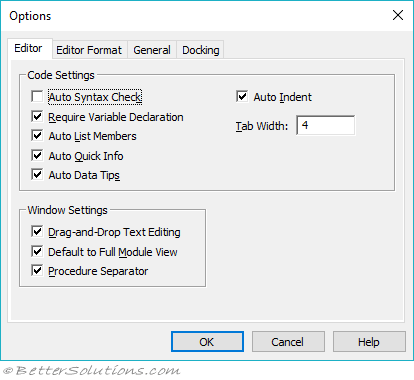
This tab controls the Code window and Project Explorer settings.
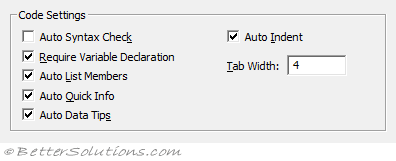 |
Auto Syntax Checker - Determines whether Visual Basic should automatically verify correct syntax after you enter a line of code. This is useful when you are learning VBA initially although once you are familiar with the syntax and you are editing lots of code you may want to switch this off. When this is unchecked, the line is displayed in a different colour (red by default) to indicate a syntax error. For more details, please refer to the Syntax > Auto Syntax Check page. This is ticked by default.
Require Variable Declaration - This should definitely be checked as it prevents incorrect variables from being defined in your code. Selecting this check box will automatically add the statement Option Explicit to any new modules (not existing ones). When this statement is used you must explicitly declare all your variables before using them. This is not ticked by default.
Auto List Members - This should definitely be checked as it will assist you in finding the correct properties and methods for any objects. You can insert the relevant property or method by selecting then by pressing Tab. This is a feature of Intellisense. This is ticked by default.
Auto Quick Info - This should definitely be checked as it displays information about functions and their corresponding parameters. This is a feature of Intellisense. This is ticked by default.
Auto Data Tips - This should definitely be checked as it displays the value of a variable or expression when you hover over with the cursor. This is only available in Break Mode when you Step Through Code. This is ticked by default.
Auto Indent - Repeats the indent of the preceding line when you press Enter - all subsequent lines will start at the indent. You can press Backspace to remove automatic indents. You should use the Tab key to indent your code (not the spacebar). You can then also use (Shift + Tab) to remove an indent. For more information on indenting, please refer to the Syntax page. This is ticked by default.
Tab Width - Defines the number of characters that are passed over by a tab. This can range from 1 to 32 characters (the default is 4). Remember to always use the Tab key and not the spacebar. You can also use (Shift + Tab) to un-indent lines of code. Indenting your code makes it easier to read. Changing this option can cause problems when code is read or edited on different machines. The default is 4.
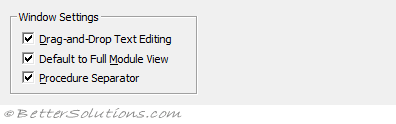 |
Drag & Drop Text Editing - Allows you to drag and drop selections of text from the Code Window into the Immediate & Watch Windows. This is ticked by default.
Default in Full Module View - This decides if you only see one procedure at a time or all the procedures, as a single scrollable list in any new modules (not existing ones). When this option is switched off you will only see one procedure at a time. This is ticked by default.
Procedure Separator - Allows you to display or hide separator bars that appear at the end of each procedure in the Code Window. This is ticked by default.
Editor Format Tab
This tab controls how your code will look in the Code window.
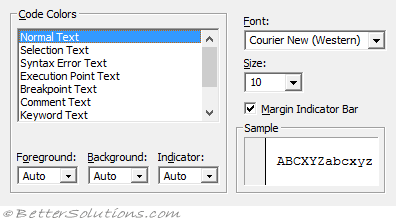 |
All these options allow you to control the text colour and background colours for various items in your Code Window.
Most people do not change these options.
Colour Code - It is possible to customise the formatting for all these items: Normal Text, Selection Text, Syntax Error Text, Execution Point Text, BreakPoint Text, Comment Text, Keyword Text, Identifier Text, Bookmark Text, Call Return Text. more details
Foreground - This is the colour that specifies the Text colour.
Background - This is the colour that specifies the Background colour of the text.
Indicator - This is the colour of the margin indicator that will appear next to that particular item.
Font - The font used to display your code. The default font is Courier New (Western). To make your code easy to read you should always use a fixed-width font, (ie all characters have the same width).
Size - The font size used to display your code. The default font size is 10.
Margin Indicator Bar - This is the margin that appears on the left of your code module. This option lets you toggle whether the margin indicator bar is visible or not.
General Tab
This tab controls debugging and error handling settings.
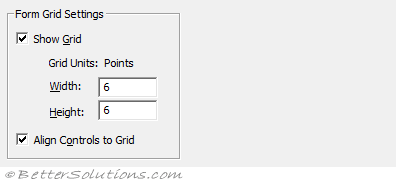 |
Show Grid - Determines whether to display a grid on a userform. This can be useful as it can help you to align controls. This is ticked by default.
Width - The width of the grid cells from 2 to 60 points. The default is 6.
Height - The height of the grid cells from 2 to 60 points. The default is 6.
Align Controls to Grid - Automatically positions the outer edges of controls on grid lines.
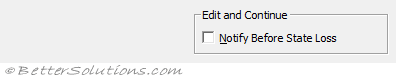 |
Notify Before State Loss - Determines whether you will receive a message notifying you that an action will cause the all module level variables to be reset before running a project. This is not ticked by default.
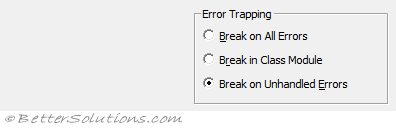 |
Break on All Errors - If checked any error causes the project to enter break mode, whether or not an error handler is active and whether or not the code is in a class module. This can be useful when you are debugging. This is not ticked by default.
Break in Class Module - Any unhandled error produced in a class module causes the project to enter break mode at the line of code in the class module which produced the error. This is not ticked by default.
Break on Unhandled Errors - (Default) If an error handler is active, the error is trapped without entering break mode. If there is no active error handler, the error causes the project to enter break mode. An unhandled error in a class module, however, causes the project to enter break mode on the line of code that invoked the offending procedure of the class. This is ticked by default.
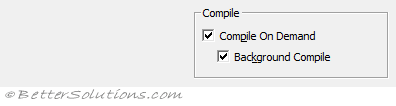 |
Compile on Demand - Determines whether code is compiled when it is needed, allowing the application to start sooner or whether a project is fully compiled before it starts. This is ticked by default.
When this is ticked, only code that is trying to run will be compiled. There can be syntax errors in code that is not trying to run.
When this is not ticked, the entire project is compiled so if there is any code in the project that doesn't compile you will see an error immediately.
Background Compile - Determines whether idle time is used during run time to finish compiling the project in the background. Background Compile can improve run time execution speed. This feature is not available unless Compile on Demand is also selected. This is ticked by default.
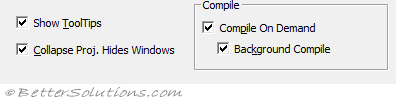 |
Show ToolTips - Whether to display tooltips for the toolbar buttons in the Visual Basic Editor. This is ticked by default.
Collapse Proj. Hides Windows - Determines whether the project, userform, object or module windows are closed automatically when a project is collapsed in the Project Explorer window. This is ticked by default.
Docking Tab
This tab controls which of the windows are dockable and which are floating.
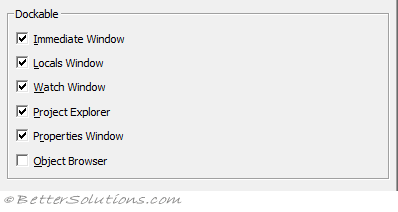 |
When a window is dockable it can be anchored to one of the sides of the Visual Basic Editor.
Whenever you move a dockable window a rectangle will appear to show you where it will be docked if released from the current position.
These are global settings used across Excel, Word, PowerPoint, Access and Outlook.
Immediate Window - This is ticked by default. more details
Locals Window - This is ticked by default. more details
Watch Window - This is ticked by default. more details
Project Explorer - This is ticked by default. more details
Properties Window - This is ticked by default. more details
Object Browser - This is not ticked by default. more details
© 2026 Better Solutions Limited. All Rights Reserved. © 2026 Better Solutions Limited TopPrevNext