Add-in with C#

To create a VBE add-in for the Visual Basic Editor you can use C#.
Create a [[COM Add-in]] that implements the IDTExtensibility2 interface.


Creating

Open Visual Studio 2022 as Administrator.
New Project, Visual C#, Windows Desktop, Class Library (.NET Framework).
Change the Name to "VBACOMAddin".
Change the Location to somewhere on your C drive.
Check the .NET Framework version is correct and press OK.
Rename the Class1.cs file to MyConnect.cs.
Add four references to this project, (Project > Add Reference).
(1) Assemblies, Extensions: Microsoft.Vbe.Interop
(2) Assemblies, Framework: "System.Windows.Forms"
(3) COM, Type Libraries: "Microsoft Office 16.0 Object Library".
(4) COM: "Microsoft Visual Basic for Applications Extensibility 5.3" (VBIDE)
(5) : Microsoft Add-in Designer (Extensibility)
Remove the default class.
Add the following class underneath the interface in the MyConnect.cs file.

namespace VBACOMAddin1 
{
    [System.Runtime.InteropServices.ProgId("VBEAddin.MyConnect")]
    [System.Runtime.InteropServices.Guid("0B58C36E-DE4E-4C40-8ED2-960437BFB7B1")]
    [System.Runtime.InteropServices.ClassInterface(System.Runtime.InteropServices.ClassInterfaceType.None)]
    [System.Runtime.InteropServices.ComVisible(true)]
    [System.Runtime.InteropServices.ComDefaultInterface(typeof(Extensibility.IDTExtensibility2))]
    public class MyConnect
    {
        public Microsoft.Vbe.Interop.VBE _ApplicationObject;
        public Microsoft.Office.Core.COMAddIn _AddinInstance;

        public void OnConnection(
            object Application,
            Extensibility.ext_ConnectMode ConnectMode,
            object AddInInst,
            ref System.Array custom)
        {
            this._AddinInstance = (Microsoft.Vbe.Interop.VBE)Application;

            var wordApp = Application as Microsoft.Office.Interop.Word.Application;
            this._AddinInstance = wordApp?.VBE;

            if (this._AddinInstance == null)
            {
                this._AddinInstance = (Microsoft.Office.Core.COMAddIn)AddInInst;
                this._AddinInstance.Object = this;
            }

            System.Windows.Forms.MessageBox.Show("onConnection");

            AddMenuButton();

            System.Windows.Forms.MessageBox.Show("Menu Button added");

        }
        public void OnDisconnection(
            Extensibility.ext_DisconnectMode RemoveMode,
            ref System.Array custom)
        {

            this._AddinInstance = null;
        }
        public void OnAddInsUpdate(ref System.Array custom)
        { }
        public void OnStartupComplete(ref System.Array custom)
        { }
        public void OnBeginShutdown(ref System.Array custom)
        { }

        private void AddMenuButton()
        {
            Microsoft.Office.Core.CommandBarButton button;

            Microsoft.Office.Core.CommandBars bars =
              (Microsoft.Office.Core.CommandBars)_VBEInstance.CommandBars;

            Microsoft.Office.Core.CommandBar menuBar = bars["Menu Bar"];
            Microsoft.Office.Core.CommandBarControl toolsMenu = menuBar.Controls["Tools"];

            var popup = (Microsoft.Office.Core.CommandBarPopup)toolsMenu;

            button = (Microsoft.Office.Core.CommandBarButton)popup.Controls.Add(
                Microsoft.Office.Core.MsoControlType.msoControlButton,
                Temporary: true);

            button.Caption = "My VBE Add-in Action";
            button.Tag = "MyVbeAddinButton";
            button.Style = Microsoft.Office.Core.MsoButtonStyle.msoButtonCaption;

            button.Click +=
               new Microsoft.Office.Core._CommandBarButtonEvents_ClickEventHandler(Button_Click);
        }

        private void Button_Click(Microsoft.Office.Core.CommandBarButton ctrl,
                                  ref bool cancelDefault)
        {
            System.Windows.Forms.MessageBox.Show(
                "Button clicked inside the VBE.",
                "VBE Add-in");
        }
    }
}

Make sure the Guid Id is replaced using (Tools > Create GUID).
Select Build > Build Solution).
At this point no registry entries are added to the registry.
Select (Project > Properties).
Display the Build tab.
Tick the "Register for COM Interop" checkbox (requires admin rights).
Close the Properties window.
Select (Build > Build Solution).
When the solution is built a "TLB" file appears in the "\bin\Debug\" folder.
When the solution is built the RegAsm tool automatically runs.
The RegAsm tool adds the necessary class and interface information to the registry.

C:\Windows\Microsoft.NET\Framework\v4.0.30319\ RegAsm /codebase VBACOMAddin.dll 

Registry Keys - COM Add-in

Microsoft Office COM add-ins are identified by reading from the registry.
You can view the registry by going to the Windows start menu, choosing Run, typing regedit and pressing OK.
There must be a key representing the COM Add-in under the Addins key:
64 Bit Office - HKEY_CURRENT_USER\Software\Microsoft\VBA\VBE\7.1\Addins64\
32 Bit Office - HKEY_CURRENT_USER\Software\Microsoft\VBA\VBE\7.1\Addins\


HKEY_CURRENT_USER\Software\Microsoft\VBA\VBE\6.0\Addins\VBACOMAddin.MyConnect 
HKEY_CURRENT_USER\Software\Microsoft\VBA\VBE\7.1\Addins\VBACOMAddin.MyConnect
(String)(Default) - (value not set)
(String) Description - VBA COM Addin
(String) FriendlyName - VBACOMAddin
(DWord) LoadBehavior - 3

Description - A brief description of the add-in.
FriendlyName - A user friendly name that is displayed in the COM add-ins dialog box.
Load Behavior - The load behaviour of the add-in.


Manually run the registry


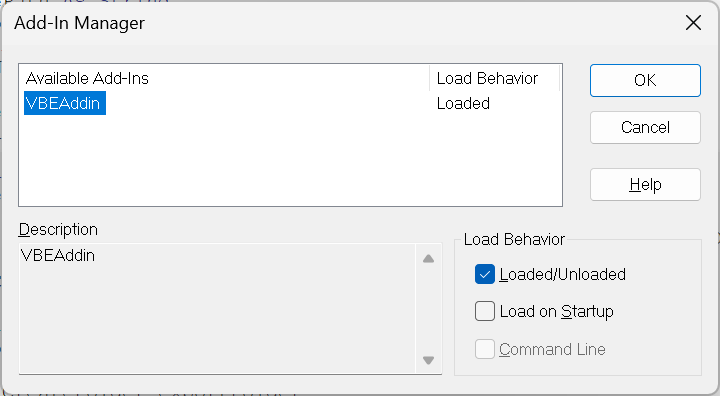
Visual Basic Editor

(Tools > Addin Manager)

© 2026 Better Solutions Limited. All Rights Reserved. © 2026 Better Solutions Limited TopPrevNext