Document Level
Also sometimes referred to as Code Behind.
This functionality is only available for Excel and Word.
Consists of a single assembly associated with a single workbook, document or template.
The code is inside an assembly that is then linked to the particular office file.
The assembly is loaded when the associated document is opened.
Important Facts
All projects are created in the following folder by default: My Documents > Visual Studio XX > Projects
Does not require a registry entry
Full trust is not granted automatically when creating 2003 documents on your development PC.
The link between the two can be found in the Custom properties for that workbook.
To deploy and run a Microsoft Office solution you must grant full trust to the assembly in the security policy of each end user or cimputer.
The workbook or document must be loaded into a trusted location
A fully qualified document path must be added to the list of trusted locations in Office when a document level solutions are stored on a network drive or server.
Creating Document Level Solutions
The very first time you create a VSTO project for Excel or Word the following prompt will appear telling you that the project must have access to the Visual Basic for Applications project
SS
You must click OK to create the VSTO project.
VSTO does not actually use Visual Basic for Applications but it requires access to the VBA Project in order to support controls on the document.
Every host item and host control has a field called Tag
This Tag field has been designed for developers to store data associated with a particular control
Developer Tab - Macros and Controls groups are not displayed inside the VS Editor
What happens when you close the designer - "Excel designer cannot be activated"
Could try - regsvr32 c:\windows\system32\urlmon.dll
Could try - reinstalling Visual Studio Tools for Office Runtime-SE (vstor.exe)
msdn2.microsoft.com/en-us/library/ms178739.aspx
social.msdn.microsoft.com/Forums/en-US/vsto/thread/e4f5d62d-411d-47a6-a616-89cdb96e1f7a/
social.msdn.microsoft.com/Forums/en-US/vsto/thread/19d0aade-c576-4ac9-89a1-94bb16500fd0/
Deployment to a shared folder:
Running the setup.exe wil automatically prompt and install :
1) .NET Framework 3.5
2) Visual Studio Tools for Office Runtime 3.0
(then then require a reboot)
Folder Path not a Microsoft Office trusted location
Running a solution from a folder which is different to the debug folder where the project was built from.
customization does not have permissions required to create an application domain
The setup project takes care of everything except document security. If a document is opened from a location other than the local hard disk then it needs to be in the Office Trusted Folder list.
When trying to create a new workbook and link it to an existing Assembly
Add the 2 document properties
Add the button control onto the worksheet
Adding Customisation to an Existing File
You can attach a VSTO solution assembly to an existing 2007 Excel or Word document.
If you attach a solution assembly to a document that is not already associated with a VSTO customisation then the VSTO runtime will automatically create a Runtime Storage Control in the document.
You can attach a VSTO assembly to an uncustomised file in two ways:
1) manually add the two document properties. Add a value of asterisk to the _AssemblyName. Add the location of the deployment manifest to the _AssemblyLocation, save, close and reopen the file. This works in 2007.
2) Using the ServerDocument class using the AddCustomisation method.
Deploying
The default behaviour is to have the assembly in the same directory as the office file.
Creating
Open Visual Studio
(File > New Project)
Select Visual Basic Projects
Select the Office Category
Select Excel Workbook
Notice how it creates the ThisWorkbook and Globals classes
Globals -
ThisApplication -
ThisWorkbook -
In these added modules you cannot reference the ThisWorkbook object directly.
You will need to declare a variable in your Globals class.
Soluton Folder
This contains two elements
Another folder -
a .sln file for your solution
A second folder holds three subfolders
bin - includes the .xls and a .dll
my project - has all the files you see in the Solution Explorer
obj - stores a debug section and a release section
If you want to re-open the solution to work on it you can double click the Project file (.vbproj)
It is usually better though to open the solution (since a solution can contain more than one project)
Creating New Workbooks
You can interact with the Excel application at design time directly from within Visual Studio.
This is because VSTO is integrated with Visual Studio.
 |
Solution Files
The solution contains at least two source files
AssemblyInfo.vb - which stores all the assembly level meta-data
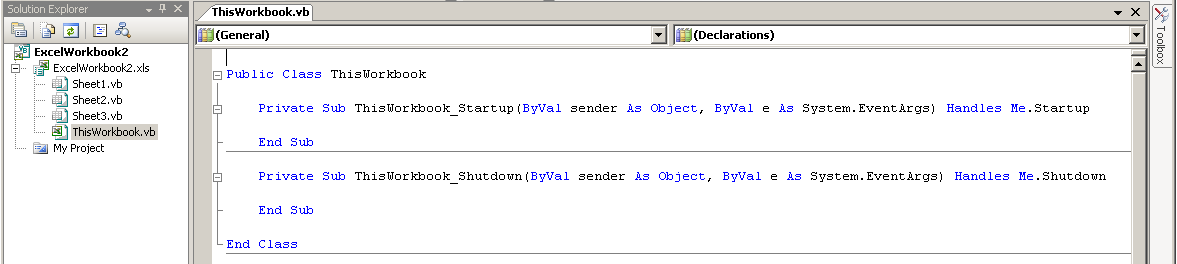
ThisWorkbook.vb - containing a single class. contains important events such as Startup and Shutdown.
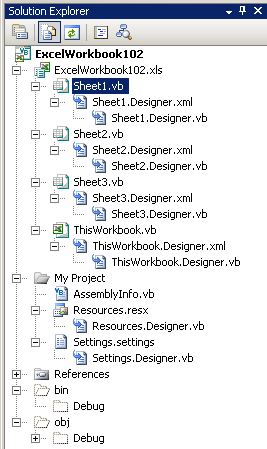 |
One way to view the new objects is to look at the ClassDiagram.cd file
You need to the Globals class when you want to refer to ThisWorkbook from "outside" the ThisWorkbook.vb file.
 |
Replacing a Workbook
When you create a document level Excel solution an Excel workbook (.xls) is created in the main project directory.
This is the workbook that is displayed in the Visual Studio Designer.
It is this workbook that is distributed when the solution is installed.
It is this workbook that is loaded when you are debugging.
If you need/want to update this workbook you can by following these steps:
1) Get the new workbook
2) Remove the customisations from this new workbook either manually or programmatically using the RemoveCustomisation methods provided by the VSTO Runtime
3) Make sure the project is closed
4) Replace the current workbook with this new one.
Which method you use depends on whether you want to do it at runtime or from a file on server that doesn't have Office installed.
Application Manifest
This is embedded into the Excel file.
Removing VSTO assembly from 2007 customisations
You can programmatically remove the VSTO customisation assembly from a document or workbook that is part of a 2007 document-level solution.
This can be achieved by using one of the RemoveCustomisation methods provided by the VSTO runtime.
== there is a article on MSDN for this
Workbook.RemoveCustomisation()
ServerDocument.RemoveCustomisation("C:\temp\name.xlsx")
Permissions
You will want to set the user's security policy so that the solution is fully trusted.
Right click the solution and add a CustomSetup project
Select Properties and change the output type to a Class Library.
(Add > New Item > Installer Class)
Adding Custom Actions
Imports System.Collections
Imports System.ComponentModel
Imports System.Configuration.Install
Imports System.Security
Imports System.Security.Policy
Imports Microsoft.VisualStudio.Tools.Applications.Runtime

Public Class SecurityInstaller
  Inherits Installer

  Public Sub New()
    MyBase.New()

    'This call is required by the Component Designer.
    InitializeComponent()
  End Sub

  Public Overrides Sub Install( _
    ByVal stateSaver As System.Collections.IDictionary)

    Dim enterprisePolicyLevel As PolicyLevel
    Dim machinePolicyLevel As PolicyLevel
    Dim userPolicyLevel As PolicyLevel
    Dim assemblyGroup As CodeGroup
    Dim assemblyCondition As UrlMembershipCondition
    Dim policyStatement As PolicyStatement
    Dim fullTrust As PermissionSet
    Dim assemblyPath As String = Me.Context.Parameters("custassembly")

    ' Obtain the three policy levels:
    Dim policyEnumerator As IEnumerator
    policyEnumerator = SecurityManager.PolicyHierarchy()

    policyEnumerator.MoveNext()
    enterprisePolicyLevel = CType(policyEnumerator.Current, PolicyLevel)

    policyEnumerator.MoveNext()
    machinePolicyLevel = CType(policyEnumerator.Current, PolicyLevel)

    policyEnumerator.MoveNext()
    userPolicyLevel = CType(policyEnumerator.Current, PolicyLevel)

    ' Create a new group by combining a permission set with a
    ' membership condition:
    fullTrust = userPolicyLevel.GetNamedPermissionSet("FullTrust")
    policyStatement = New PolicyStatement(fullTrust, PolicyStatementAttribute.Nothing)
    assemblyCondition = New UrlMembershipCondition(assemblyPath)
    assemblyGroup = New UnionCodeGroup(assemblyCondition, policyStatement)

    ' Add the new policy to the root:
    userPolicyLevel.RootCodeGroup.AddChild(assemblyGroup)
    SecurityManager.SavePolicy()

    MyBase.Install(stateSaver)
  End Sub

End Class
Rolling Back
How to role back a document level customisation deployed with publish wizard
Open the installation location of the solution
Delete the current deployment manifest (.vsto)
Open the application files directory and open the folder of the version you want to role back to
Copy the deployment manifest (.vsto) file from this folder and paste it in the installation folder
The next time the solution is opened it will check for updates/changes and the earlier version will be used.
Important
For example the hidden classes behind Document VSTO solutions use partial classes as a way of seperating the auto-generated code from the code you write.
The value of a custom document property can only contain 255 characters. If the entry needs to be longer than 255 characters the create another property called _AssemblyLocation0. Set this value to the first 255 characters and then create another property called _AssemblyLocation1 for the remaining characters.
Creating New Workbook - Visual Studio 2008
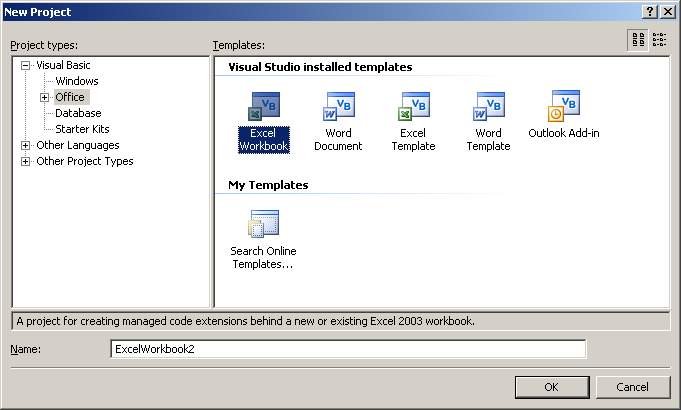
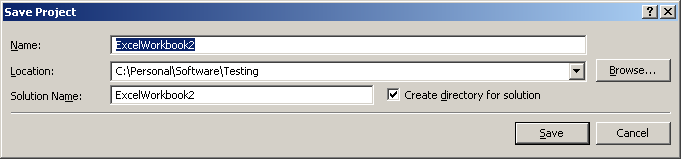
(File > New Project). Select Visual Basic Projects. Select Office
Select Excel Workbook and provide a name for this project. The name defaults to ExcelWorkbook. Press OK
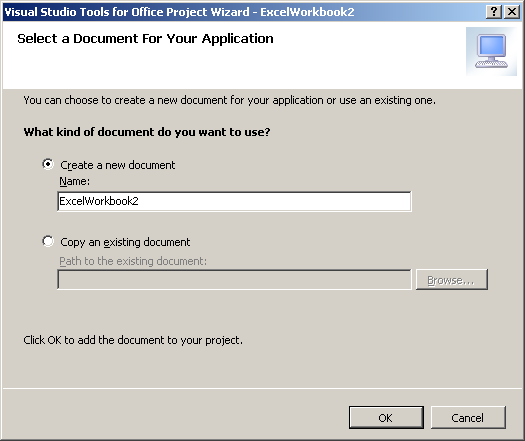
This lets you choose between creating a new workbook or attaching the new assembly to an existing workbook.
 |
 |
Only one assembly can be associated with any one office file
This lets you choose between creating a new workbook or attaching the new assembly to an existing workbook.
Once the application level document has been created you can display the workbook either by double clicking on one of the Sheet.vb files
Creating Excel Workbook
Open Visual Studio and Select (File > New > Project).
Select (Templates / Visual C# / Office / SharePoint / Office Add-ins / Excel 2013 Workbook).
Change the Name to something more descriptive, for example "ExcelWorkbookTutorial"
Change the Location to somewhere on your C drive.
You will only see these templates if the corresponding Microsoft Office versions are installed.
Also make sure that you choose the correct version of the .NET Framework (at the top).
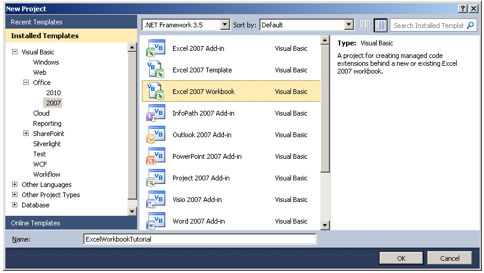 |
Press OK.
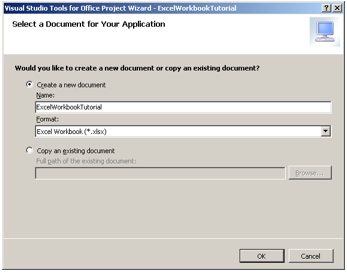 |
Press OK.
A progress bar will appear while the project is created.
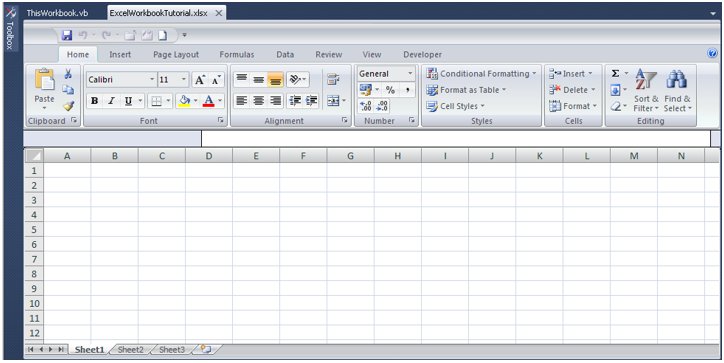
Excel will open inside Visual Studio.
If this does not work then make sure that the "Visual Studio Tools for Office Design-Time Adaptor for Excel" add-in is loaded.
SS
Select (Debug > Start Debugging).
This will launch an instance of Excel with the ExcelWorkbookTutorial.xlsx workbook open.
Close this instance of Excel by pressing the Close button in the top right corner.
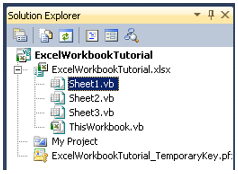
On the right hand side you will see the Solution Explorer task pane. This is the most important task pane in Visual Studio because it shows you the files that are included (and the hierarchy of these files) in the current solution.
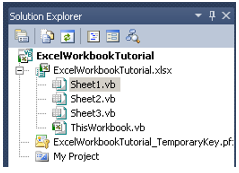 |
You will see the name of the project at the very top (in bold) and the individual files listed below. This is similar to what you would see when writing VBA code in the Visual Basic Editor, Project Explorer.
Select (File > Close Solution).
Select (File > Open > Project / Solution)
Browse to the location where you created the project.
In this example it is C:\Visual Studio 2013\Projects\ExcelWorkbookTutorial\.
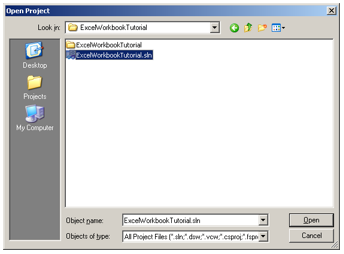 |
Inside this folder you will see a (.sln) file and another sub folder.
This subfolder contains all the files relating to this project.
Although the file extension of this file is ".sln" this remains a project and not a solution.
Highlight the ExcelWorkbookTutorial.sln file and press Open.
This should open your project and you should see the Excel window within Visual Studio. If this does not appear, then double click on the Sheet1.vb icon.
 |
 |
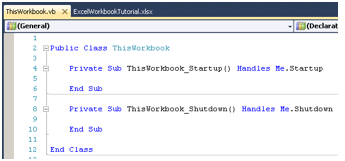
We are now ready to add some code. Right click on the ThisWorkbook.vb file and choose View Code.
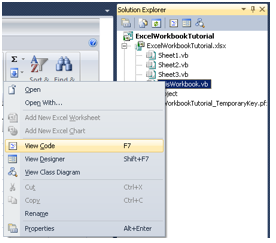 |
This will display the Code Window and will display the following two events:
 |
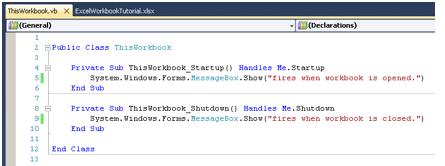
Add the following code:
 |
Save the project by selecting (File > Save All).
Select (Debug > Start Debugging).
When you build a VSTO solution the code is compiled, the necessary assemblies are created and the project is output to the \bin directory.
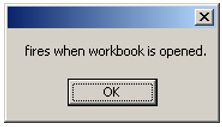
This should launch an instance of Excel with the ExcelWorkbookTutorial.xlsx workbook open and you should see the following message:
 |
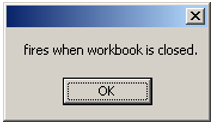
Close this workbook by pressing the Close button in the top right corner.
You should see the following message
 |
Select (File > Open) and browse to the following folder to reopen the file:
C:\Visual Studio\ExcelWorkbookTutorial\ExcelWorkbookTutorial\bin\Debug\ExcelWorkbookTutorial.xlsx
You should see the "fires when open" message
Close this session of Excel by selecting (File > Exit Excel)
You should see the "fires when closed" message
Building
When you build a VSTO solution the code is compiled, the necessary assemblies are created and the project is output to the \bin directory.
There are 3 files created:
ExcelWorkbook.dll - Assembly associated with this project. This file has the application manifest embedded inside it.
ExcelWorkbook.pdb - Program Database file which stores information needed to debug yout assembly.
ExcelWorkbook.xls - The project file in this case a copy of the workbook.
Whenever you build a VSTO project the /bin directory is automatically granted with full trust.
Open Windows Explorer and browse to the following folder
C:\Visual Studio\ExcelWorkbookTutorial\ExcelWorkbookTutorial\bin\Debug \
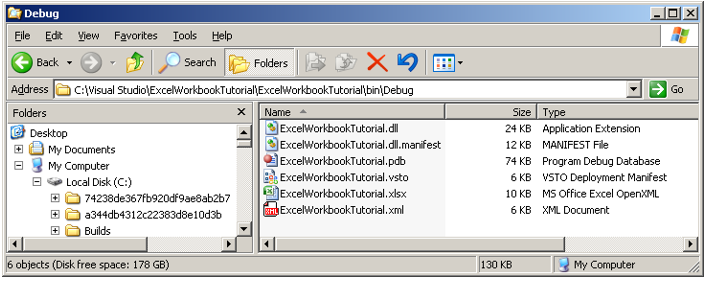 |
ExcelWorkbookTutorial.xlsx - This is the workbook which you want to link the code to
ExcelWorkbookTutorial.vsto - This is the deployment manifest and contains version information and the location of the application manifest
ExcelWorkbookTutorial.dll.manifest - This is the application manifest and contains all the necessary information required to install and run the assembly file
The following two files do not need to be deployed
ExcelWorkbookTutorial.dll - This is the assembly for the project which is the file that actually contains your code
ExcelWorkbookTutorial.pdb - This is the program database file (or symbol file) which maps the identifiers in your source code to those in the compiled executable. This file is often required for debugging purposes.
ExcelWorkbookTutorial.xml -
If you want the code files saved in a different location to the workbook then we need to make a small change to the workbook file properties.
File Custom Properties
Remember that the code is not saved in the Office file but is saved in a separate dll file.
There is a reference to this code file in the file properties.
Double click on the ExcelWorkbookTutorial.xlsx file to open it and press OK on the message.
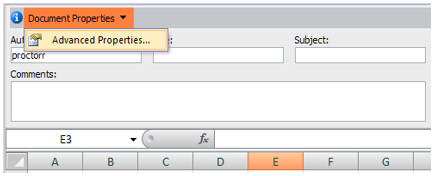
Select (File > Prepare > Properties)
Choose Document Properties drop-down in the top left and select Advanced Properties
 |
Select the Custom tab
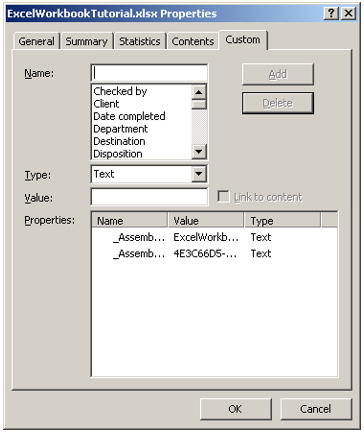 |
There are two custom properties that have been added to this workbook:
_AssemblyLocation - ExcelWorkbookTutorial.vsto|db7898a4-4611-49e1-b0a0-5d90cfcf03d8|vstolocal
This contains the name and the folder location of the Visual Studio Deployment Manifest file combined with the Global Unique Identifier (GUID) that identifiers your particular assembly.
The vstolocal term indicates that the assmebly will be loaded from the same folder as the workbook
If the solution has been published (to a website, UNC etc) then this property will have a slightly different format (file://deployserver/MyShare/ExcelWorkbookTutorial.vsto| db7898a4-4611-49e1-b0a0-5d90cfcf03d8
_AssemblyName - 4E3C66D5-58D4-491E-A7D4-64AF99AF6E8B
This contains the CLSID that refers to the entry point interface in the VSTO Loader. This should not be changed.
When someone opens an Office file the Microsoft Office application checks to see of these custom document properties exist. If they do then the application loads the Visual Studio Tools for Office runtime and loads the corresponding manifests and assemblies.
Deploying
To deploy and run a Microsoft Office solution you must grant full trust to the assembly in the security policy of each end user or cimputer.
How to Deploy your document level solution
There are several ways you can deploy your solution:
1) Deploying to a Shared Folder manually
2) Deploying to a Shared Folder using the Publish Wizard
3) Deploying to a SharePoint server
Deploying to a Shared Folder manually
You can manually deploy your solutions to a shared network
1) Copy the solution files from the build output folder to a shared folder on the network.
2) Open the solution file and change the deployment manifest manually.
(Office > Prepare > Properties)(Document Properties and click Advanced Properties)
On the Custom tab, select "_AssemblyLocation"
In the Value box there is a deployment manifest identifier. At the beginning of this identifier type the fully qualified path of the deployment manifest followed by a bar (path|identifier).
For example ( \\servername\foldername\filename.vsto|15554545-g754-45ff-dfd444554 )
Click OK and save the document.
Deploying to a Shared Folder using the Publish Wizard
Using the Publish Wizard to deploy your solution will do the following for your automatically:
1) Deploy the solution to a shared folder on the network.
2) Update the deployment manifest path inside the document.
Deploying to a SharePoint server
You can use SharePoint to deploy your document-level solutions to end users.
When users go to the SharePoint site and open a document, the runtime automatically starts to install the solution from a shared network folder.
The customisation will continue to work even if the document is copied elsewhere (for example the desktop)
1) Deploy the solution to a shared folder on the network (can it be on the sharepoint server ??)
2) Upload the document to a SharePoint document library and add the appropriate locations to the Microsoft Office trusted locations list in the Trust Center.
Deploying - Manual Copy
The quickest and simplest way to deploy your workbook is to copy it to a shared network drive. In this example we are going to use our C drive but the steps are the same for a shared network drive.
First Save and close Visual Studio we don't need this any more.
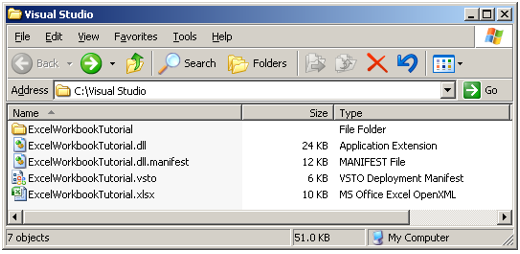
You will need to copy 4 files from the following folder.
C:\Visual Studio\ExcelWorkbookTutorial\ExcelWorkbookTutorial\bin\Debug \
● ExcelWorkbookTutorial.xlsx
● ExcelWorkbookTutorial.vsto
● ExcelWorkbookTutorial.dll.manifest
● ExcelWorkbookTutorial.dll
Paste these four files into the C:\Visual Studio\ folder:
 |
Double click on the ExcelWorkbookTutorial.xlsx file to open it.
You should see the message when the workbook is opened and then again when the workbook is closed.
Copying the files in this way will work if you want the workbook and all the code files in the same folder.
Deploying - Manual Copy Different Folder
If you want the code files saved in a different location to the workbook then we need to add the folder path to the _AssemblyLocation property.
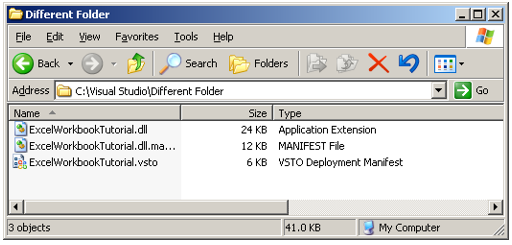
Lets start by moving our code files to a different folder, in this case it's a subfolder.
Create the following subfolder. C:\Visual Studio \Different Folder
Move the 3 code files into this subfolder
 |
Go back to the C:\Visual Studio folder and now double click on the ExcelWorkbookTutorial.xlsx file to open it.
You will see the following message
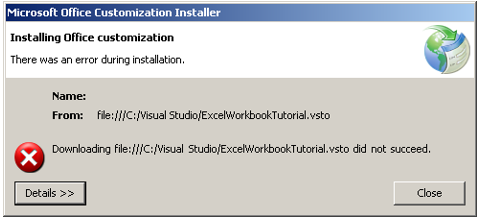 |
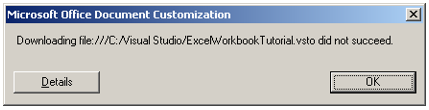
Press Close
You will then see the following message
 |
Select (File > Prepare > Properties)
Choose Document Properties drop-down in the top left and select Advanced Properties
Select the _AssemblyLocation custom property
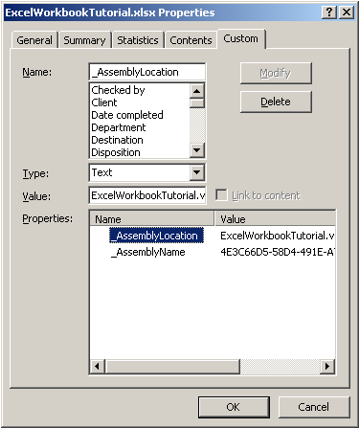 |
Change this value to the following and press Modify
_AssemblyLocation - C:\Visual Studio\Different Folder\ExcelWorkbookTutorial.vsto|db7898a4-4611-49e1-b0a0-5d90cfcf03d8|vstolocal
Save the workbook and close it
Reopen the workbook. You will see that the messages appear again.
Deploying - Publish
Instead of copying the files manually
Multiple Instances
The great advantage that a VSTO document-level solution has over a VBA solution is that you can have multiple workbooks all using and referring to the same code.
Lets create another workbook and lets link the code that we have to this workbook.
Reopen Excel and select New Blank Workbook
Save this workbook as C:\Temp\ MultipleInstances.xlsx
Select (File > Prepare > Properties)
Choose Document Properties drop-down in the top left and select Advanced Properties
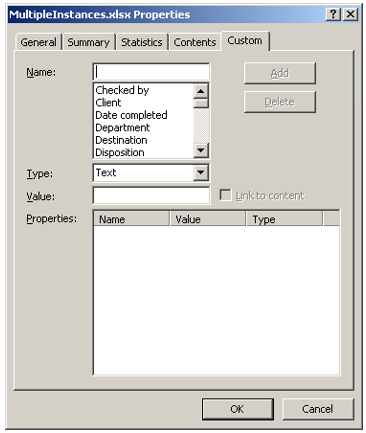 |
Create the following two custom document properties and save the corresponding values
_AssemblyName - (as Text) 4E3C66D5-58D4-491E-A7D4-64AF99AF6E8B
_AssemblyLocation - (as Text) C:\Visual Studio\Different Folder\ExcelWorkbookTutorial.vsto|db7898a4-4611-49e1-b0a0-5d90cfcf03d8|vstolocal
Save the workbook and close
Reopen the workbook. You will see that the messages appear again.
Custom Document Properties
When a document is part of a document-level customisation, VSTO gives the document two custom document properties.
When a document is opened, Microsoft Office checks for the two document properties and when they exist instructs the VSTO runtime to run the corresponding customisation.
The exact values of these properties depends on the version of Office the solution has been designed for.
Office 2013
A VSTO enabled file has two custom document properties
_AssemblyName - If the value is an asterisk (*) it means this file has a VSTO assembly associated with it
_AssemblyLocation - Stores the global unique identifier (GUID) of the runtime storage control. This contains the application manifest and information on where to find the corresponding assembly.
Office 2010
Office 2007
_AssemblyName - Contains the CLSID of an interface in the VSTO Loader.
This value should always be: 4E3C66D5-58D4-491E-A7D4-64AF99AF6E8B
_AssemblyLocation - Contains the file://[location]|[GUID]. The GUID is often referred to as the Solution ID.
Contains the string that provides details about the corresponding assembly or deployment manifest.
This value can contain different formst, depending on how the solution is deployed.
If the solution has been installed from a website, UNC path, USB or CD drive then it has the following format:
file://server/myshare/ExcelWorkbook.vsto | GUID
If the solution is running (or being debugged) from Visual Studio then it has the following format:
DeploymentManifestName | SolutionID | VSTOLocal
The SolutionID is the GUID that the VSTO runtime uses to identify the solution and is automatically generated when you build the project.
The Vstolocal tells the Runtime to load the assembly in the same folder as the document.
C# Calling VBA
link - learn.microsoft.com/en-us/visualstudio/vsto/combining-vba-and-document-level-customizations
link - learn.microsoft.com/en-us/visualstudio/vsto/how-to-expose-code-to-vba-in-a-visual-csharp-project
link - learn.microsoft.com/en-us/visualstudio/vsto/walkthrough-calling-code-from-vba-in-a-visual-csharp-project
© 2026 Better Solutions Limited. All Rights Reserved. © 2026 Better Solutions Limited TopPrevNext