Trust Center
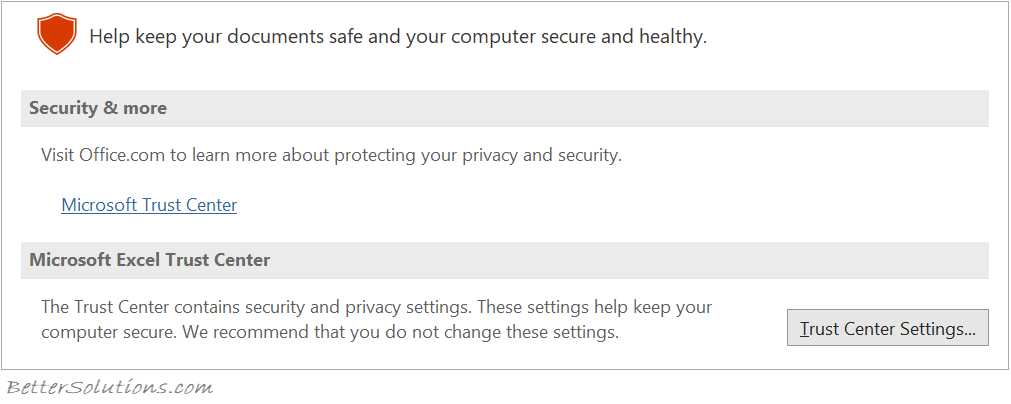
(File > Options > Trust Center) from inside Excel will display this screen.
 |
Trusted Publishers
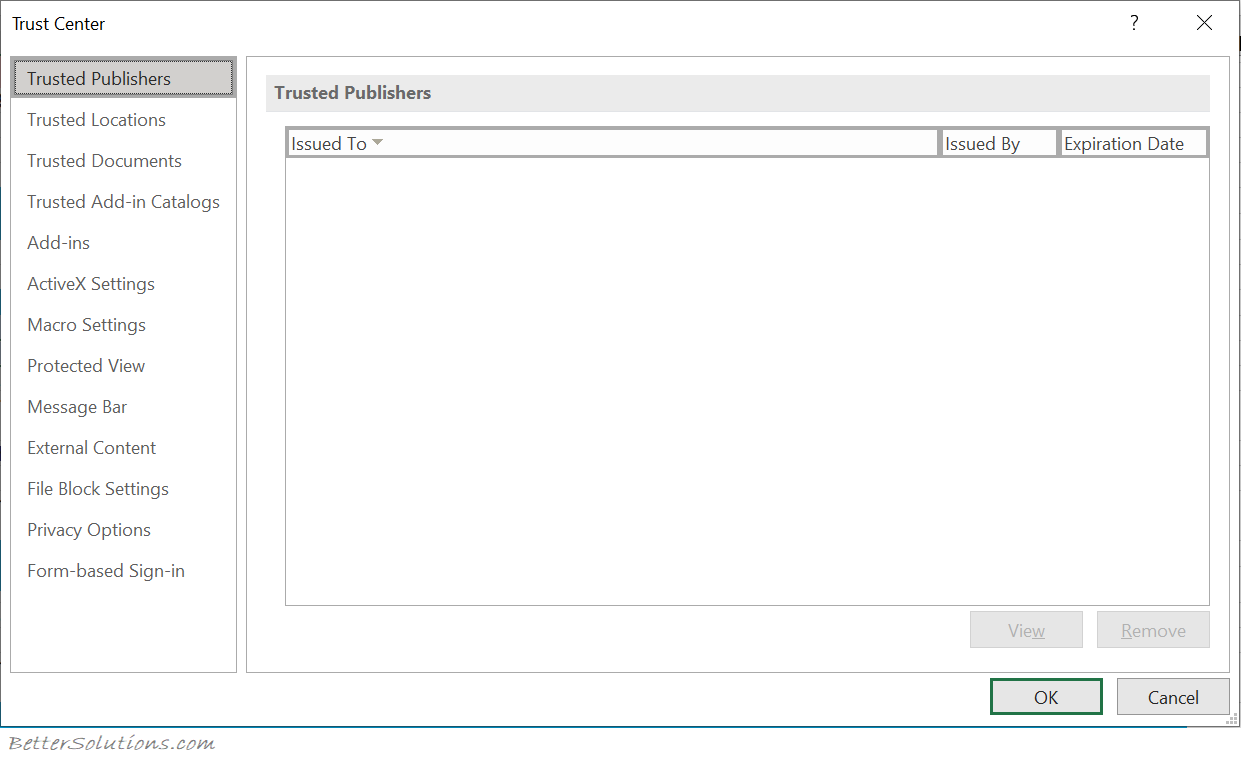 |
A publisher is a developer who has written a macro, add-in or extension.
Trusted publishers are reputable developers that have a valid digital signature which has been issued by a reputable certificate authority.
This displays a list of all the publishers that you have explicitly trusted.
link - support.microsoft.com/en-us/office/add-remove-or-view-a-trusted-publisher-87b3d5a3-b68c-4023-87c4-7cc78a44d7ed
Trusted Locations
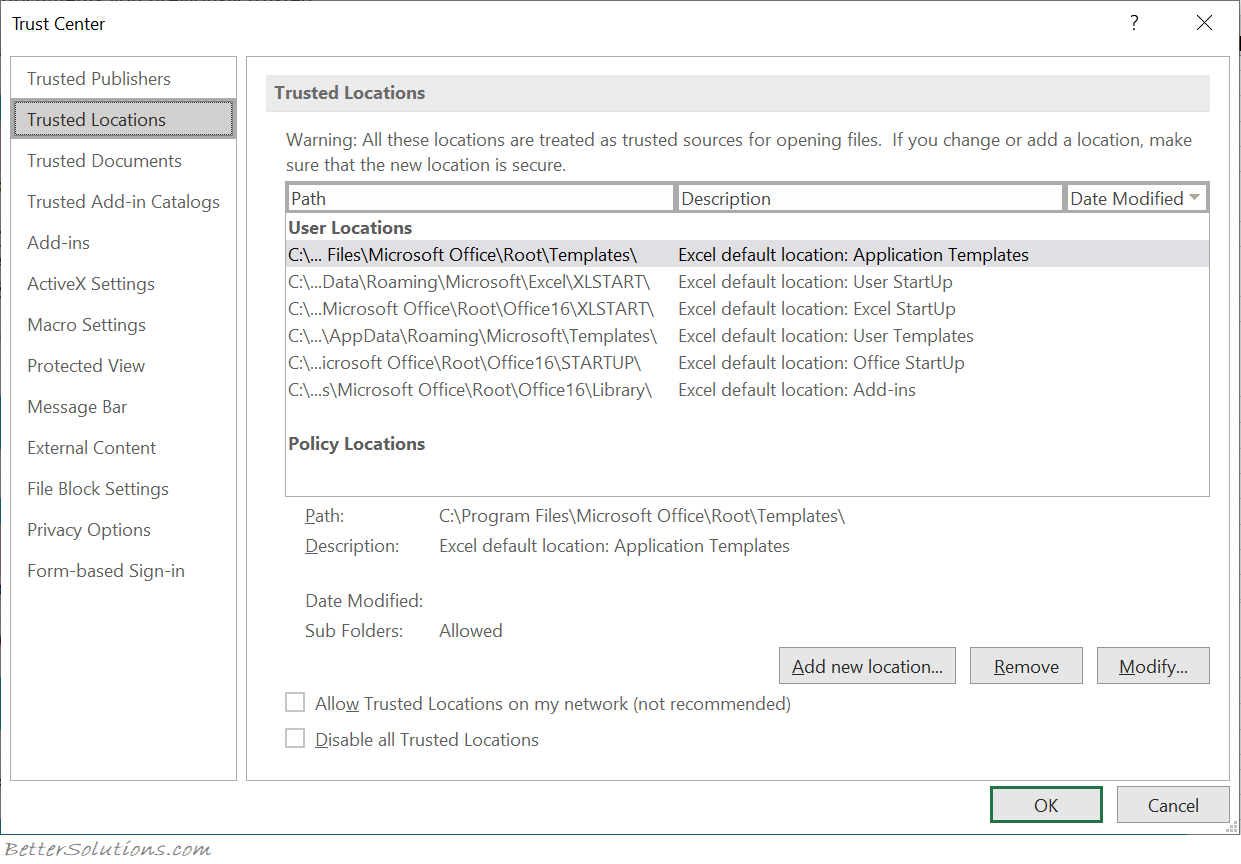 |
Office trusted location rules do not allow you trust a document that is opened directly from an Internet location.
You will need to copy the file to a Office Trusted Location to get the document customization to run.
All workbooks in trusted locations are opened without a macro warning.
There are 2 types of trusted locations: global settings which apply to all applications and application specific settings which can be configured separately for each application.
Allow trusted locations on my network (not recommended) - (Default is off) Select Add New location and browse to add your trusted folder path.
Disable all trusted locations - (Default is off) Only files signed by trusted publishers will be trusted.
link - support.microsoft.com/en-us/office/add-remove-or-change-a-trusted-location-7ee1cdc2-483e-4cbb-bcb3-4e7c67147fb4
These locations are all saved in the registry
HKCU\Software\Microsoft\Office\16.0\Excel\Security\Trusted Locations
Trusted Documents
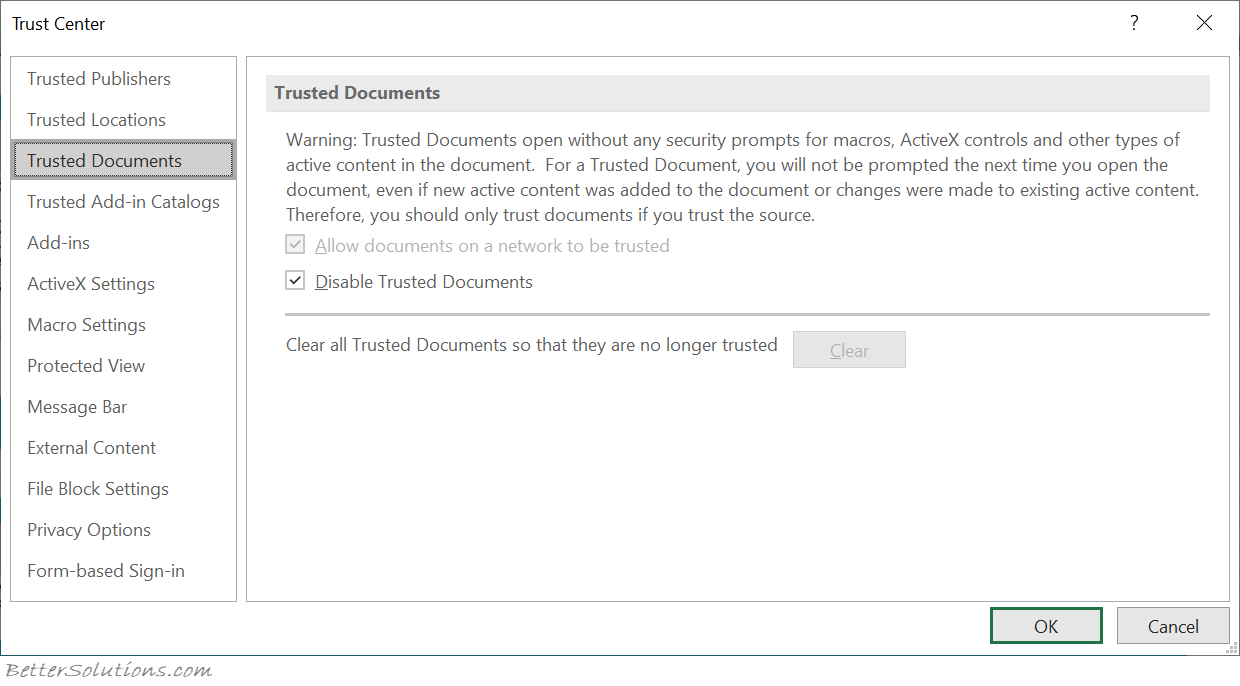 |
Allow documents on a network to be trusted - The Security Warning dialog box no longer appears for files in network locations.
Disable trusted documents - The Security Warning dialog box appears for files, each time you open them.
Clear all trusted documents so that they are no longer trusted - Click Clear to delete the list of trusted documents that were previously trusted. The Message Bar appears again for the documents you previously trusted.
link - support.microsoft.com/en-us/topic/trusted-documents-cf872bd8-47ec-4c02-baa5-1fdba1a11b53
These documents are all saved in the registry
HKCU\Software\Microsoft\Office\16.0\Excel\Security\Trusted Documents
Trusted Add-in Catalogs
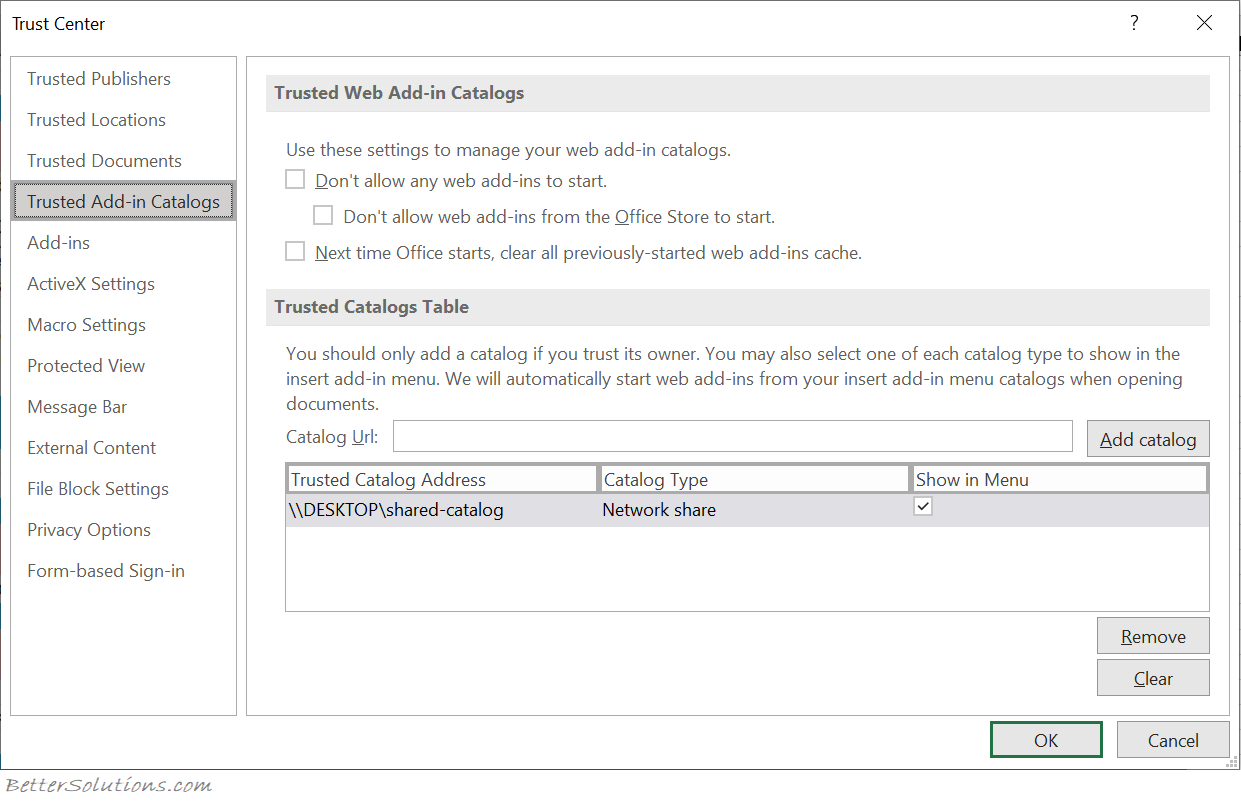 |
Use these settings to manage your apps for office catalogs.
Don't allow any web add-ins to start -
Don't allow web add-ins from the Office Store to start -
Next time Office starts, clear all previously started web add-ins cache - (Added in 365)
Add Catalog - Enter the URL and then press this button to add it to the list.
Remove - Removes the selected URL from the list.
Clear -
link - support.microsoft.com/en-us/office/view-manage-and-install-add-ins-in-office-programs-16278816-1948-4028-91e5-76dca5380f8d
Add-ins
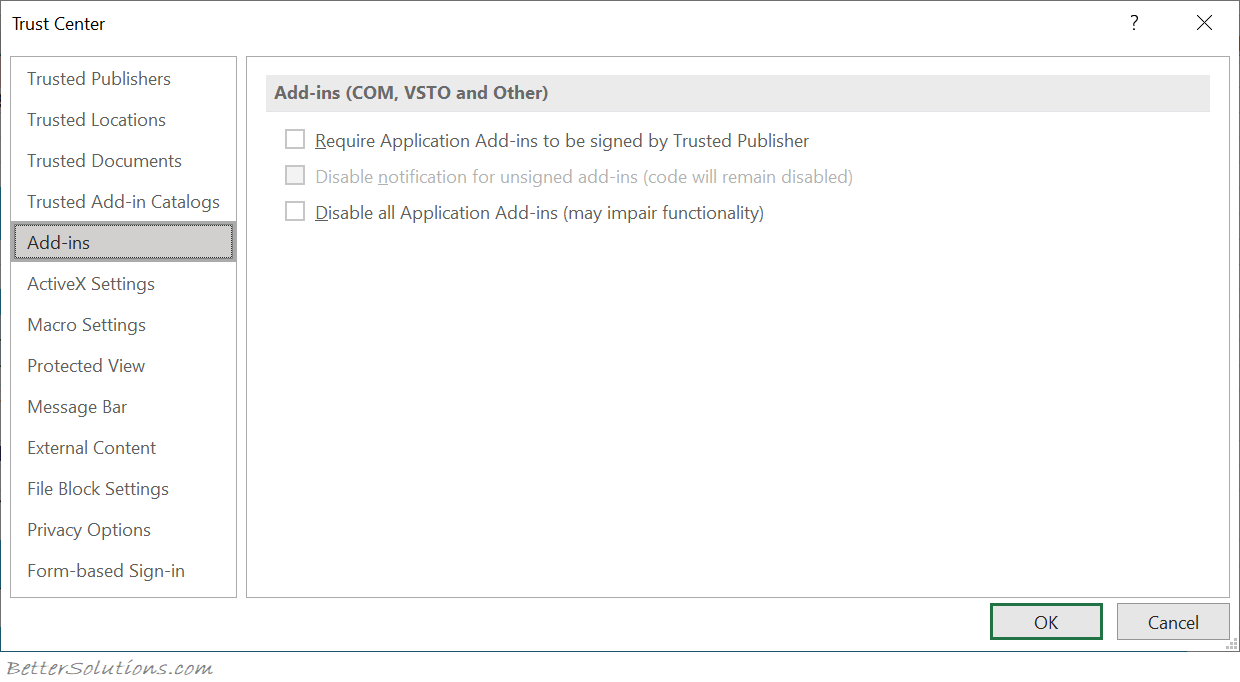 |
Require application add-ins to be signed by trusted publisher - Check this box to have the Trust Center check that the add-in uses a publisher's trusted signature. If the publisher's signature hasn't been trusted, the Office program doesn't load the add-in, and the Trust Bar displays a notification that the add-in has been disabled. You must restart Office after changing this option.
Disable notification for unsigned add-ins (code will remain disabled) - When you check the Require Application Extensions to be signed by Trusted Publisher box, this option is no longer greyed out. Add-ins signed by a trusted publisher are enabled, but unsigned add-ins are disabled. You must restart Office after changing this option.
Disable all application add-ins (may impair functionality) - Check this box if you don't trust any add-ins. All add-ins are disabled without any notification, and the other add-in boxes are greyed out. You must restart Office after changing this option.
link - support.microsoft.com/en-us/office/view-manage-and-install-add-ins-in-office-programs-16278816-1948-4028-91e5-76dca5380f8d
ActiveX Settings
In 2025 the default setting was changed to disable all controls without notification.
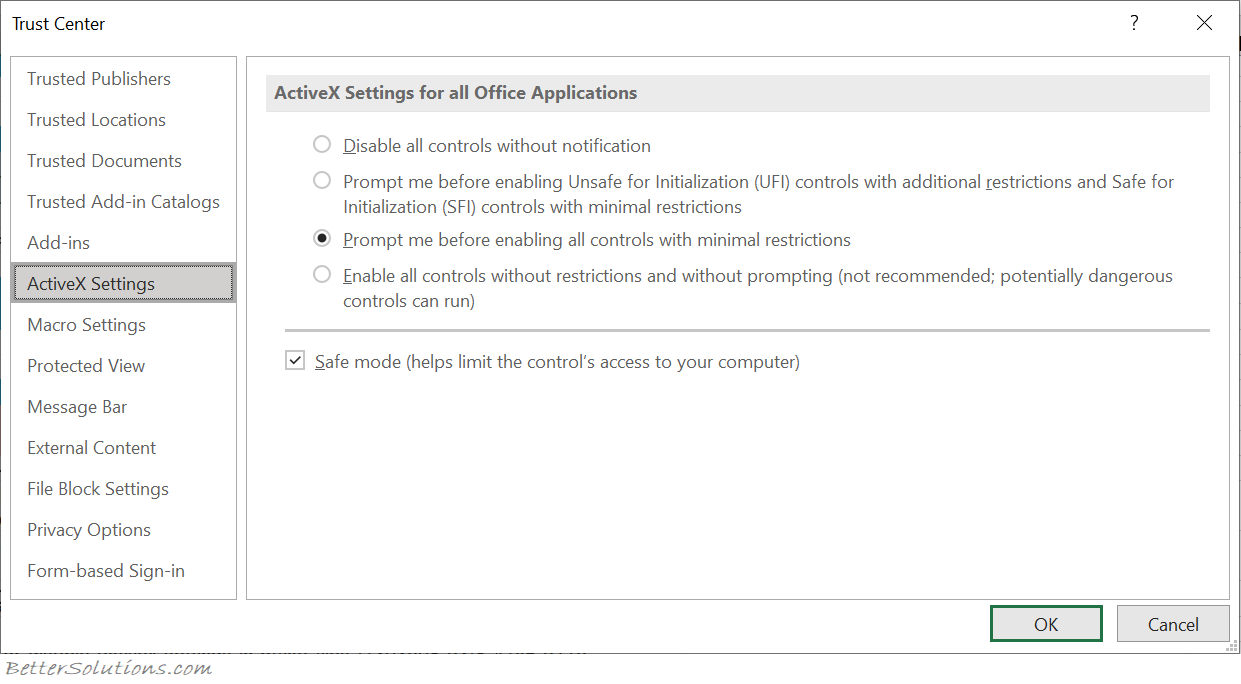 |
Disable all controls without notification - (Default) All the ActiveX controls in documents are disabled.
Prompt me before enabling Unsafe for Initialization (UFI) controls with additional restrictions and Safe for Initialization (SFI) controls with minimal restrictions - There are two behaviours based on the presence of VBA projects:
With a VBA project - All ActiveX controls are disabled and the Message Bar appears. Click Enable Content to enable the controls.
Without a VBA project - SFI ActiveX controls are enabled with minimal restrictions and the Message Bar does not appear. However, ActiveX controls must all be marked as SFI to not to generate the Message Bar. UFI ActiveX controls are disabled. However, when a user enables the UFI controls they are initialized with additional restrictions (e.g. default values). Any persisted data that is part of the UFI control will be lost.
Prompt me before enabling all controls with minimal restrictions - There are two behaviours based on the presence of VBA projects:
With a VBA project - All ActiveX controls are disabled and the Message Bar appears. Click Enable Content to enable the controls.
Without a VBA project - SFI ActiveX controls are enabled with minimal restrictions and the Message Bar doesn't appear. However, ActiveX controls must all be marked as SFI to not to generate the Message Bar. UFI ActiveX controls are disabled. However, when a user enables the UFI controls they are initialized with minimal restrictions (e.g. persisted values or default values if persisted values don't exist).
Enable all controls without restrictions and without prompting - Enable all ActiveX controls in documents with minimal restrictions.
Safe mode (helps limit the controls access to your computer - Enable SFI ActiveX controls in safe mode, which means a developer has marked the control as safe.
link - support.microsoft.com/en-us/office/enable-or-disable-activex-settings-in-office-files-f1303e08-a3f8-41c5-a17e-b0b8898743ed
Protected View
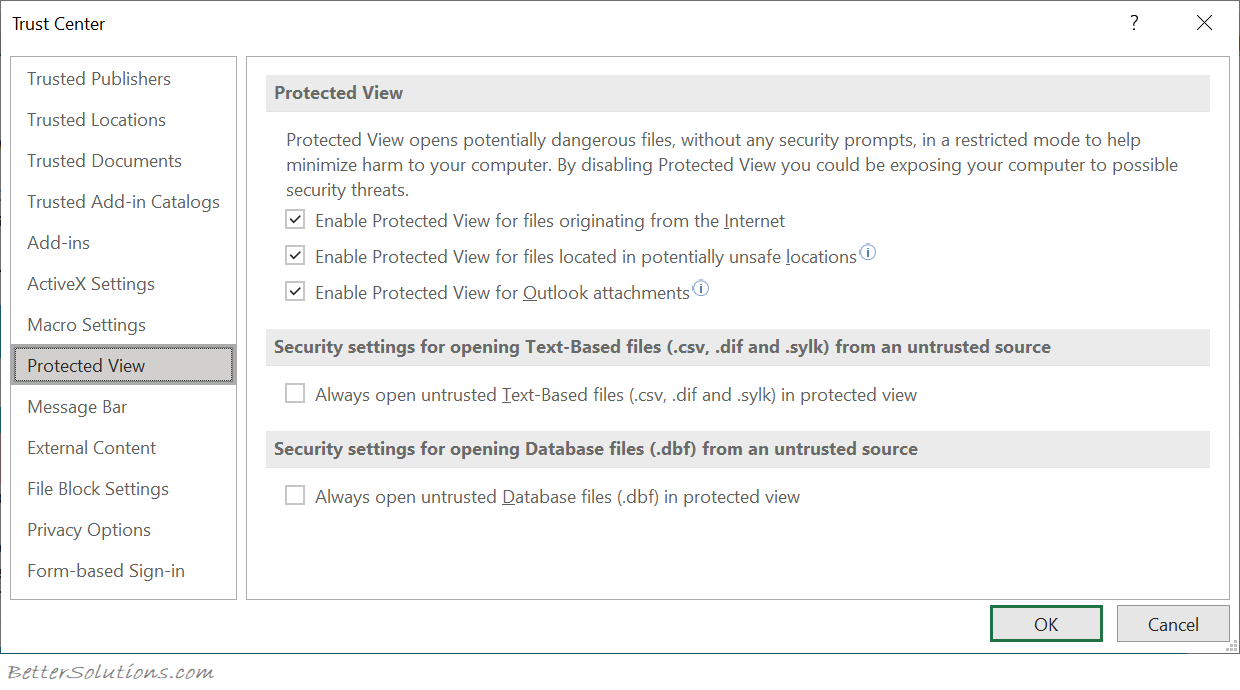 |
Enable protected view for files originating from the internet - The Internet is considered an unsafe location because of its many opportunities for malicious intent.
Enable protected view for files located in potentially unsafe locations - This refers to folders on your computer or network that are considered unsafe, such as the Temporary Internet folder or other folders assigned by your administrator.
Enable protected view for outlook attachments - Attachments in emails can come from unreliable or unknown sources. Sometimes malicious attachments can appear to come from trusted senders, or can come from compromised accounts of trusted senders. Always confirm with the other person if you receive an unexpected, or suspicious, attachment via email.
Always open untrusted text-based files (.csv, .dif and .sylk) in protected view - (Default is off) (Added in Microsoft 365) If this Excel-specific setting is enabled, text-based files opened from an untrusted location are always opened in Protected View. If you disable or don't configure this setting, text-based files opened from an untrusted location are not opened in Protected View.
Always open untrusted database files (.dbf) in protected view - (Default is off) (Added in 365) If this Excel-specific setting is enabled, database files opened from an untrusted location are always opened in Protected View. If you disable or don't configure this setting, database files opened from an untrusted location are not opened in Protected View.
link - support.microsoft.com/en-us/topic/what-is-protected-view-d6f09ac7-e6b9-4495-8e43-2bbcdbcb6653
Message Bar
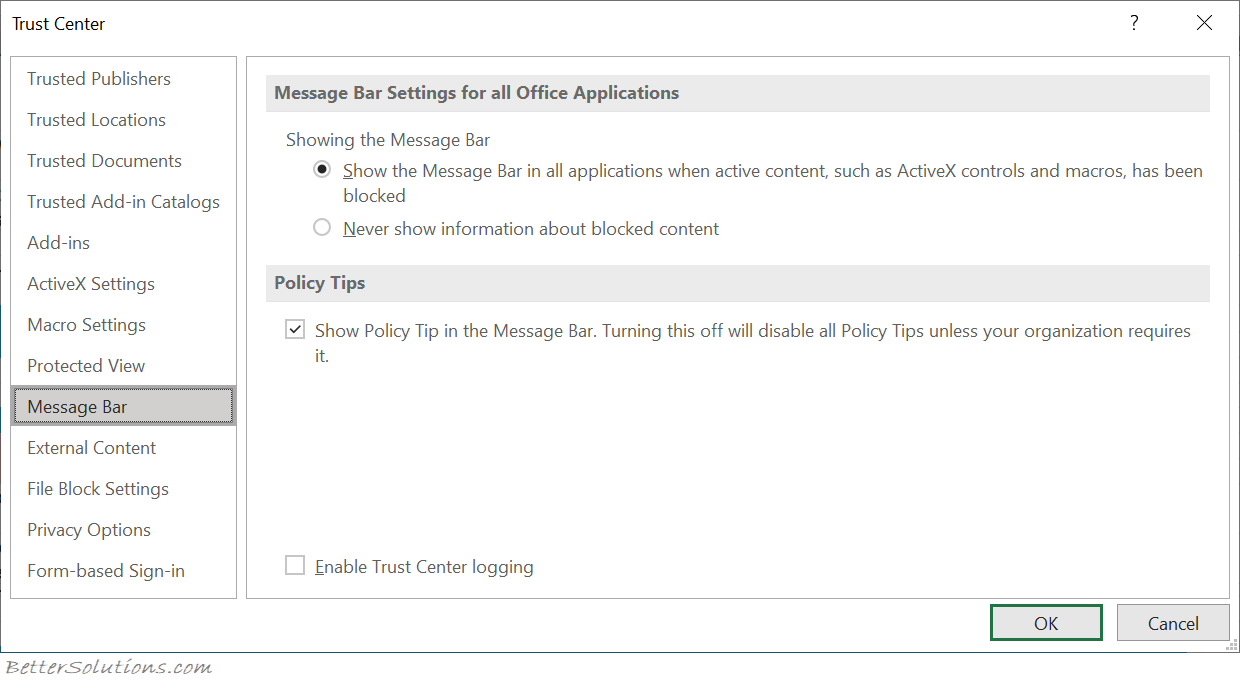 |
Show the message bar in all applications when active content, such as ActiveX controls and macros, has been blocked. - The Message Bar appears when potentially unsafe content has been disabled. This applies to Excel External Links.
Never show information about blocked content -
Show policy tips in the message bar - Turning this off will disable all policy tips unless your organisation requires it.
Enable trust center logging -
link - support.microsoft.com/en-us/office/turn-on-or-off-security-alerts-and-policy-tips-in-the-message-bar-for-office-1210b08f-bf9a-4b91-875c-f3f5246a5360
External Content
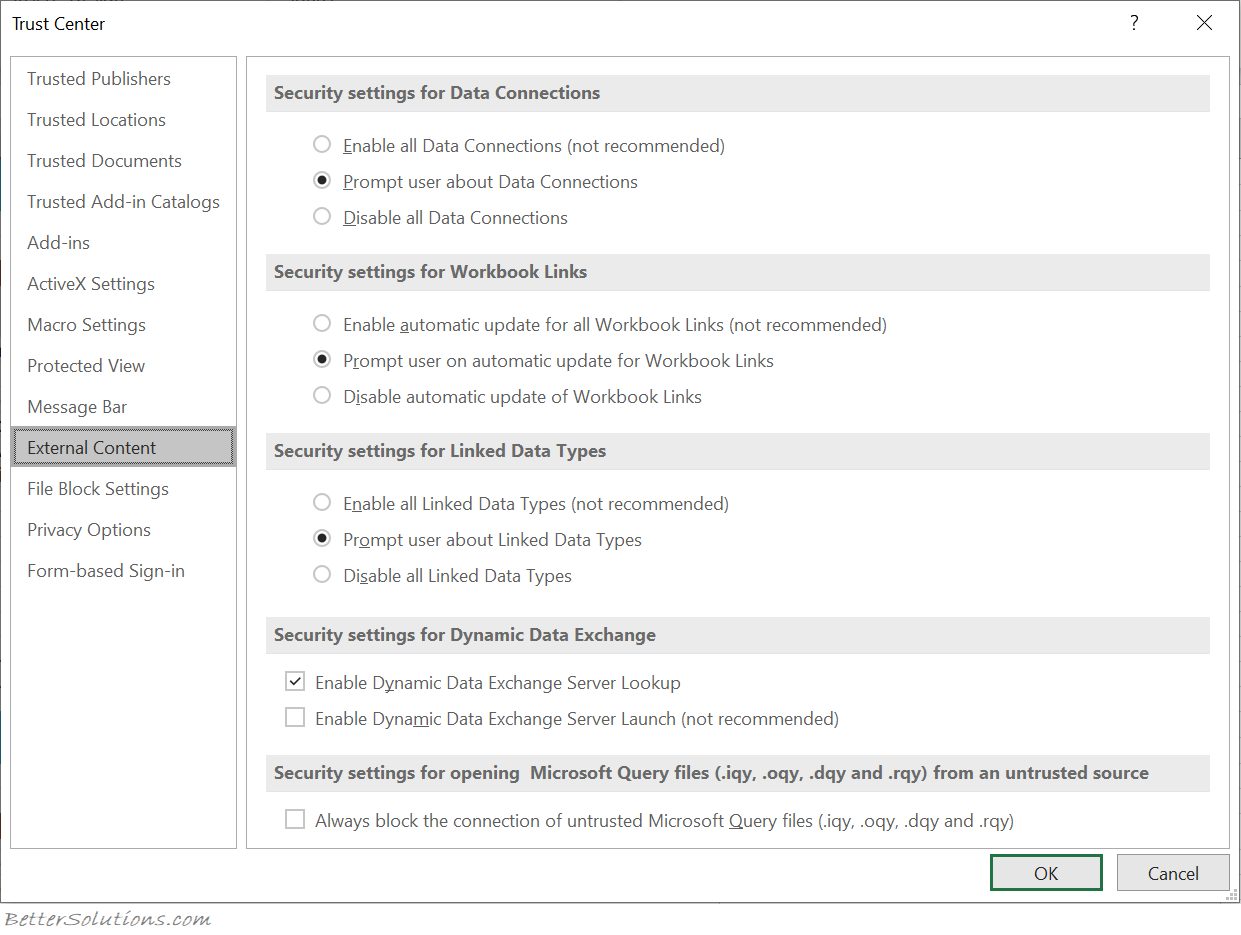 |
Security settings for Data Connections
Enable all data connections (not recommended) - Click this option if you want to open workbooks that contain external data connections and to create connections to external data in the current workbook without receiving security warnings. We don't recommend this option, because connections to an external data source that you are not familiar with can be harmful, and because you do not receive any security warnings when you open any workbook from any location. Use this option only when you trust the data sources of the external data connections. You may want to select this option temporarily, and then return to the default setting when you no longer need it.
Prompt user about data connections - Click this option if you want to receive a security warning whenever a workbook that contains external data connections is opened, and whenever an external data connection is created in the current workbook. Security warnings give you the option of enabling or disabling data connections for each workbook that you open on a case-by-case basis. The default is ticked.
Disable all data connections - Click this option if you don't want any external data connections to be enabled in the current workbook. When you choose this option, no data connection in any workbook that you open is ever connected. If you create new external data connections after opening a workbook, those data connections are not enabled when you open the workbook again. This is a very restrictive setting, and may cause some functionality not to work as expected.
Security settings for Workbook Links
Enable automatic updates for all workbook links (not recommended) - Click this option if you want links to data in another workbook to be updated automatically in the current workbook without receiving a security warning. We don't recommend this option, because automatically updating links to data in workbooks that you are not familiar with can be harmful. Use this option only when you trust the workbooks that the data is linked to. You may want to select this option temporarily, and then return to the default setting when you no longer need it.
Prompt user on automatic updates for workbook links - Click this option if you want to receive a security warning whenever you run automatic updates in the current workbook for links to data in another workbook. The default is ticked.
Disable automatic update of workbook links - Click this option if you don't want links in the current workbook to data in another workbook to be updated automatically.
Security settings for Linked Data Types
Enabled all Linked Data Types (not recommended) - (Added in 365) Click this option if you want to create linked data types without receiving a security warning. The data for linked data types is currently provided through Microsoft, but as with all external data, you should only choose this option if you trust the data source. You may want to select this option temporarily, and then return to the default setting when you no longer need it. option if you want to receive a security warning whenever you create linked data types. The default is ticked.
Prompt user about Linked Data Types - (Added in 365) Click this option if you want to receive a security warning whenever you create linked data types. The default is clicked.
Disable all Linked Data Types - (Added in 365) Click this option if you don't want to enable linked data types..
Security settings for Dynamic Data Exchange
Enable Dynamic Data Exchange Server Lookup - (Added in 365) Check this option if you want to enable Dynamic Data Exchange server lookup. If this option is checked, DDE servers that are already running will be visible and usable. The default is ticked.
Enable Dynamic Data Exchange Server Launch (not recommended) - (Added in 365) Check this option if you want to enable Dynamic Data Exchange server launch. ?If this option is checked, Excel will start DDE servers that are not already running and allow data to be sent out of Excel. For security reasons, it is recommended that you leave this box unchecked. By default, this option is unchecked.
Security settings for opening Microsoft Query Files
Always block the connection of untrusty Microsoft Query files (.iqy, oqy, .dqy and .rqy) - (Added in 365) Using Microsoft Query, you can connect to external data sources, select data from those external sources, import that data into your worksheet, and refresh the data as needed to keep your worksheet data synchronized with the data in the external sources.
File Block Settings
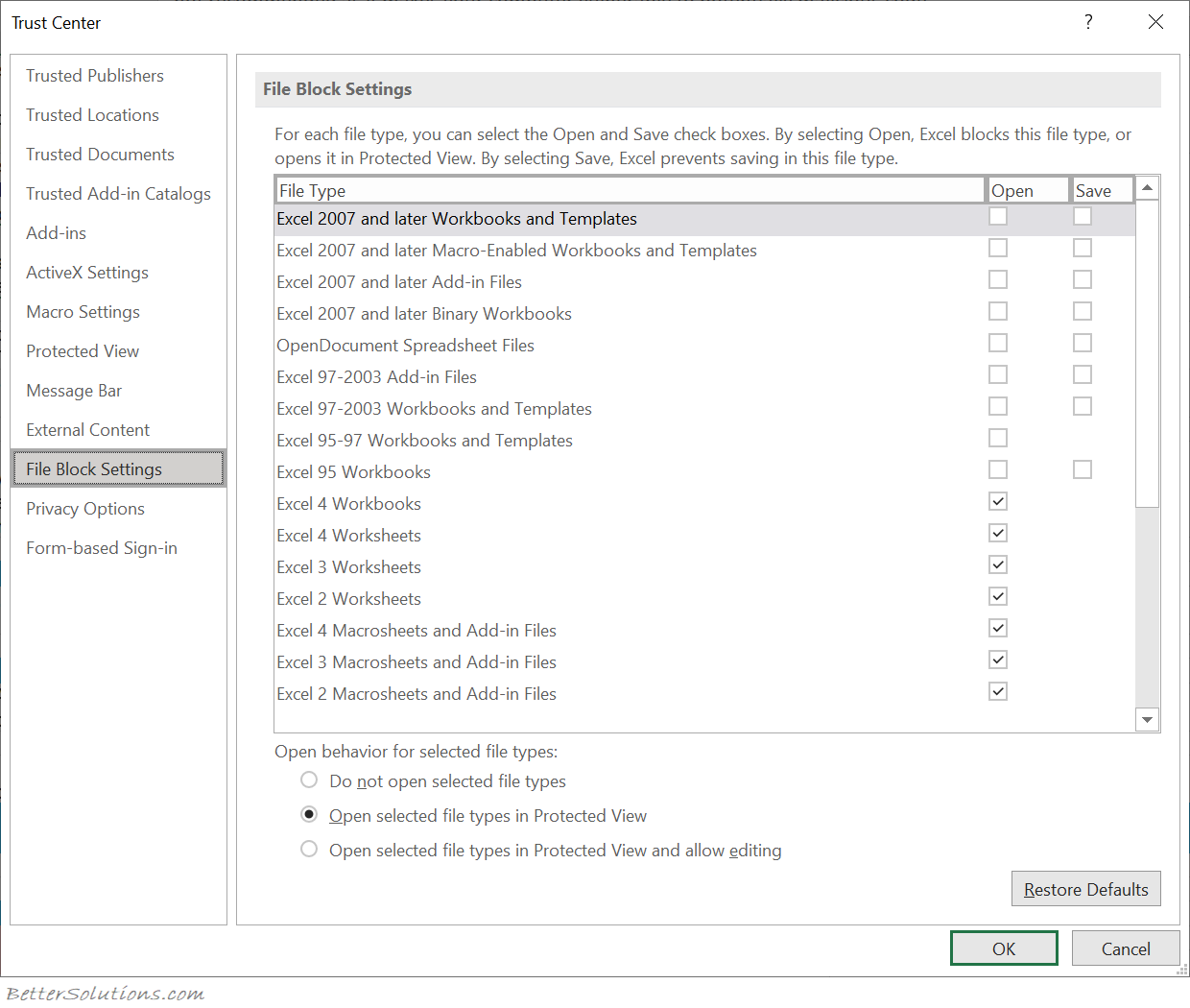 |
This allows you to block individual file types from opening.
Instead of blocking completely you also have the option to open them in Protected View.
Do not open the selected file types -
Open selected file types in Protected View - (Default)
Open selected file types in Protected View and allow editing -
Restore defaults -
Privacy Options
 |
Privacy Options
link - support.microsoft.com/en-us/office/account-privacy-settings-3e7bc183-bf52-4fd0-8e6b-78978f7f121b
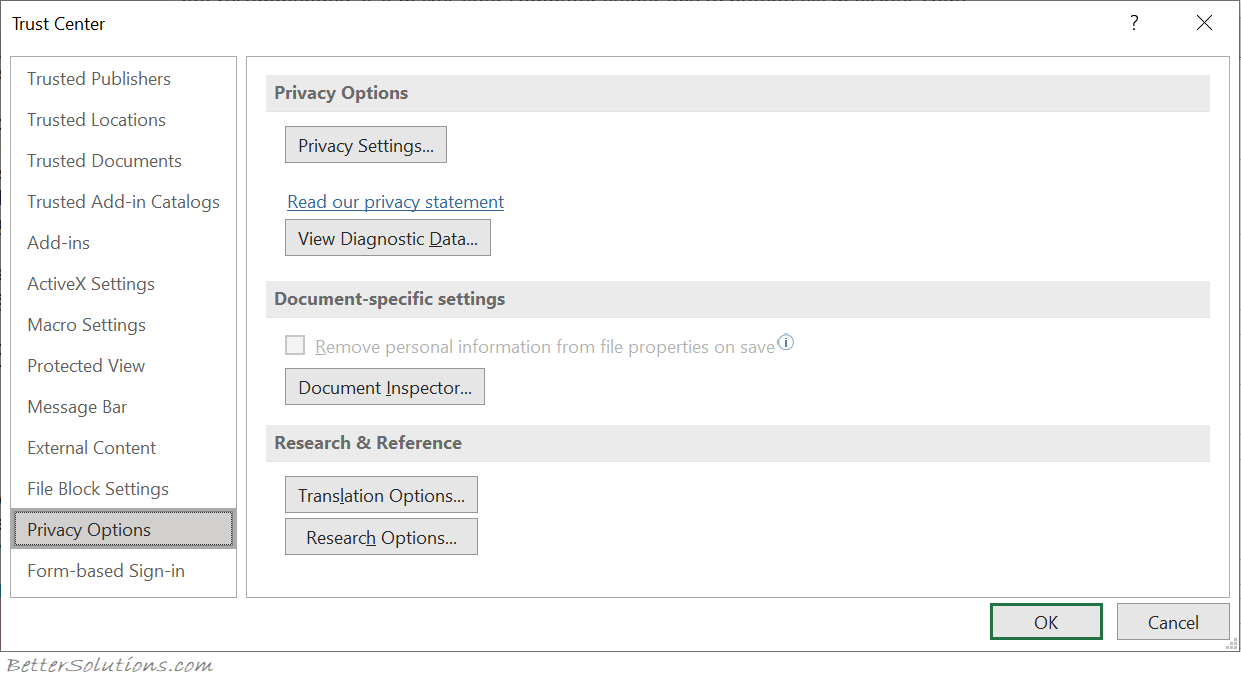
Privacy Options - (Updated in 365)
View Diagnostic Data - (Added in 365)
Document Specific Settings
Remove personal information from file properties on save -
Document Inspector - Displays the Document Inspector dialog box.
Research & Reference
Translation Options - Displays the Translation Options dialog box.
Research Options - Displays the Research Options dialog box.
Form-Based Sign-In
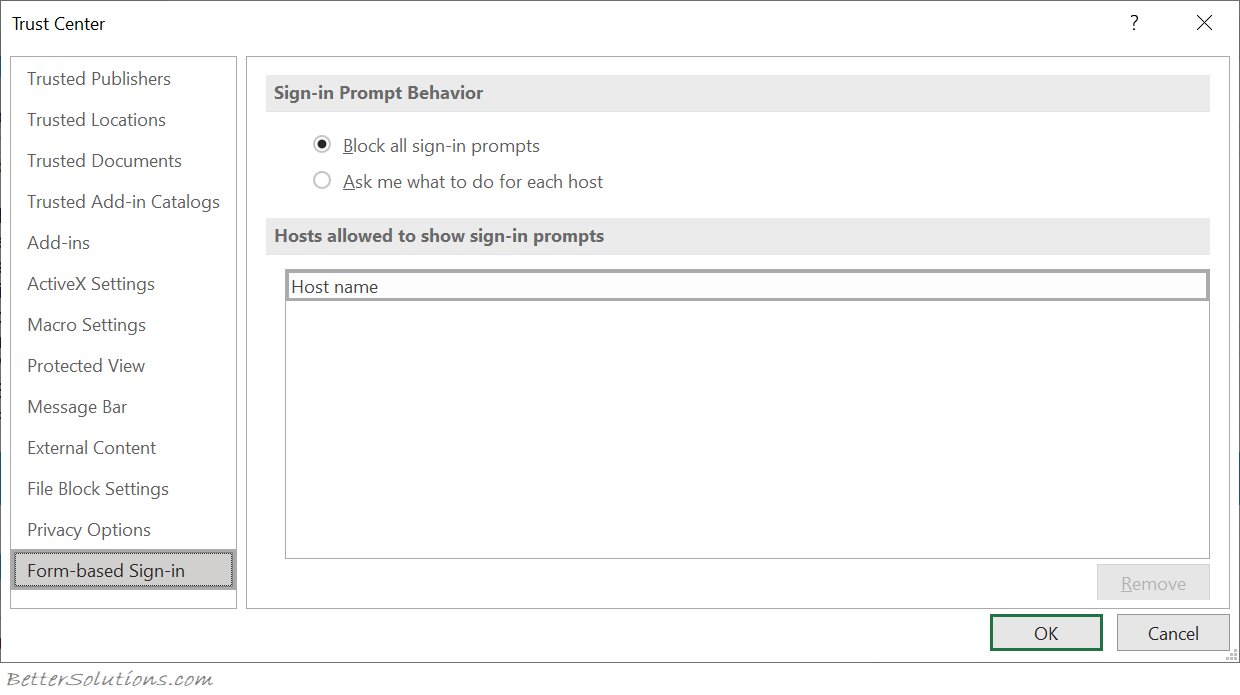 |
Block all sign-in prompts - (Added in 365)
Ask me what to do for each host - (Added in 365)
Protocol Settings
SS
Block apps from using FrontPage RPC protocol -
Allow apps to use FrontPage RPC protocol -
Block apps from using FTP and HTTP -
Allow apps to use FTP and HTTP -
© 2026 Better Solutions Limited. All Rights Reserved. © 2026 Better Solutions Limited TopPrevNext