Troubleshooting
Also see the Formulas > Formula Auditing page.
Spill Operator # Not Working
You can only use the spill range operator to refer to cell ranges that are populated using a dynamic array formula.
For example CHOOSECOLS(B2#,1) will not work unless cell B2 contains a formula that spills.
LAMBDA Function
You can't include a parameter to a LET functon after its calculation
This can occur when you include an extra comma
You've entered too many arguments for this function
LAMBDA Functions Exact Number of Parameters
Some versions of Excel do not support "true omission" and treat the LAMBDA function as "arity strict".
This means these LAMBDA functions always expect the exact number or parameters to be passed in.
In this case calling a Lambda function without all the arguments will return #VALUE!
When it is not supported you must provide a comma to submit blank arguments.
=MYLAMBDA(arg1, arg2,,)
You can use the ISOMITTED() function to detect optional arguments but when you use a trailing comma, this function returns False.
You also need to handle the case when the ISOMITTED function is not found or not supported.
DATEDIF Function
The DATEDIF function is only available for backwards compatibility and should never be used.
Instead of using this function you can find alternative formulas on the page under Advanced Functions.
@ prefix
When an existing function triggers Implicit Intersection, the @ character will appear infront of the function.
Before Dynamic Array Formulas were introduced in Excel 2021 implicit intersection existed and happened behind the scenes automatically.
_xlfn prefix
You will see the _xlfn. prefix displayed in front of a function when that function is not supported in that version of Excel.
For example if someone has used a function that is only available in Microsoft 365 and you open the workbook in Excel 2016.
For example the XLOOKUP function, which is not supported in versions of Excel earlier than Excel 2021.
These unsupported functions should be removed or replaced with different functions.
CEILING.PRECISE Function
The CEILING.PRECISE function is only available for backwards compatibility and should never be used.
Instead of using this function you should use CEILING.MATH
SINGLE Function
The SINGLE function was added in Excel 2021 but was quickly removed.
If you try and use this function you will see a warning pop up message and the function will be automatically replaced with the "@" character.
OFFSET - Rounding Bug
The OFFSET function returns the value in a cell which is an offset from another cell.
The behaviour in Excel 2010 (and later) is different to Excel 2007.
If the "rows" argument is not an integer, then the truncating and rounding is different for negative numbers.
If the "cols" argument is not an integer, then the truncating and rounding is different for negative numbers.
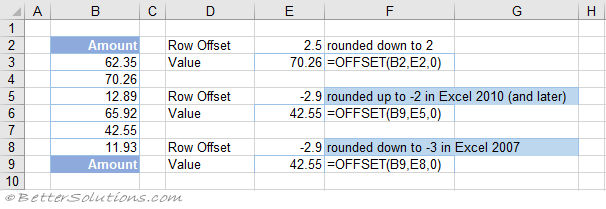 |
In Excel 2007 the value returned from the formula in cell "E9" was 65.92
In Excel 2010 (and later) the value returned from the formula in cell "E6" is 42.55
User Defined Functions - Break on All Errors
Lets image that you have a user defined function that returns an error.
Public Function TestErrorHandling(ByVal lNo As Long) As Long
   lNo = lNo + 20
   lNo = lNo + 20/0
   lNo = lNo + 20
   TestErrorHandling = lNo
End Function
When the VBA Options, Error Trapping is set to "Break on Unhandled Errors" this function will return #VALUE!
Changing this option to "Break on All Errors" will not make any difference.
Your code will not stop on the line that is causing the error.
User Defined Functions - #NAME!
You cannot have the code module the same name as the user defined function.
User Defined Functions - VBE Refresh Bug
Every time a user defined function is updated the VBE title bar has [Running] appended to it.
Once the UDF function has completed the title bar reverts back to what it was before.
This updating of the title bar is unnecessary and will slow down your user defined function(s).
To avoid this happening close the VBE Editor then save and close the workbook.
You can also see a speed improvement when you initiate the calculation from VBA using Application.Calculate
This bug is reproducible in Microsoft 365.
link - fastexcel.wordpress.com/2011/06/13/writing-efficient-vba-udfs-part-3-avoiding-the-vbe-refresh-bug/
© 2026 Better Solutions Limited. All Rights Reserved. © 2026 Better Solutions Limited TopPrevNext