Selecting
Selecting a Single Row
The cursor will change to a thick sideways arrow when it is placed over a row heading.
You can then use the left mouse button to select the row heading to select a whole row.
You can alternatively use the shortcut key (Shift + Spacebar) to select the whole row of the active cell.
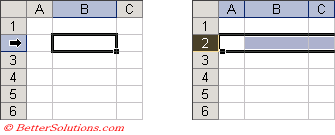 |
When a row is selected the first visible cell in that row becomes the active cell.
You can also type the letter "r" into the Name Box and press Enter to select the whole row of the active cell.
Selecting Multiple Rows
Once a single row is selected you can drag the mouse over several row headings to select a block of adjacent rows.
You can also use the Shift key in combination with the arrow keys to also select adjacent rows.
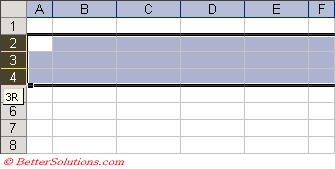 |
A screen tip will be displayed showing you how many rows you have selected.
When you select one or more rows the fill handle appears next to the row heading.
Selecting non adjacent Rows
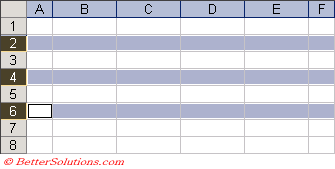
It is possible to select a group of non adjacent rows by holding down the Ctrl key as you select the row headings with the left mouse button.
It is not possible to select non adjacent rows using just the keyboard.
 |
Selecting a Single Column
The cursor will change to a thick downwards arrow when it is placed over a column heading.
You can then use the left mouse button to select the column heading to select a whole column.
You can alternatively use the shortcut key (Ctrl + Spacebar) to select the whole column of the active cell.
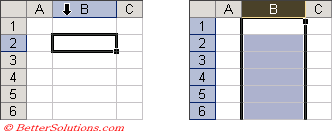 |
When a column is selected the first visible cell in that column becomes the active cell.
You can also type the letter "c" into the Name Box and press Enter to select the whole column of the active cell.
Selecting Multiple Columns
Once a single column is selected you can drag the mouse over several column headings to select a block of adjacent columns.
You can also use the Shift key in combination with the arrow keys to select adjacent columns.
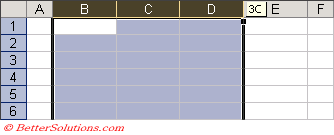 |
A screen tip will be displayed showing you how many columns you have selected.
When you select one or more columns the fill handle appears next to the column heading.
Selecting non adjacent Columns
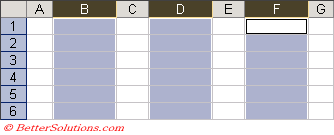
It is possible to select a group of non adjacent columns by holding down the Ctrl key as you select the column headings with the left mouse button.
It is not possible to select non adjacent columns using just the keyboard.
 |
Remember
You can select non adjacent rows and columns by holding down the Ctrl key.
(Ctrl + Spacebar) - Select the whole column of the active cell.
(Shift + Spacebar) - Select the whole row of the active cell.
Letters to Numbers
This reference table is handy when you are using large Lookup tables
Displays column letters to their corresponding column numbers.
| Col | No. | Col | No. | Col | No. | Col | No. | Col | No. | Col | No. | Col | No. | Col | No. | Col | No. | Col | No. |
| A | 1 | L | 12 | W | 23 | AH | 34 | AS | 45 | BD | 56 | BO | 67 | BZ | 78 | CK | 89 | CV | 100 |
| B | 2 | M | 13 | X | 24 | AI | 35 | AT | 46 | BE | 57 | BP | 68 | CA | 79 | CL | 90 | CW | 101 |
| C | 3 | N | 14 | Y | 25 | AJ | 36 | AU | 47 | BF | 58 | BQ | 69 | CB | 80 | CM | 91 | CX | 102 |
| D | 4 | O | 15 | Z | 26 | AK | 37 | AV | 48 | BG | 59 | BR | 70 | CC | 81 | CN | 92 | CY | 103 |
| E | 5 | P | 16 | AA | 27 | AL | 38 | AW | 49 | BH | 60 | BS | 71 | CD | 82 | CO | 93 | CZ | 104 |
| F | 6 | Q | 17 | AB | 28 | AM | 39 | AX | 50 | BI | 61 | BT | 72 | CE | 83 | CP | 94 | DA | 105 |
| G | 7 | R | 18 | AC | 29 | AN | 40 | AY | 51 | BJ | 62 | BU | 73 | CF | 84 | CQ | 95 | DB | 106 |
| H | 8 | S | 19 | AD | 30 | AO | 41 | AZ | 52 | BK | 63 | BV | 74 | CG | 85 | CR | 96 | DC | 107 |
| I | 9 | T | 20 | AE | 31 | AP | 42 | BA | 53 | BL | 64 | BW | 75 | CH | 86 | CS | 97 | DD | 108 |
| J | 10 | U | 21 | AF | 32 | AQ | 43 | BB | 54 | BM | 65 | BX | 76 | CI | 87 | CT | 98 | DE | 109 |
| K | 11 | V | 22 | AG | 33 | AR | 44 | BC | 55 | BN | 66 | BY | 77 | CJ | 88 | CU | 99 | DF | 110 |
© 2026 Better Solutions Limited. All Rights Reserved. © 2026 Better Solutions Limited TopPrevNext