Number
You can use number formats to change the way data is displayed.
| General (default) | £12,500.50 - It means that the cell does not have any specific number format applied to it. |
| Number | 12,500.50 - This is used to display general numbers in no particular format. |
| Currency | $12,500.50 - This is used for general currency values and includes a list of all international currencies. |
| Accounting | £ 12,500.50 - Aligns currency symbols and decimals in a column. |
| Date | |
| Time | |
| Percentage | 12.5% - Percentage formats multiply the number by 100 and display the result with a percentage sign. |
| Fraction | 1/12 - Fractions from 1 to 3 figures, 1/1 to 1/999. |
| Scientific | 12.5E+02 - |
| Text | 125sometext - |
| Special | Including Phone Numbers. |
| Custom | Allows you to create you own number formats. |
A number format is a set of codes that Excel uses to determine how to display a value.
Formatting a number does not affect the actual value (in the cell) but just changes how the value is displayed.
Any formulas will always use the actual value and not the value that is displayed.
The actual value stored in a cell is the value used in your formulas and is not the value that is displayed.
A lot of the time the actual value stored in a cell will have more significant figures than the value that is displayed.
When performing calculations, Excel will always use the actual value as opposed to the value that is displayed.
The number that is actually displayed in a cell can be different from the number that is actually in the cell. A cell could display the value 13, although the actual cell contains the number 12.76. The number has been formatted with no decimal places.
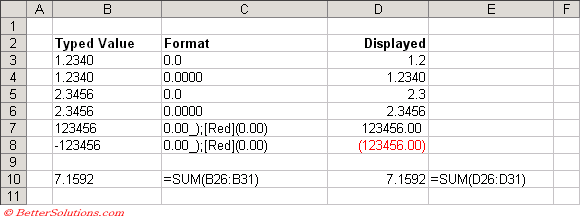 |
The cells C2, C4, C6 and C8 all contain the number 5.7550 although they have all been formatted differently.
The same is true for cells D2, D4, D6 and D8, they all contain the number 3.7500.
The formula in cells G2, G4, G6 and G8 all display the same result since the underlying values used in the formulas are identical.
Built-in Number Formats
There are a large number of built-in formats that can be applied to your values and they are separated into several categories.
You can use one of the many built-in number formats or create your own custom number format.
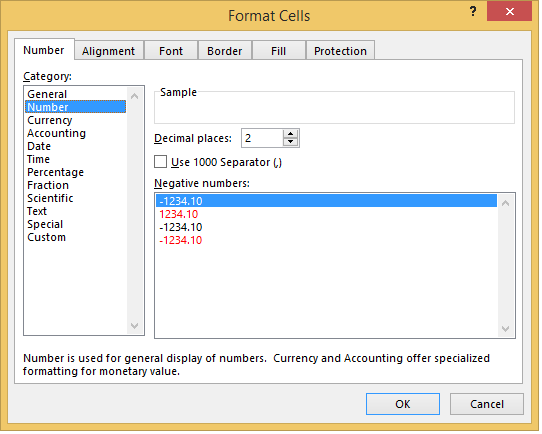
You can change the format of any cell (or range of cells) by selecting (Format > Cells)(Number tab) to display the Format Cells dialog box.
A custom number format can not only be used to format numbers, but cal also format dates, times as well as text.
This dialog box allows you to determine how numerical values (as well as dates, times and text) are displayed in your cells.
 |
The Date and Time formats are discussed in detail in the Dates & Times section.
Custom Number Formats
You can change the number format of a cell to one of the other built-in number formats or you can create your own custom number format.
When you select "Custom" from the Category list all the available formats are displayed on the left.
You can format a cell to display any number or text without actually changing its real value by applying a Custom Format.
The sample box displays a sample of the format you have selected.
In addition to be able to choose from a large selection of pre-defined number formats you can also create your own.
You can also change the number of decimal places to show.
Formatting as you Type
Some number formatting is done automatically for you depending on the ??
Worksheet Functions also can apply a specific number format if the cell has the General number format.
If you precede the cell entry with currency symbols ??
If you enter numbers with commas, the commas appear in cell but not in the formula bar. This is exactly the same as applying a comma separated number format.
Decimal Places
Excel can store up to 15 decimal places for a value.
All of Excel's number formats use either two or zero decimal places except for the General number format.
The exception is general which uses as many as specified.
You can establish a fixed number of decimal places or let Excel automatically round numbers for you
These buttons can be found on the Home tab and the Mini toolbar.
 | Increase Decimal - Adds one decimal place from the number. |
 | Decrease Decimal - Removes one decimal place from the number. |
These buttons can be used for quickly rounding numbers up or down.
You can repeat any format on a cell by pressing F4.
15 Digit Accuracy
Excel only has 15 digit accuracy. Any digits more than 15 are automatically converted to zero
SS - entering ? This is displayed ?
Any digits in fractions are ignored ??
Automatic Scientific Notation
Any numbers that cannot be displayed in their cell becuase the column width is not wide enough are automatically displayed in scientific notation
SS
SS - 3 column tables - Typed, Displayed, Stored
Rounding Errors
Lets suppose you have two numbers which are calculated from complicated formulas and they should both return the same value
Because of round-off errors the two values differ by a very small amount and subtracting one from the other may not give zero.
There may be some number in decimals (i.e. base 10) which cannot be written or displayed with an infinite precision such as 10/3.
To overcome the problem of rounding errors there are times when numbers will be exactly equal
It is perfectly adequate just to make sure that the difference between the two numbers is less than say an arbitrary small number (for example 0.01)
Nedd to include an example where the formatting only alters the display and not the actual values
You can change the actual value that is stored using any of the following functions:
ROUND
If you are using rounded values this can result is misleading and incorrect values being displayed
Consider a table of numbers that need to be added up:
one cell has = 1.006
another cell has = 3.007
Both these cells are displayed with rounding making then 1.01 and 3.01
If you add up these two values and apply similar rounding the result is 4.013 - which when rounded is 4.01
But on the sheet it looks like (1.01 + 3.01 = 4.01) which obviously looks wrong ???
Does it only apply to currency formats ??
You should be aware that converting decimals to binary can result in round off errors.
Same Precision As Displayed
(Tools > Options)(Calculation tab)
Changes all the underlying values in your worksheet to be the same as their displayed valued. This will change values permanently from having 15 significant figures to whatever format is displayed. This cannot be undone. (Advanced tab, When calculating this workbook)
This should be used with caution as it permanently changes the numbers on the worksheet/workbook -
Does the option apply to worksheets or workbooks ??
Fixed Decimal
By default when entering numbers with decimal places you must explicitely add the decimal place yourself when entering the number.
However if you are going to type in a large quantity of numbers which all have decimal places it is possible to let Excel add the decimal place for you automatically.
(Tools > Options)(Edit tab, "Fixed decimal").
Regional Settings
Remember
Using number formats does not affect the actual values but just the values that are displayed.
You may need to widen the column if your numbers are displayed as "#####".
You cannot delete any built-in number formats.
To make sure that your fractions are not interpreted as dates you should precede them with a zero and a space.
You can hide the values in cells by applying the null format "; ; ;". The values will still be visible in the formula bar.
It is important to remember that date formats take precedence over fraction formats. This is illustrated by typing "3/8" = "8-Mar"
All cells in a new worksheet are formatted with the General format by default.
© 2026 Better Solutions Limited. All Rights Reserved. © 2026 Better Solutions Limited TopPrevNext