Positioning
Create a new Userform and press F5 to display it.
The default position for the Userform should be in the center of the Office application.
When the user only has one monitor, this is fine.
However if the user has multiple screens you might find the Userform is not displayed in the center.
It really all depends how the screens are configured and which monitor is setup as the Primary screen.
Every Userform object has a property called StartUpPosition which can be used to change the default position.
StartUpPosition Property
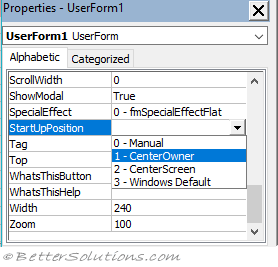 |
0 - Manual - Allows you to use the Left and Top properties to specify an exact position.
1 - CenterOwner - (default) Not every time when you have multiple monitors. Only on your primary screen.
2 - CenterScreen - Not every time when you have multiple monitors. Only on your primary screen.
3 - WindowsDefault - Positions the userform in the top left corner of the screen.
StartUpPosition = Manual
There are a number of different approaches you can use to control the positioning of a userform.
The best approach is to calculate the exact Left and Top position and then pass this information to the userform in the Initialize event.
Before we calculate the Top and Left positions we need to change the StartUpPosition property of the userform to Manual (0).
It is worth emphasizing that this property must be changed at design-time and not at run-time.
Adding the following line of code in your Initialize event will not work.
Me.StartUpPosition = 0 'THIS WILL NOT WORK
Approach 1 - Application.UsableHeight
This approach uses the size of the application window.
Private Sub UserForm_Initialize()
   Me.Top = Application.Top + (Application.UsableHeight / 2) - (Me.Height / 2)
   Me.Left = Application.Left + (Application.UsableWidth / 2) - (Me.Width / 2)
End Sub
Approach 2 - Saving the Position
This approach saves the position the userform was last in to the registry and then uses those values next time.
Private Sub UserForm_Initialize()
   Me.Left = GetSetting("Userform Positioning", ThisWorkbook.FullName & "-" & Me.Name, "Left", 0)
   Me.Top = GetSetting("Userform Positioning", ThisWorkbook.FullName & "-" & Me.Name, "Top", 0)
End Sub

Private Sub UserForm_QueryClose(Cancel As Integer, _
                                CloseMode As Integer)
   Call SaveSetting("Userform Positioning", ThisWorkbook.FullName & "-" & Me.Name, "Left", Me.Left)
   Call SaveSetting("Userform Positioning", ThisWorkbook.FullName & "-" & Me.Name, "Top", Me.Top)
End Sub
Approach 3 - Middle of Application Window / Current Screen
This approach uses several Windows APIs to make adjustments for the specific screen resolution.
This code snippet also includes the VBA7 Compiler Constant and the PtrSafe keyword.
Both of these were added in Office 2010 to allow compatibility with Office 64 bit.
Insert the following code into a regular code module.
Option Explicit

#If VBA7 Then
    Declare PtrSafe Function GetSystemMetrics Lib "user32" (ByVal Index As Long) As Long
    Declare PtrSafe Function GetDC Lib "user32" (ByVal hWnd As Long) As Long
    Declare PtrSafe Function ReleaseDC Lib "user32" (ByVal hWnd As Long, ByVal hDC As Long) As Long
    Declare PtrSafe Function GetDeviceCaps Lib "gdi32" (ByVal hDC As Long, ByVal Index As Long) As Long
    Declare PtrSafe Function GetWindowRect Lib "user32" (ByVal hWnd As Long, ByRef lpRect As udtRECT) As Long
#Else
    Declare Function GetSystemMetrics Lib "user32" (ByVal Index As Long) As Long
    Declare Function GetDC Lib "user32" (ByVal hWnd As Long) As Long
    Declare Function ReleaseDC Lib "user32" (ByVal hWnd As Long, ByVal hDC As Long) As Long
    Declare Function GetDeviceCaps Lib "gdi32" (ByVal hDC As Long, ByVal Index As Long) As Long
    Declare Function GetWindowRect Lib "user32" (ByVal hWnd As Long, ByRef lpRect As udtRECT) As Long
#End If

Type udtRECT
    Left As Long
    Top As Long
    Right As Long
    Bottom As Long
End Type

Public Sub ReturnPosition_CenterScreen(ByVal sngHeight As Single, _
                                       ByVal sngWidth As Single, _
                                       ByRef sngLeft As Single, _
                                       ByRef sngTop As Single)
Dim sngAppWidth As Single
Dim sngAppHeight As Single
Dim hWnd As Long
Dim lreturn As Long
Dim lpRect As udtRECT

    hWnd = Application.hWnd   'Used in Excel and Word
    'hWnd = Application.hWndAccessApp  'Used in Access

    lreturn = GetWindowRect(hWnd, lpRect)
    sngAppWidth = ConvertPixelsToPoints(lpRect.Right - lpRect.Left, "X")
    sngAppHeight = ConvertPixelsToPoints(lpRect.Bottom - lpRect.Top, "Y")
    sngLeft = ConvertPixelsToPoints(lpRect.Left, "X") + ((sngAppWidth - sngWidth) / 2)
    sngTop = ConvertPixelsToPoints(lpRect.Top, "Y") + ((sngAppHeight - sngHeight) / 2)
End Sub

Public Function ConvertPixelsToPoints(ByVal sngPixels As Single, _
                                      ByVal sXorY As String) As Single
Dim hDC As Long

   hDC = GetDC(0)
   If sXorY = "X" Then
      ConvertPixelsToPoints = sngPixels * (72 / GetDeviceCaps(hDC, 88))
   End If
   If sXorY = "Y" Then
      ConvertPixelsToPoints = sngPixels * (72 / GetDeviceCaps(hDC, 90))
   End If
   Call ReleaseDC(0, hDC)
End Function
Add the following code to your Userform module.
Private Sub UserForm_Initialize()
Dim sngLeft As Single
Dim sngTop As Single

    Call ReturnPosition_CenterScreen(Me.Height, Me.Width, sngLeft, sngTop)
    Me.Left = sngLeft
    Me.Top = sngTop
End Sub
Approach 4 - Middle of All Screens
This approach uses the GetSystemMetrics Windows API.
Private Sub UserForm_Initialize()
Dim sngScreenWidth As Single
Dim sngScreenHeight As Single

   sngScreenWidth = GetSystemMetrics(78)
   sngScreenHeight = GetSystemMetrics(79)

   sngScreenWidth = ConvertPixelsToPoints(sngScreenWidth, "X")
   sngScreenHeight = ConvertPixelsToPoints(sngScreenHeight, "Y")

   Me.Left = Application.Left + (sngScreenWidth - Me.Width) / 2
   Me.Top = Application.Top + (sngScreenHeight - Me.Height) / 2
End Sub
Microsoft Access
If you are using Microsoft Access with pop-up Forms (as opposed to Userforms) the calculations are similar, but not quite identical.
You need to use twips instead of points.
There are 20 twips per point and you have to use the load event.
Private Sub Form_Load()
Dim sngLeft As Single
Dim sngTop As Single
   Call ReturnPosition_CenterScreen(Me.WindowHeight / 20, Me.WindowWidth / 20, sngLeft, sngTop)
   sngLeft = sngLeft * 20
   sngTop = sngTop * 20
   DoCmd.MoveSize sngLeft, sngTop
End Sub
© 2026 Better Solutions Limited. All Rights Reserved. © 2026 Better Solutions Limited TopPrevNext