Workbook Level
Workbook level named ranges can be used (i.e. referenced) from any worksheet in a workbook.
The most common named ranges and the easiest ones to create are workbook level named ranges.
Most named ranges are defined at workbook level.
These named ranges are always listed in the (Insert > Name > Define) dialog box regardless of what worksheet is active.
Editing Named Ranges
You cannot use the Name Box to redefine any existing named ranges. This has to be done from the (Insert > Name > Define) dialog box.
Select the named range from the list, edit the cell reference in the Refers to box and then press Add or OK.
You can either type in the new reference or you can select a range of cells directly.
Removing a Workbook Level Named Range
Display the (Insert > Name > Define) dialog box.
Select the named range from the list and press Delete.
If you want to rename a named range then you can should first select the named range, change the name and press Add.
Remember that after you delete a named range any formulas that refer to that named range will return #NAME?.
Remember
Avoid copying a formula that includes a named range from one workbook to another as this creates a hidden link between the two workbooks.
If you have formula using a named range and then delete the named range, the formula will return the #NAME? Error.
When deleting named ranges or rows and columns - ensure the names are not used in any functions or formulas. If they are then #REF! will appear.
It is possible to create more than one name of the same cell or range of cells. The Name box will display all the names although the name displayed when the cell is selected is the first name alphabetically.
You can define names that refer to non contiguous cells. Hold down the Ctrl key to select these cells before displaying the (Insert > Name > Define) dialog box.
Creating Workbook Level Named Ranges
Select (Insert > Name > Define) to display the Define Name dialog box.
The address of the active cell (or range) will appear in the "Refers To" box initially.
An alternative way to display this dialog box is to use the shortcut key (Ctrl + F3).
This allows you to define and apply new names, change existing names and remove names.
Lets create a "workbook level" named range that refers to the cell "B2" on the worksheet "Sheet1" that can be referenced from anywhere in the workbook.
Select the cell (or range of cells) you want to add a descriptive name to, in this case select cell "B2" on worksheet "Sheet1".
Make sure the reference in the "Refers to" box always starts with an equal sign.
Type in the following "Book_Sheet1_B2" for the descriptive name.
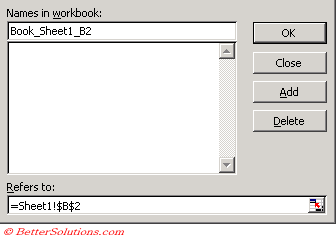 |
Names in workbook - The descriptive name you want to use for the cell or range of cells.
Refers To - You can create a range name very quickly by highlighting the cells. All cell references are absolute by default and also include their worksheet name.
Add - Creates a new named range for the cell range in the refers to box. This will not close the dialog box enabling you to enter several names at once. Adding a named range that already exists will overwrite it with no prompt.
Delete - Allows you to remove the named range that is currently selected.
OK - Closes the dialog box and saves any changes you have made.
Close - Closes the dialog box.
By default, references are fixed when names are created ??
Table Names
A workbook level named range is created every time you create a table in a workbook.
All table names must be unique.
For more information
Name Manager Filter
These can be display using the Name Manager
Using the (Edit > GoTo) dialog box
When you select Find & Select > GoTo all the named ranges are displayed in alphabetical order.
This dialog box can provide a very quick way to move around worksheets and workbooks.
The GoTo dialog box remembers the last four cells or ranges of cells you visited. Your previous cell range will automatically appear in the Reference box when the dialog box is displayed.
The F5 key is a shortcut key for displaying the (Edit > GoTo) dialog box.
© 2026 Better Solutions Limited. All Rights Reserved. © 2026 Better Solutions Limited TopPrevNext