Record Actions
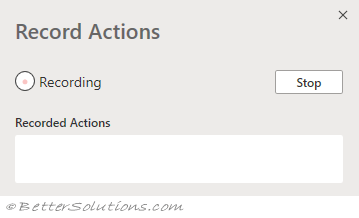
As soon as you press this button the recording will start.
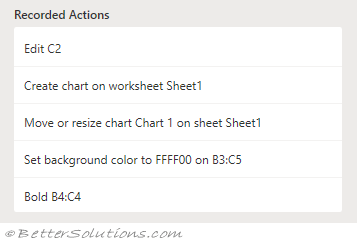
Every time you edit a cell or perform an action the recorded steps are listed in the task pane.
When you have finished your actions press the Stop button.
All the actions will be recorded and translated into a script.
Pressing the "Record Actions" button on the Automate tab will display the Record Actions task pane.
 |
Every time you edit a cell or perform an action the recorded steps are listed in the task pane.
Only actions that change the workbook are recorded.
Nothing is recorded when the selection is changed.
 |
When you have finished your actions press the Stop button at the top.
If an action cannot be recorded this will be indicated in the Recorded Actions pane.
Consolidated Lines
Multiple actions may be consolidated into a single line.
Stop Recording
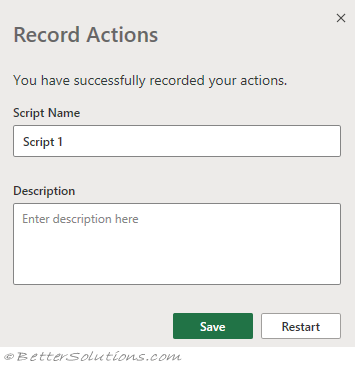
Once the recording has stopped you will be asked to save the script and give it a name.
This will allow you to identify the script later and re-run it.
Entering a description is optional.
 |
Once the script has been saved the Code Editor task pane will be displayed.
The Script Details pane will be displayed.
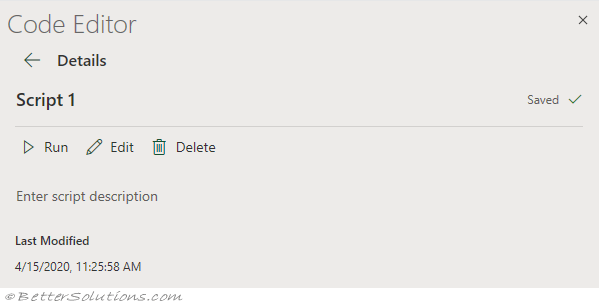 |
This pane lets you change the name of the script.
Add a description for the script, see the owner, when it was last modified.
It also gives you the option to share the script with other people who use this file.
Variables
The macro recorder will declare variables (unlike VBA)
Comments
Comments will be automatically added
Undo
This can be use (Ctrl + Z) to undo a step while you are recording.
© 2026 Better Solutions Limited. All Rights Reserved. © 2026 Better Solutions Limited TopPrevNext