VBA Code
ActiveWorkbook.Colors(42) = RGB(50, 100, 150)
ActiveWorkbook.ResetColors
ActiveWorkbook.Colors = Workbooks("Book2.xls").Colors
Application.CellDragAndDrop = True
Application.AlertBeforeOverwriting = True
Application.ExtendList = True
Application.AutoPercentEntry = True
Application.FixedDecimal = True
Application.FixedDecimalPlaces = 2
Application.CopyObjectsWithCells = True
Application.AskToUpdateLinks = True
Application.EnableAnimations = True
Application.MapPaperSize = False
Application.DefaultSheetDirection = xlLTR | xlRTL
ActiveSheet.DisplayRightToLeft = True
Application.CursorMovement = xlLogicalCursor | xlVisualCursor
Application.ControlCharacters = True
Application.TransitionMenuKey = "\"
Application.TransitionMenuKeyAction = xlExcelMenus | xlLotusHelp
Application.TransitionNavigKeys = True
ActiveSheet.TransitionExpEval = True
ActiveSheet.TransitionFormEntry = True
Folder Paths
Application.AutoRecover.Path
Dim sFolder As String
sFolder = Application.LibraryPath
This is the folder used when a workbook is Auto Recovered.
Excel 365 - C:\Program Files\Microsoft Office\root\Office16\LIBRARY
Excel 2024 - C:\Users\"user name"\AppData\Roaming\Microsoft\Excel
Excel 2021 - C:\Users\"user name"\AppData\Roaming\Microsoft\Excel
Excel 2019 - C:\Users\"user name"\AppData\Roaming\Microsoft\Excel
Excel 2016 - C:\Users\"user name"\AppData\Roaming\Microsoft\Excel
Application.AltStartupPath
sFolder = Application.AltStartupPath
This will be empty unless one has been added.
Application.DefaultFilePath
sFolder = Application.DefaultFilePath
This is the default local file location specified on the Options, Save tab.
Returns or sets the default path that Excel uses when it opens files.
Excel 365 - C:\Users\"user name"\Documents
Excel 2024 - C:\Users\"user name"\Documents
Excel 2021 - C:\Users\"user name"\Documents
Excel 2019 - C:\Users\"user name"\Documents
Excel 2016 - C:\Users\"user name"\Documents
Application.LibraryPath
sFolder = Application.LibraryPath
It is possible to obtain the directory containing the built-in Excel add-ins.
You can save your own add-ins in this directory as well if you want them to appear in the Add-ins dialog box and made available to all the users on this machine.
Excel 365 - C:\Program Files\Microsoft Office\root\Office16\LIBRARY
Excel 2024 - C:\Program Files\Microsoft Office\OFFICE15\Library
Excel 2021 - C:\Program Files\Microsoft Office\OFFICE15\Library
Excel 2019 - C:\Program Files\Microsoft Office\OFFICE16\Library
Excel 2016 - C:\Program Files\Microsoft Office\OFFICE16\Library
Application.NetworkTemplatesPath
sFolder = Application.NetworkTemplatesPath
Returns the network path where templates are saved.
This is read only.
Application.Path
sFolder = Application.Path
This is the directory of the path where Excel.exe is stored.
Excel 365 - C:\Program Files\Microsoft Office\root\Office16
Excel 2024 - C:\Program Files\Microsoft Office\OFFICE15\
Excel 2021 - C:\Program Files\Microsoft Office\OFFICE15\
Excel 2019 - C:\Program Files\Microsoft Office\OFFICE16\
Excel 2016 - C:\Program Files\Microsoft Office\OFFICE16\
Application.PathSeparator
It is also possible to obtain the path separator character - only useful for compatibility with Macintosh.
Application.PathSeparator = "\"
Application.StartupPath
sFolder = Application.StartupPath
This is the directory of the start up path.
You can save your own add-ins in this directory and they will be loaded but they will not appear in the Add-ins dialog box.
Excel 365 - C:\Users\"user name"\AppData\Roaming\Microsoft\Excel\XLSTART
Excel 2024 - C:\Documents and Settings\"user name"\AppData\Microsoft\Excel\XLSTART
Excel 2021 - C:\Documents and Settings\"user name"\AppData\Microsoft\Excel\XLSTART
Excel 2019 - C:\Documents and Settings\"user name"\AppData\Microsoft\Excel\XLSTART
Excel 2016 - C:\Documents and Settings\"user name"\AppData\Microsoft\Excel\XLSTART
Application.TemplatesPath
sFolder = Application.TemplatesPath
This refers to the local Templates directory.
Excel 365 - C:\Users\"user name"\AppData\Roaming\Microsoft\Templates
Excel 2024 - C:\Users\"user name"\AppData\Roaming\Microsoft\Templates
Excel 2021 - C:\Users\"user name"\AppData\Roaming\Microsoft\Templates
Excel 2019 - C:\Users\"user name"\AppData\Roaming\Microsoft\Templates
Excel 2016 - C:\Users\"user name"\AppData\Roaming\Microsoft\Templates
Application.UserLibraryPath
sFolder = Application.UserLibraryPath
Returns the path to the location on the users computer where the COM add-ins are installed. Read Only string
Excel 365 - C:\users\"user name"\AppData\Roaming\Microsoft\AddIns\
Excel 2024 - C:\users\"user name"\AppData\Roaming\Microsoft\AddIns\
Excel 2021 - C:\users\"user name"\AppData\Roaming\Microsoft\AddIns\
Excel 2019 - C:\users\"user name"\AppData\Roaming\Microsoft\AddIns\
Excel 2016 - C:\users\"user name"\AppData\Roaming\Microsoft\AddIns\
General Tab
User Interface Options
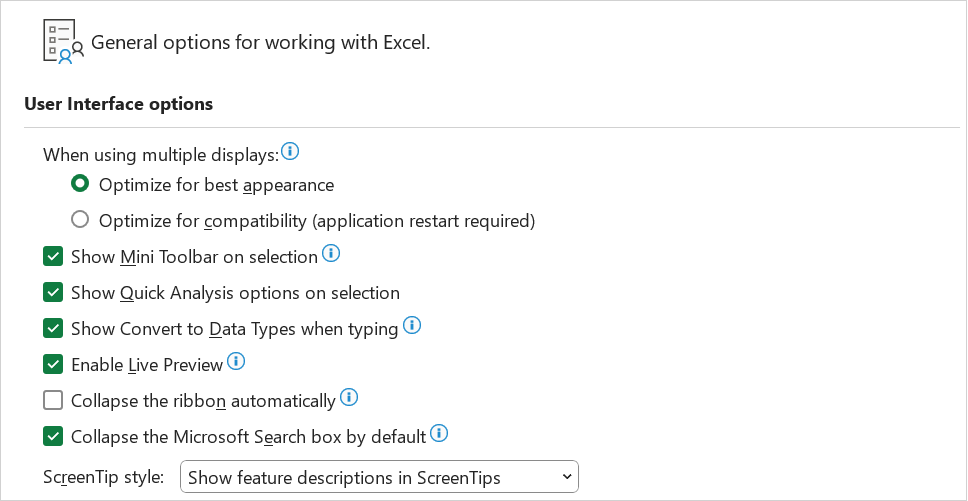 |
Application.ReferenceStyle = xlR1C1
Application.IgnoreRemoteRequests = True
Application.DisplayFunctionToolTips = True
Application.PromptForSummaryInfo = True
Application.DisplayRecentFiles = True
Application.RecentFiles.Maximum = 9
Application.EnableSound = True
Application.RollZoom = True
Application.SheetsInNewWorkbook = 1
Application.DefaultFilePath = "C:\Personal\Website\Other Files\"
When creating new workbooks
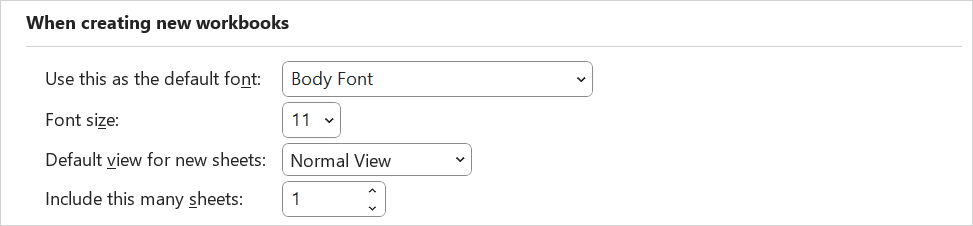 |
Application.StandardFont = "Arial"
Application.StandardFontSize = "10"
Personalise your copy of Microsoft Office
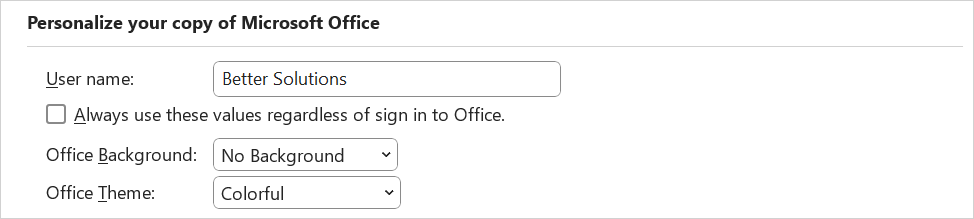 |
Application.UserName = "Russell Proctor"
Formulas Tab
Calculation options
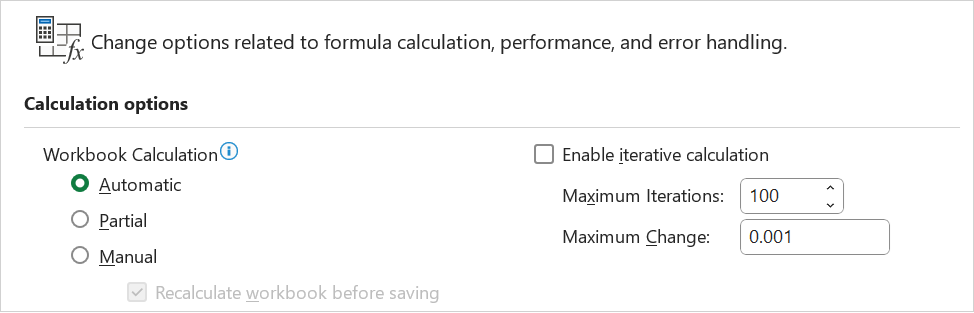 |
Application.Calculation = xlCalculation.xlCalculationManual
Application.Calculation = Excel.xlManual
The second line is only made available for backwards compatibility.
Application.Calculation = xlCalculation.xlCalculationAutomatic
Application.Calculation = Excel.xlAutomatic
The second line is only made available for backwards compatibility.
Application.Calculation = xlCalculation.xlCalculationSemiautomatic
Application.Calculation = Excel.xlSemiautomatic
The second line is only made available for backwards compatibility.
Application.CalculateBeforeSave = True
Application.Calculate
ActiveSheet.Calculate
If you want to calculate just a selection of cells you could use Range("A2:E10").Calculate.
For more details on VBA Calculation, please refer to the Formulas > VBA Code > Calculation
Application.Iteration = True
Application.MaxIterations = 1000
Application.MaxChange = 0.001
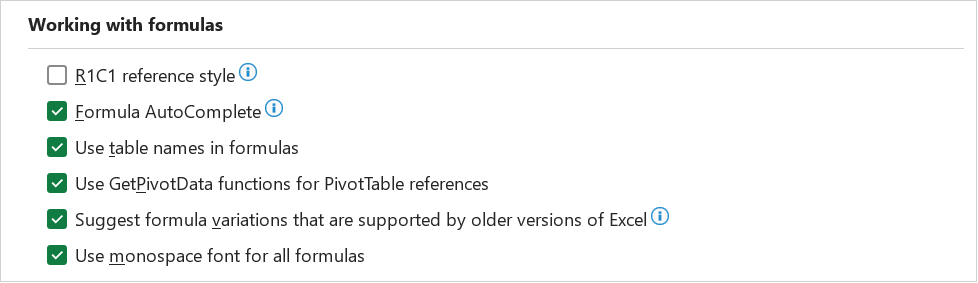
Working with formulas
 |
Error checking
 |
Enable background error checking
Creates a "divide by zero" error and displays the Error Checking Options smart tag.
Sub CheckBackground()
    Application.ErrorCheckingOptions.BackgroundChecking = True
    Range("A1").Select
    ActiveCell.Formula = "=A2/A3"
End Sub
Indicate errors with this color
Returns or sets the color of the indicator for error checking options. Read/write XlColorIndex.
You can specify a particular color for the indicator by entering the corresponding index value. You can use the Colors property to return the current color palette.
Checks to see if the indicator color for error checking is set to the default system color and notifies the user accordingly.
Sub CheckIndexColor()
    If Application.ErrorCheckingOptions.IndicatorColorIndex = xlColorIndexAutomatic Then
        MsgBox "Your indicator color for error checking is set to the default system color."
    Else
        MsgBox "Your indicator color for error checking is not set to the default system color."
    End If
End Sub
Error checking rules
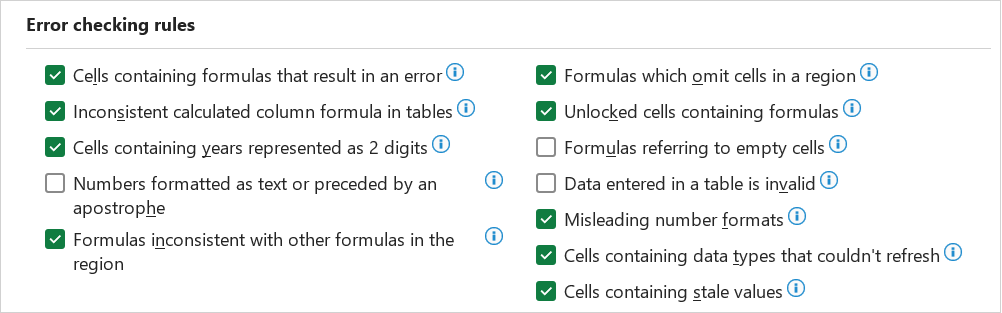 |
Application.ErrorCheckingOptions.EvaluateToError = True
Application.ErrorCheckingOptions.InconsistentTableFormula = True
Application.ErrorCheckingOptions.TextDate = True
Application.ErrorCheckingOptions.NumberAsText = True
Application.ErrorCheckingOptions.InconsistentFormula = True
Application.ErrorCheckingOptions.OmittedCells = True
Application.ErrorCheckingOptions.UnlockedFormulaCells = True
Application.ErrorCheckingOptions.EmptyCellReferences = True
Application.ErrorCheckingOptions.ListDataValidation = True
Application.ErrorCheckingOptions.MisleadingNumberFormats = True
Cells containing data types that couldn't refresh - no VBA
Cells containing stale values - no VBA
EvaluateToError
Creates a "divide by zero" error and displays the Error Checking Options smart tag.
Sub CellsContainingFormulasThatResultInAnError()
   Application.ErrorCheckingOptions.EvaluateToError = True
   Range("A1").Value = 1
   Range("A2").Value = 0
   Range("A3").Formula = "=A1/A2"
End Sub
InconsistentTableFormula
Creates a "divide by zero" error and displays the Error Checking Options smart tag.
Sub InconsistentCalculatedColumnFormulaInTables()
   Application.ErrorCheckingOptions.InconsistentTableFormula = True
End Sub
TextDate
Enters a reference to a text date with a two-digit year and displays the Error Checking Options smart tag.
This example does not actually work.
Sub CellsContainingYearsRepresentedAs2Digits()
    Application.ErrorCheckingOptions.TextDate = True
    Range("B2").Value = "'April 23, 00"
End Sub
Perform check to see if 2 digit year TextDate check is on.
Sub CellsContainingYearsRepresentedAs2Digits_2()
    Dim rngFormula As Range
    Set rngFormula = Application.Range("A1")
    Range("A1").Formula = "'April 23, 00"
    Application.ErrorCheckingOptions.TextDate = True
    If rngFormula.Errors.Item(xlTextDate).Value = True Then
        MsgBox "The text date error checking feature is enabled."
    Else
        MsgBox "The text date error checking feature is not on."
    End If
End Sub
NumberAsText
Enters a reference to a number stored as text and displays the Error Checking Options smart tag.
Sub NumbersFormattedAsTextOrPrecededByAnApostrophe()
    Application.ErrorCheckingOptions.NumberAsText = True
    Range("A1").Value = "'1"
End Sub
InconsistentFormula
Enters an inconsistent formula and displays the Error Checking Options smart tag.
Sub FormulasInconsistentWithOtherFormulasInTheRegion()
    Application.ErrorCheckingOptions.InconsistentFormula = True
    Range("A1:A3").Value = 1
    Range("B1:B3").Value = 2
    Range("C1:C3").Value = 3
    Range("A4").Formula = "=SUM(A1:A3)"  ' Consistent formula.
    Range("B4").Formula = "=SUM(B1:B2)"  ' Inconsistent formula.
    Range("C4").Formula = "=SUM(C1:C3)"  ' Consistent formula.
End Sub
Consistent formulas in the region must reside to the left and right or above and below the cell containing the inconsistent formula for the InconsistentFormula property to work properly.
OmittedCells
Enters a formula that refers to a range that omits adjacent cells that could be included and displays the Error Checking Options smart tag.
Sub FormulasWhichOmitCellsInARegion()
    Application.ErrorCheckingOptions.OmittedCells = True
    Range("A1").Value = 1
    Range("A2").Value = 2
    Range("A3").Value = 3
    Range("A4").Formula = "=Sum(A1:A2)"
End Sub
UnLockedFormulaCells
Enters a formula in a cell that has been unlocked and displays the Error Checking Options smart tag.
Sub UnlockedCellsContainingFormulas()
    Application.ErrorCheckingOptions.UnlockedFormulaCells = True
    Range("A1").Value = 1
    Range("A2").Value = 2
    Range("A3").Formula = "=A1+A2"
    Range("A3").Locked = False
End Sub
EmptyCellReferences
Enters a formula that refers to empty cells and displays the Error Checking Options smart tag.
Sub FormulasReferringToEmptyCells()
    Application.ErrorCheckingOptions.EmptyCellReferences = True
    Range("A1").Formula = "=A2+A3"
End Sub
ListDataValidation
Enter a value that is not in the data validation list and displays the Error Checking Options smart tag.
Sub DataEnteredInATableIsInvalid()
    Application.ErrorCheckingOptions.ListDataValidation = True
End Sub
MisleadingNumberFormats
Enter a value that is not in the data validation list and displays the Error Checking Options smart tag.
Sub MisleadingNumberFormats()
    Application.ErrorCheckingOptions.MisleadingNumberFormats = True
End Sub
Data Tab
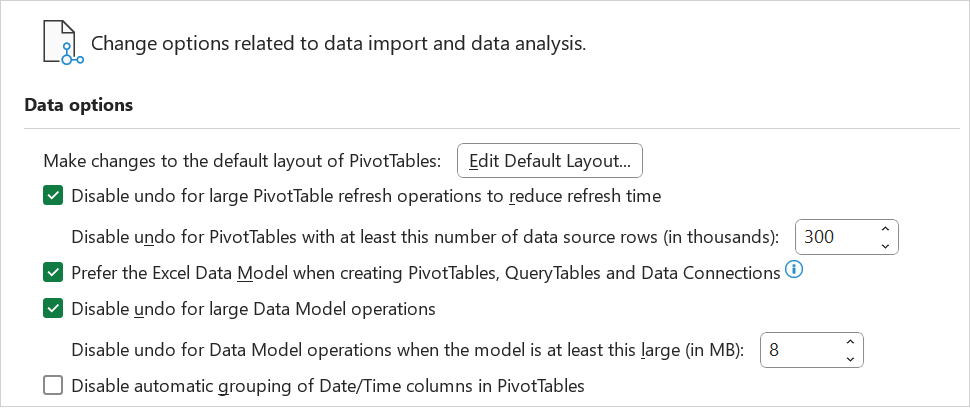
Data options
 |
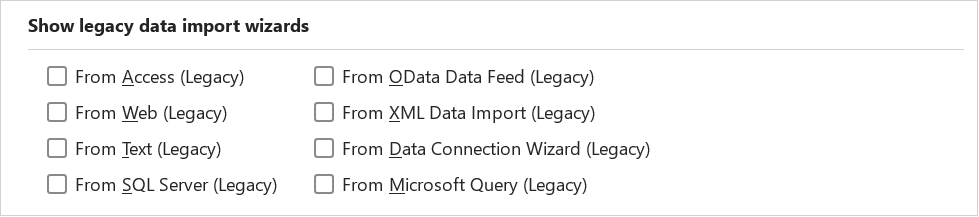
Show legacy data import wizards
 |
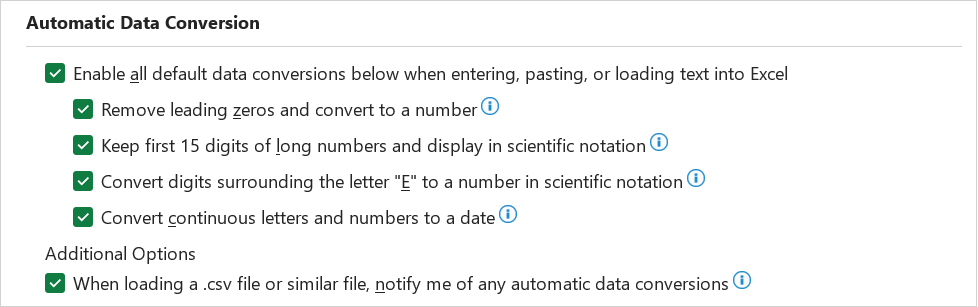
Automatic Data Conversion
 |
VBA - Proofing Tab
AutoCorrect options
 |
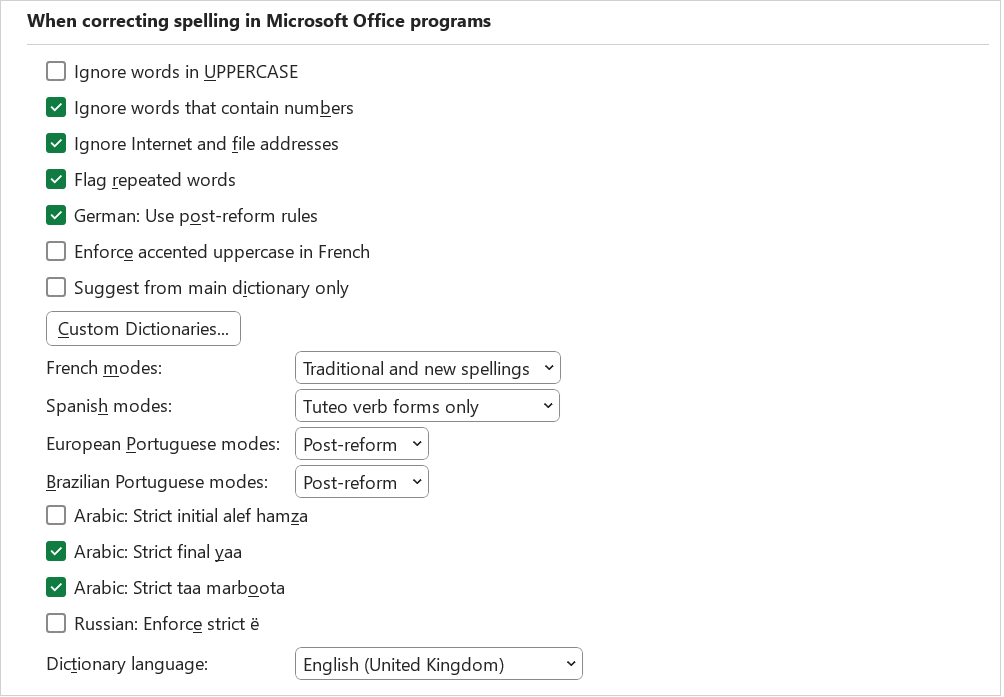
When correcting spelling in Microsoft Office programs
 |
Save Tab
Save workbooks
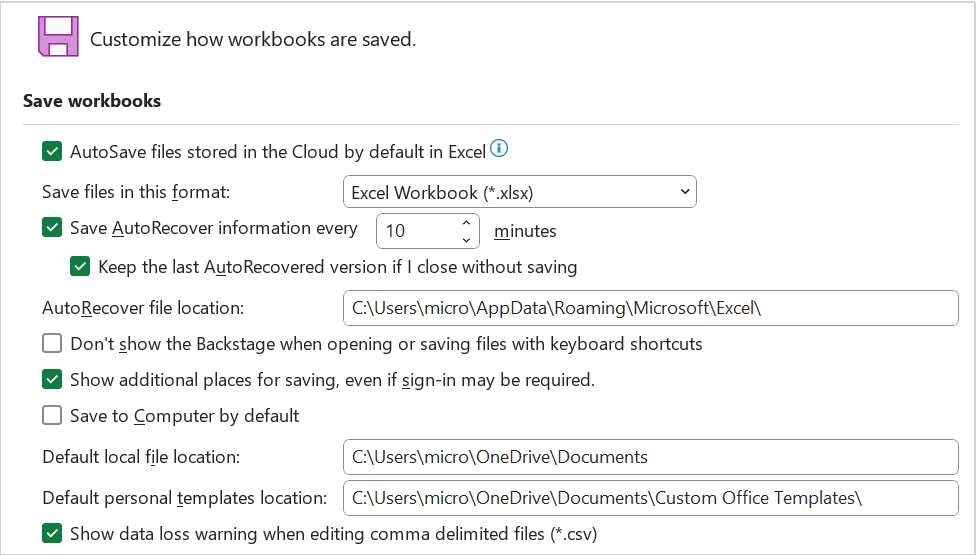 |
Application.DefaultSaveFormat = xlWorkbookNormal
Application.AutoRecover.Enabled = True
Application.AutoRecover.Time = 20
Application.AutoRecover.Path = "C:\Temp\"
ActiveWorkbook.EnableAutoRecover = False
Autorecover exceptions for
 |
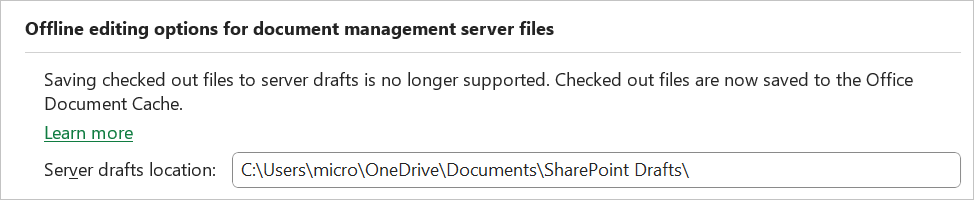
Offline editing options for document management server files
 |
Preserve visual appearance of the workbook
 |
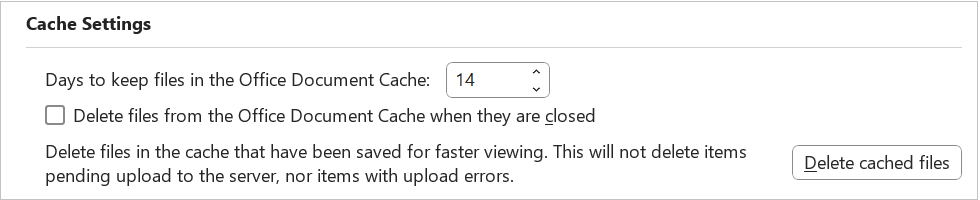
Cache Settings
 |
Advanced Tab
Editing Options
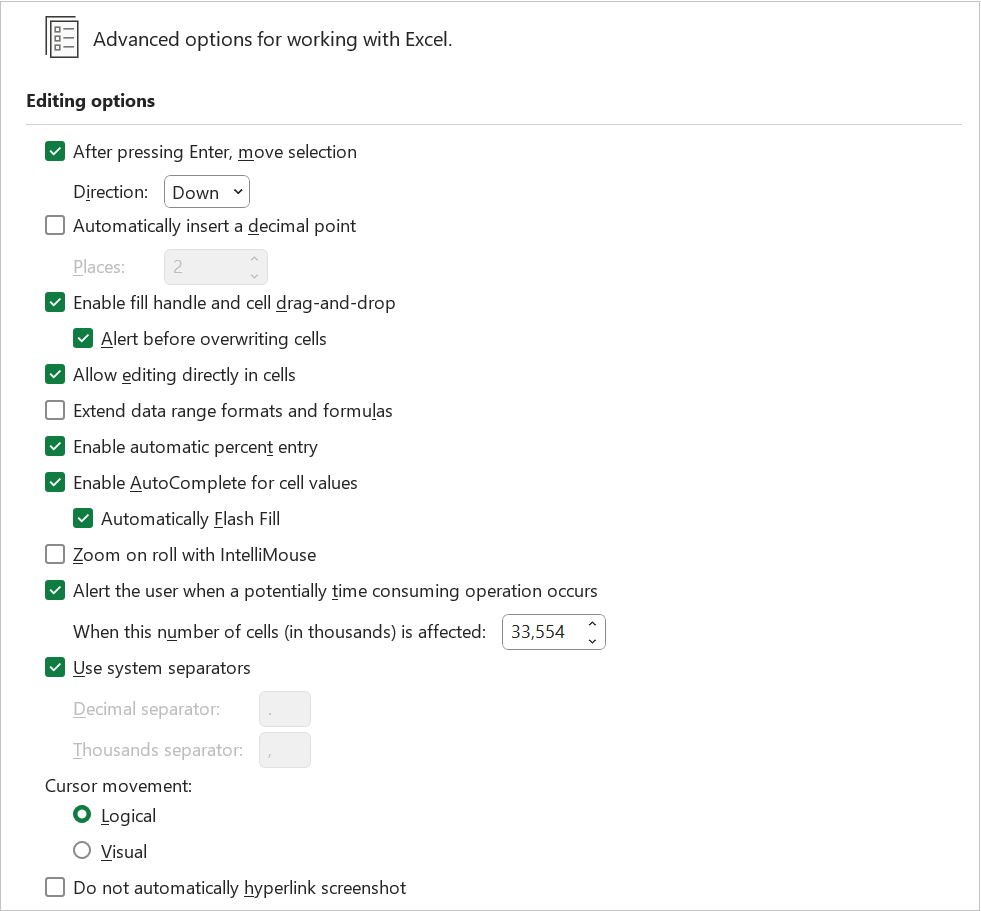 |
Application.MoveAfterReturn = True
Application.MoveAfterReturnDirection = xlDirection.xlDown
Application.EditDirectlyInCell = True
Application.EnableAutoComplete = True
Application.UseSystemSeparators = True
Application.DecimalSeparator = "."
Application.ThousandsSeparator = ","
Cut, Copy, and Paste
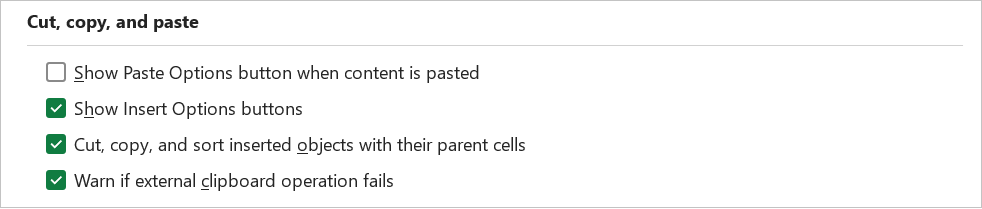 |
Application.DisplayPasteOptions = True
Application.DisplayInsertOptions = True
File Open Preference
 |
Pen
Image size and quality
 |
 |
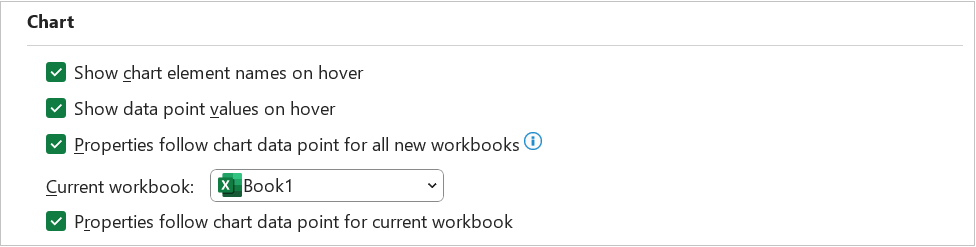
Chart
 |
Display
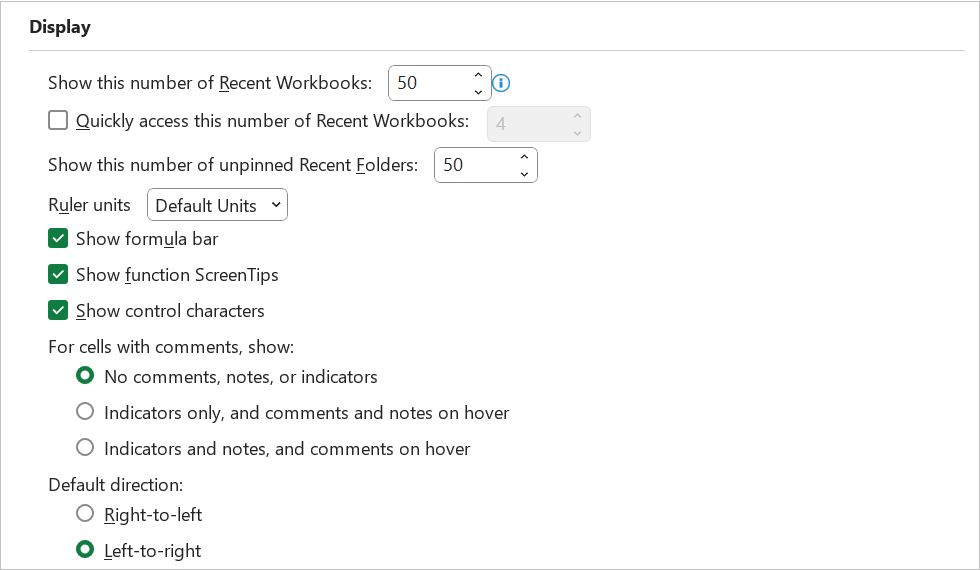 |
Application.ShowStartupDialog = True
Application.DisplayFormulaBar = True
Application.DisplayStatusBar = True
Application.ShowWindowsInTaskbar = True
Application.DisplayCommentIndicator = xlCommentDisplayMode.xlNoIndicator
Application.DisplayCommentIndicator = xlCommentDisplayMode.xlCommentIndicatorOnly
Application.DisplayCommentIndicator = xlCommentDisplayMode.xlCommentAndIndicator
ActiveWorkbook.DisplayDrawingObjects = xlDisplayDrawingObjects.xlDisplayShapes
ActiveWorkbook.DisplayDrawingObjects = xlDisplayDrawingObjects.xlPlaceholders
ActiveWorkbook.DisplayDrawingObjects = xlDisplayDrawingObjects.xlHide
ActiveSheet.DisplayAutomaticPageBreaks = True
ActiveWindow.DisplayFormulas = True
ActiveWindow.DisplayGridlines = False
ActiveWindow.DisplayHeadings = False
ActiveWindow.DisplayOutline = False
ActiveWindow.DisplayZeros = False
ActiveWindow.DisplayHorizontalScrollBar = False
ActiveWindow.DisplayVerticalScrollBar = False
Display options for this Workbook
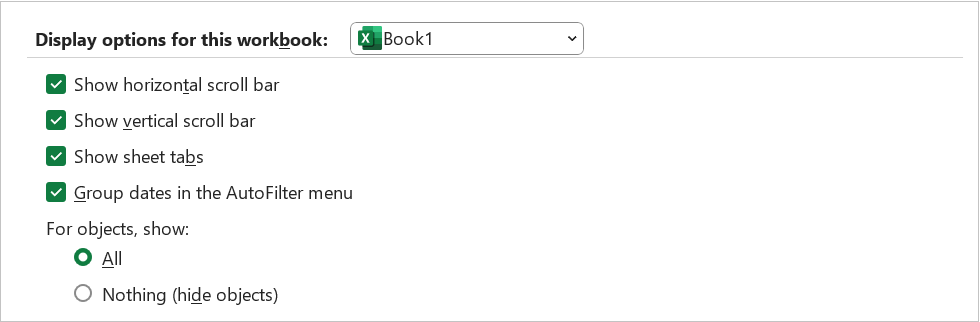 |
ActiveWindow.DisplayWorkbookTabs = False
Display options for this Worksheet
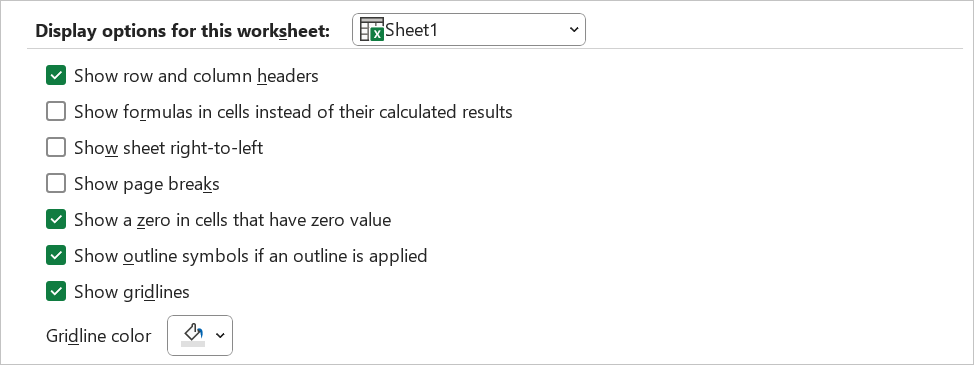 |
ActiveWindow.GridlineColorIndex = 53
Formulas
 |
When calculating this workbook
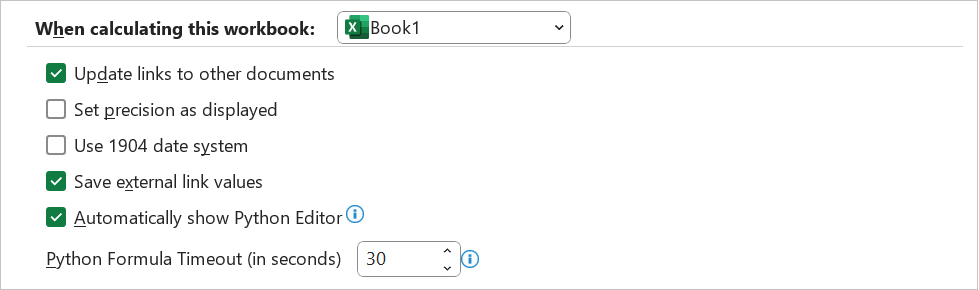 |
ActiveWorkbook.UpdateRemoteReferences = True
ActiveWorkbook.PrecisionAsDisplayed = True
ActiveWorkbook.Date1904 = True
ActiveWorkbook.SaveLinkValues = True
ActiveWorkbook.AcceptLabelsInFormulas = True
General
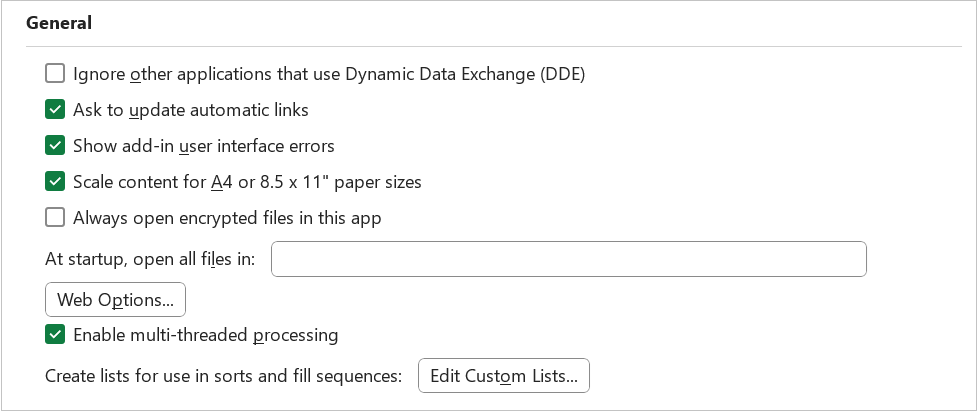 |
Application.AskToUpdateLinks = True
Application.AltStartupPath = "C:\Personal\Website\"
© 2026 Better Solutions Limited. All Rights Reserved. © 2026 Better Solutions Limited TopPrev