Advanced Tab
Editing Options
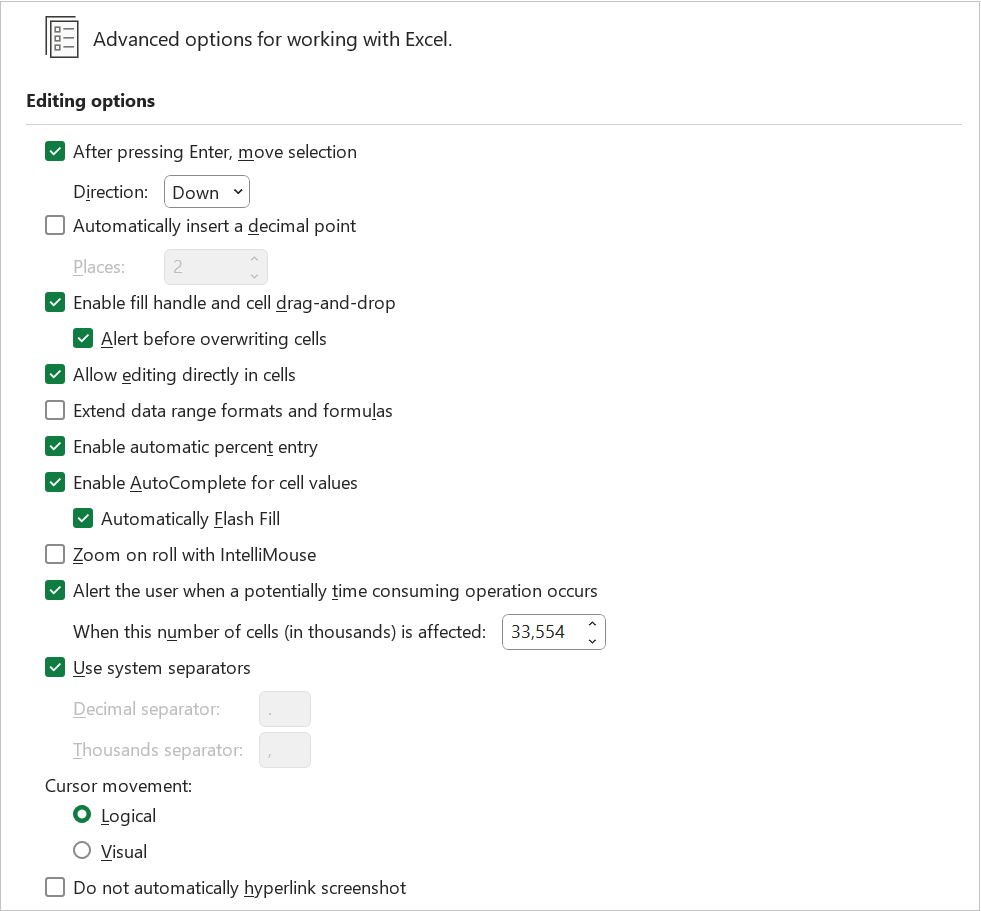 |
After pressing Enter, move selection - After entering a value or formula into a cell, pressing Enter will change the active cell to an adjacent cell. Which cell this is depends on the direction chosen in the Direction drop-down list below. The default is ticked.
Direction - Controls which cell will become the active cell after you press Enter. The drop-down contains the values: Down, Up, Right and Left. The default is Down.
Automatically insert a decimal point - Select this check box to display a number with decimal points by default.
Places - Enter the number of decimal places in the Places box to indicate where Microsoft Office Excel automatically places the decimal point in the numbers that you type as constants on a worksheet. A positive number moves the decimal point to the left; a negative number moves the decimal point to the right. If the Places box is left blank or is set to 0 (zero), you need to enter the decimal point manually. To override this option, type a decimal point in the cell when you type the number.
Enable fill handle and cell drag-and-drop - Select this check box to move and to copy cells and data by dragging. When this option is selected, you can also drag the fill handle to copy data and to fill adjacent cells with a series of data.
Alert before overwriting cells - Displays a message if you drop cells over other cells that contain data.
Allow editing directly in cells - Select this check box to enable editing inside a cell by double-clicking the cell, rather than always having to edit the cell contents in the formula bar. The default is ticked.
Extend data range formats and formulas - Select to automatically format new items added to the end of a list to match the format of the rest of the list. Formulas that are repeated in every row are also copied. To be extended, formats and formulas must appear in at least three of the five last rows preceding the new row.
Enable automatic percent entry - Select to multiply by 100 all of the numbers less than 1 that you enter in cells that are formatted in the Percentage format. Clear this check box to multiply by 100 all of the numbers that you enter in cells that are formatted in the Percentage format, including numbers equal to or greater than 1.
Enable AutoComplete for cell values - Completes text entries that you start to type in a column of data. If the first few letters that you type match an existing entry in that column, Excel fills in the remaining text for you.
Automatically Flash Fill - Uses an algorithm for recognising patterns in your data and automatically predicts and can fill in the remaining cells for you. For more information refer to the Flash Fill page.
Zoom on roll with IntelliMouse - If you have the Microsoft IntelliMouse pointing device, sets the wheel button to zoom instead of scroll on your worksheet or chart sheet.
Alert the user when a potentially time consuming operation occurs - Select if you want to be notified when an operation affects a large number of cells and may take a long time to process.
When this number of cells (in thousands) is affected - Lets you specify the maximum number of cells that are affected by an operation without being notified. If more cells than the maximum number of cells are affected, you are notified.
Use system separators - Select to use the default Decimal and Thousands separators. Clear to enter alternate separators.
Decimal separator - To change the default decimal separator, clear Use system separators, select the default separator in the Decimal separator box, and then type the separator that you want to use.
Thousands separator - To change the default thousands separator, clear Use system separators, select the default separator in the Thousands separator box, and then type the separator that you want to use.
Cursor movement -
Logical - The insertion point movement will move in the logical order of bidirectional text.
Visual - The insertion point movement will ignore the text language and move continuously to the right or left.
Do not automatically hyperlink screenshot - Prevents automatic hyperlinks being added when you use the (Insert Tab, Illustrations, screenshot).
Cut, Copy, and Paste
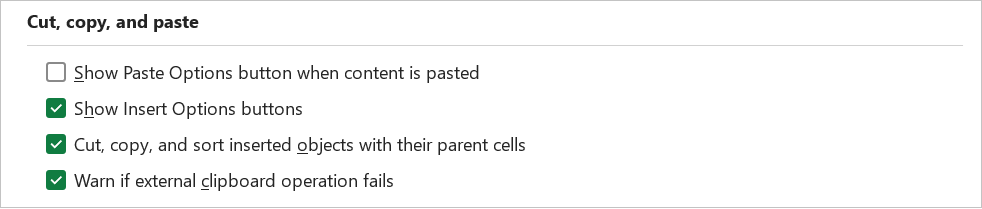 |
Show Paste Options button when content is pasted - Select to have Excel automatically display a dialog box with special options when you paste, such as Formatting Only and Link Cells.
Show Insert Options buttons - Select to have Excel automatically display a dialog box with special options when you insert cells, rows or columns, such as Formatting Same As Above and Clear Formatting.
Cut, copy, and sort inserted objects with their parent cells - Keeps graphic objects, buttons, text boxes, drawn objects, and pictures with their associated cells whenever you cut, copy, filter, or sort on a worksheet.
File Open Preference
This section was added in Excel 365 and was originally called "Link Handling".
 |
Open Word, Excel and PowerPoint files using - Sets your preference for opening supported hyperlinks to Word, Excel and PowerPoint files to either the Desktop applications or the Browser.. The drop-down contains the choice of "Desktop" or "Browser"
Open supported hyperlinks to Office files in Office desktop apps - (Added in 365). When selected, supported hyperlinks to Word, Excel and PowerPoint files in an office application will open in Office Desktop apps.
Pen
 |
Use pen to select and interact with content by default - If you have a touch-enabled device and are using a digital pen, by default it starts drawing immediately when the pen hits the document canvas. You can turn off automatic inking and have the pen work as a stylus by default by selecting this option.
Enable the draw and hold ink-to-shape gesture while inking - (Added in 365) After you draw a shape, hold your pen in place to turn your ink into an enhanced shape.
Image size and quality
 |
Image size and quality - Select the workbook in this list box that is affected by the following options.
Discard editing data - When an image is inserted the image dimensions get changed to fit into the workbook. It is possible that the image being inserted already has some information relating to editing perfomed previously. This option will remove any previous editing data. If you have made changes to a picture (eg cropping, brightness etc) the information to reverse this change is saved in the file. You can reduce the size of a file by removing this edited data.
Do not compress images in file - If you want to keep the maximum picture quality then you can switch picture compression off.
Default resolution - (Added in 365). Allows you to control the picture resolution for all the pictures in the chosen document.
Set default target output to - (Renamed in 365). Renamed to Default Resolution.
 |
High quality mode for graphics - Select if you want to see improvements in your print jobs such as increased resolution, blended transparent graphics. By selecting this option, you get the best possible output but printing may take longer.
Include fonts that are stored on the printer - Printer fonts are fonts that are built-in to the printer itself. Windows can use these fonts instead of having to send all the font details to the printer.
Chart
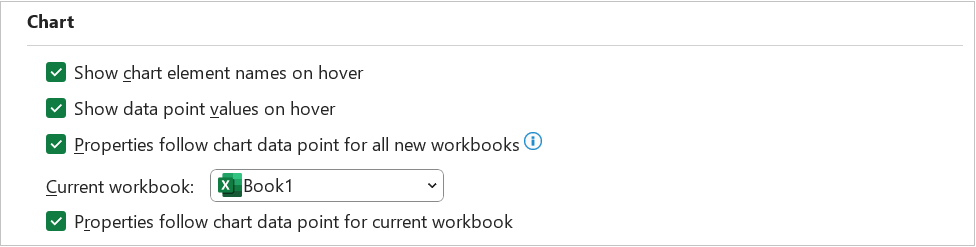 |
Show chart element names on hover - Displays the name of a chart element when you rest the pointer over it.
Show data point values on hover - Displays the value of a data point (data points: Individual values plotted in a chart and represented by bars, columns, lines, pie or doughnut slices, dots, and various other shapes called data markers. Data markers of the same color constitute a data series.) when you rest the pointer over it.
Properties follow chart data point for all new workbooks - Custom formatting and data labels follow data points as they move or change on all your charts in new workbooks.
Current Workbook - Select the workbook in this list box that is affected by the following option.
Properties follow chart data point for current workbook - Custom formatting and data labels follow data points as they move or change in a specific workbook.
Display
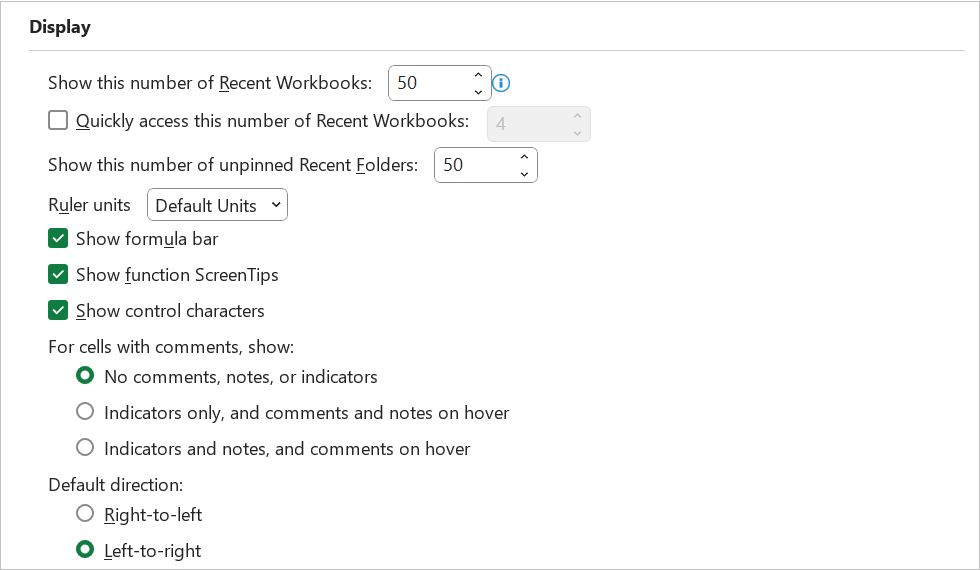 |
Show this number of Recent Documents - Displays a list of recently used workbooks under Recent Documents, so that you can open those workbooks quickly. Enter or select a positive number between 0 and 50. The default is 50.
Quickly access this number of Recent Workbooks - When checked, a list of files is displayed at the bottom of the File tab, under Options. Set the number of files to display by changing the number to the right. The default is 4.
Show this number of unpinned Recent Folders - A list of recently accessed folders is displayed under Recent in the Backstage, allowing you to reopen those folders quickly. Enter the number of workbooks that you want to display in the Show this number of unpinned Recent Folders box. Enter or select a positive number between 0 and 50. The default is 50.
Ruler units - Lets you select the units that you want to display on the Page Layout view ruler.
Show formula bar - Displays the formula bar. The formula bar appears at the top of the worksheet.
Show function screentips - Displays brief descriptions of the functions that you select in the list of functions that is displayed when Formula AutoComplete is turned on.
Show control characters - (Added in 365, Removed in 365, Added in 365). The default is not ticked.
For cells with comments, show - Select one of the following options to determine how comments are displayed on the worksheet.
No comments, notes or indicators - Hides comments and comment indicators in cells that have comments or notes attached.
Indicators only, and comments and notes on hover - Displays a small triangle in the upper-right corner of a cell when there is a comment or note attached to the cell. Comments and notes are displayed only when you rest a pointer over a cell that has a comment or note.
Indicators and notes, and comments on hover - Displays the comment or note and indicator, a small triangle in the upper-right corner of a cell, when there is a comment or note attached to the cell.
Default direction - Select one of the following options for the direction of the cells/tabs. The default is left-to-right.
Right-to-left - Places cell A1 at the top right of the view, with sheet tabs aligned to the right side of the window. Cell-specific controls appear on the left side of cells.
Left-to-right - Places cell A1 at the top left of the view, with the sheet tabs aligned to the left side of the window. Cell-specific controls appear on the right side of cells.
Disable hardware graphics acceleration - (Removed in 365, Disables in 365). Reduces the resolution for the presentation display and increases the performance speed. A graphics accelerator is a type of video adaptor that contains its own processor and can often achieve better performance than the general purpose CPU. The default is not ticked.
Show all windows in the Taskbar - (Removed in 2013). Displays all the workbooks and windows in your Excel instances as separate items on the task bar. You will probably find this annoying to start with but it is a good way to try and reduce the number of workbooks open at any one time.
Display hidden/special non-printing characters in cells - only available in Word.
Display options for this Workbook
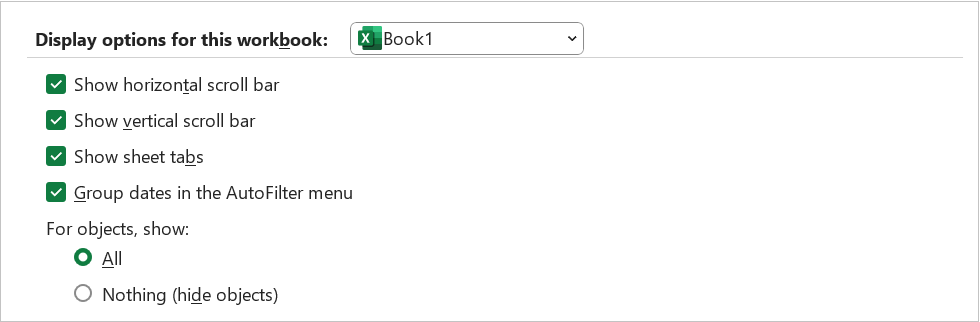 |
Display options for this workbook - Select the workbook in this list box that is affected by the following options.
Show horizontal scroll bar - Displays the horizontal scroll bar at the bottom of the worksheet.
Show vertical scroll bar - Displays the vertical scroll bar on the right side of the worksheet.
Show sheet tabs - Displays worksheet tabs so that you can move between and select individual worksheets. Worksheet tabs appear at the bottom of the worksheet window.
Group dates in the AutoFilter menu - Changes the hierarchical grouping of dates to a nonhierarchical list of dates in the list of dates at the bottom of the AutoFilter menu in a date filter. For example, you can filter for just two-digit years by manually selecting two-digit years from a nonhierarchical list.
For objects, show - Select one of the following options to display or hide graphic objects in the workbook.
All - Displays all of the graphic objects, buttons, text boxes, drawn objects, and pictures.
Nothing (hide objects) - Hides all of the graphic objects, buttons, text boxes, drawn objects, and pictures. Hidden objects are not printed.
Display options for this Worksheet
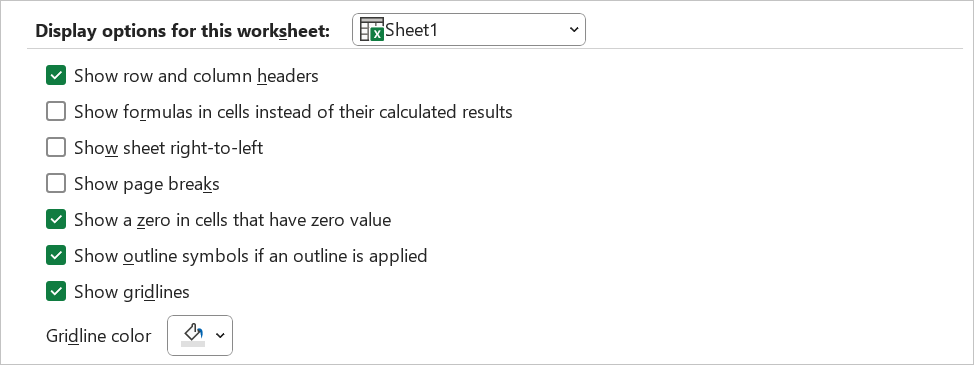 |
Display options for this worksheet - Select the worksheet in this list box that is affected by the following options.
Show row and column headers - Displays row numbers on the left side of the worksheet and column letters at the top of the worksheet. The default is ticked.
Show formulas in cells instead of their calculated results - Displays the formulas in cells instead of the values that the formulas produce. The default is not ticked.
Show sheet right-to-left - Displays the worksheet tab on the RHS of the application window instead of on the LHS. In 2007 this option only appears if you have one or more right-to-left language packs installed. The default is not ticked.
Show page breaks - Displays page breaks that have been set automatically by Excel. The default is not ticked.
Show a zero in cells that have zero value - Displays a 0 (zero) in cells that contain zero values. The default is ticked.
Show outline symbols if an outline is applied - Displays outline symbols. Outline symbols are not displayed unless the worksheet contains an outline. The default is ticked.
Show gridlines - Displays cell gridlines. To print gridlines, make sure that the Print check box is selected under Gridlines in the Sheet Options group on the Page Layout tab. The default is ticked.
Gridline color - Sets the color for gridlines. If you click Automatic, the gridline color is based on the text color defined in Windows Control Panel.
Formulas
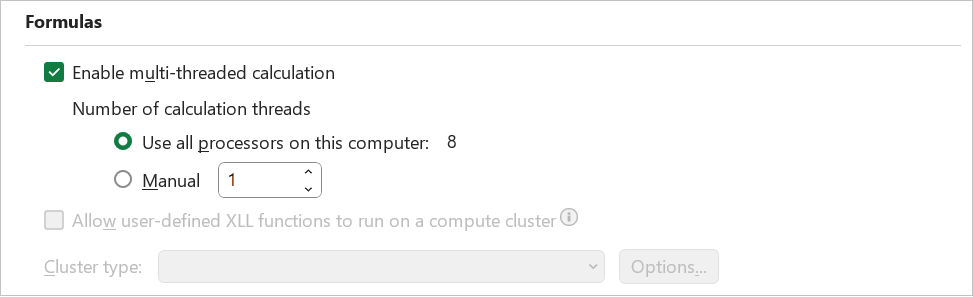 |
Enable multi-threaded calculation - Enables fast calculation by using all of the processors on your computer, or by using the number of processors that you type manually. Excel only supports using up to 64 processor cores. The default is ticked. more
Number of calculation threads - Lets you specify the number of processors that are used for calculation.
Use all processors on this computer - Uses all of the logical processors that are available on your computer. The default is ticked.
Manual - Lets you specify the number of logical processors that you want to use. In the Manual box, enter a positive number between 1 and 1024.
Allow user-defined XLL functions to run on a compute cluster - This option is only enabled if you have a High Performance Computing (HPC) Cluster Connector. A Cluster Connection enables you to run cluster-safe XLL functions remotely on a HPC Cluster for increased performance. (Added in 2013).
Cluster type - This option is only enabled if you have a HPC Cluster Connector. (Added in 2013).
Options - This option is only enabled if you have a HPC Cluster Connector. (Added in 2013).
When calculating this workbook
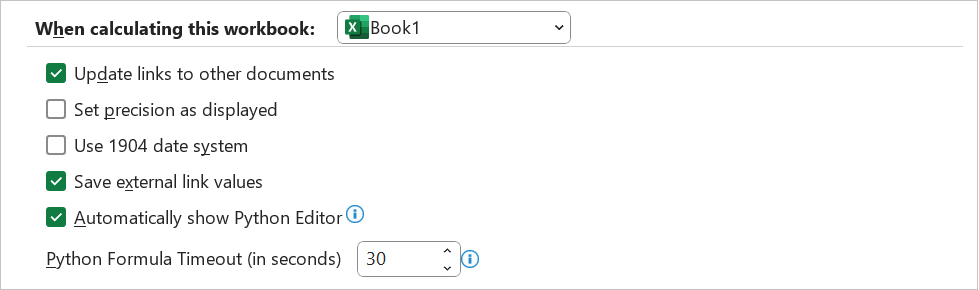 |
When calculating this workbook - Select the workbook in this list box that is affected by the following options.
Update links to other documents - Calculates and updates formulas that include references to other applications. The default is ticked. more
Set precision as displayed - Permanently changes stored values in cells from full precision (15 digits) to whatever format is displayed, including decimal places. The default is not ticked.
Use 1904 date system - Changes the starting date from which all dates are calculated from January 1, 1900, to January 2, 1904. The default is not ticked.
Save external link values - Saves copies of the values contained in an external document linked to an Excel worksheet. If a worksheet with links to large ranges on an external document requires an unusually large amount of disk space or takes a very long time to open, clearing the Save external link values check box can reduce the disk space and time that is needed to open the worksheet. The default is ticked.
Automatically show python editor -
Python formula timeout (in seconds) -
General
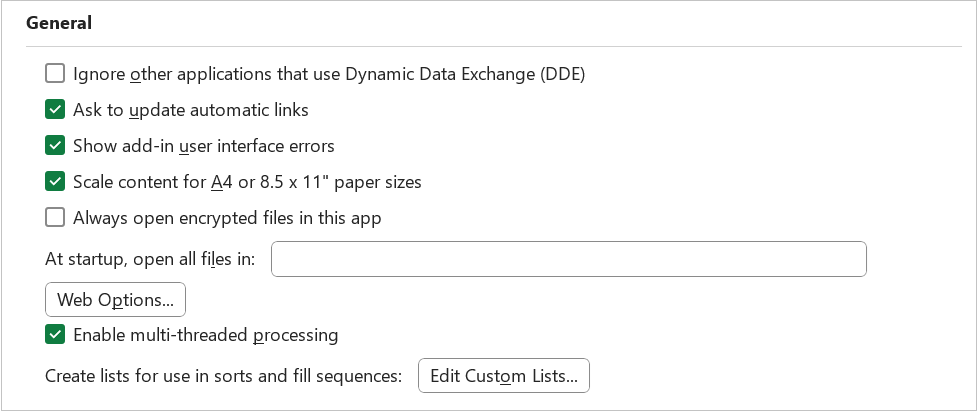 |
Ignore other applications that use Dynamic Data Exchange (DDE) - Prevents the exchange of data with other applications that use Dynamic Data Exchange (DDE).
Ask to update automatic links - Displays a message that lets you confirm before any external links are updated. more
Show add-in user interface errors - Displays errors in the user-interface of add-ins that you install and use. The default is not ticked.
Scale content for A4 or 8.5 x 11" paper sizes - For some countries or regions, the standard paper size is Letter; for others, the standard size is A4. Select this check box if you want Excel to automatically adjust documents formatted for the standard paper size of another country or region (for example, A4) so that they print correctly on the standard paper size for your country or region (for example, Letter). This option affects the printout only. It does not affect the formatting in your document.
Always open encrypted files in this app - (Added in 365). Allows you to establish a trusted relationship between Microsoft Excel and an external file protection or digital rights management (DRM) application.
At startup, open all files in - At startup, Excel automatically opens files from the folder that you type in this text box. Type the full path to the folder in the text box to indicate the location of the files. Unfortunately there is no folder browse button so you have to copy and paste the folder path.
Web Options - Sets options for how Excel data looks and responds when the data is viewed in a Web browser.
Enable multi-threaded processing - This controls all multi-threaded operations (except calculation). This includes sorting, row height calculations and finding the best fit for column widths. This option is not available in the object model. Selected by default but you need to have a multi-threaded processor. The default is ticked.
Create lists for use in sorts and fill sequences - Displays the Custom Lists dialog box.
Lotus Compatibility
All these options will be disabled if there is no active workbook.
 |
Microsoft Excel menu key - Sets the key that you can use to access the commands on the Ribbon.
Transition navigation keys - Activates an alternate set of keys for worksheet navigation, formula entry, label entry, and other actions.
Lotus Compatibility Settings for
 |
Lotus Compatibility Settings for - Select the worksheet in this list box that is affected by the following options.
Transition formula evaluation - Opens and evaluates Lotus 1-2-3 files without losing or changing information. When this option is selected, Excel evaluates text strings as 0 (zero), Boolean expressions as 0 or 1, and database criteria according to the rules that are used in Lotus 1-2-3.
Transition formula entry - Converts formulas that are entered in Lotus 1-2-3 release 2.2 syntax to Excel syntax, and makes names that are defined in Excel behave like names that are defined in Lotus 1-2-3.
Regional Settings
To adjust Excel's regional settings for date, time and number formats you need to change the regional settings on your machine.
This affects currency, formula delimiters
German regional settings uses semi-colons in formulas
IF(A1>B2;"Yes";"No")
use dots in dates
24.07.2025
Online Excel Settings
These can be changed from within the Excel application.
Excel 2003 Options
© 2026 Better Solutions Limited. All Rights Reserved. © 2026 Better Solutions Limited TopPrevNext