Advanced
Editing Options
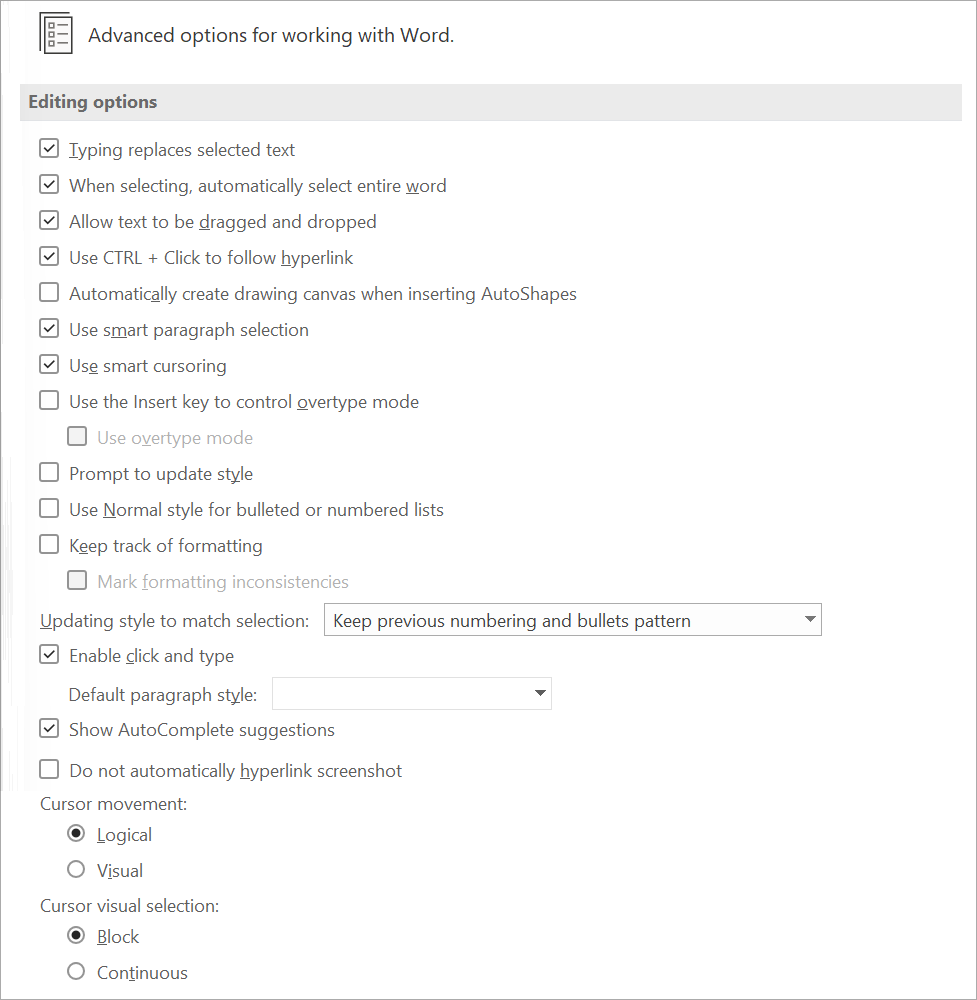 |
Typing replaces selected text - Select this option to delete the selected text when you begin to type. If you clear this check box, Microsoft Office Word inserts new text in front of the selected text and does not delete the selected text.
When selecting, automatically select entire word - Select this option to select entire words when you select part of one word and then part of the next word. Turning this option on also causes Word to select a word and the space that follows it when you double-click a word.
Allow text to be dragged and dropped - Select this option to be able to move or copy selected text by dragging it. To move text, select the text, and then drag it to a new location. To copy text, select the text, and then hold down the CTRL key while you drag the selection to its new location.
Use CTRL + Click to follow hyperlink - Select this option to make it easier to edit the text of hyperlinks. When this option is turned on, you must press CTRL while you click the link to follow the link. When this option is turned off, clicking the link causes Word to jump to the destination of the link, which makes it more difficult to edit the text of the link.
Automatically create drawing canvas when inserting AutoShapes - Select this option to place a drawing canvas around drawing objects or ink drawings and writing when you insert them into your document. A drawing canvas helps you to arrange drawing objects and pictures and to move them as a unit.
Use smart paragraph selection - Select this option to select the paragraph mark when you select a whole paragraph. If you include the paragraph mark when you cut and paste a paragraph, you don't leave a blank paragraph, and your formatting automatically stays with the paragraph.
Use smart cursoring - Select this option to specify that the cursor moves as you scroll up or down. When you press the LEFT ARROW, RIGHT ARROW, UP ARROW, or DOWN ARROW keys after you scroll, the cursor responds at the page currently in view, not at its previous position.
Use the Insert key to control overtype mode - Select this option to turn overtype mode on and off by pressing the INSERT key.
Use overtype mode - Select this option to replace existing text as you type, one character at a time. If the Use the Insert key to control overtype mode is selected, you can turn this option on and off by pressing the INSERT key on your keyboard.
Prompt to update style - Select this option to be prompted when you directly modify text to which a style is applied and then you reapply the style to the modified text. When prompted, you can either update the style based on recent changes or reapply the formatting of the style.
Use Normal style for bulleted or numbered lists - Select this option to base list styles on the Normal paragraph style instead of the Paragraph List style.
Keep track of formatting - Select this option to keep track of your formatting as you type. This enables you to easily apply the same formatting elsewhere. This option must be turned on before you can use the Select Text with Similar Formatting command on the shortcut menu that appears if you right-click selected text. To display a list of the formatting that you have used, use the Options command on the Style pane, and then select the Paragraph level formatting, Font formatting, and Bullet and numbering formatting check boxes.
Mark formatting inconsistencies - Select this option to mark formatting with a wavy blue underline when it is similar to, but not exactly the same as, other formatting in your documents. To use this option, you must also select the Keep track of formatting check box.
Updating style to match selection -
Enable click and type - Select this option to insert text, graphics, tables, or other items in a blank area of a document by double-clicking in the blank area. The click and type feature automatically inserts paragraphs and applies the alignment necessary to position the item where you double-clicked. This feature is available only in Print Layout view and Web Layout view.
Default paragraph style - Select the style that is applied to text when you use click and type.
Show AutoComplete suggestions - Select this option to see AutoText entries when you type the first four characters of the entry. When the tooltip is displayed press Enter to add the full AutoText entry.
Do not automatically hyperlink screenshot - (Added in 2013)
Cursor movement - (Added in 365) Either Logical or Visual.
Cursor visual selection - (Added in 365) Either Block or Continuous
Cut Copy Paste
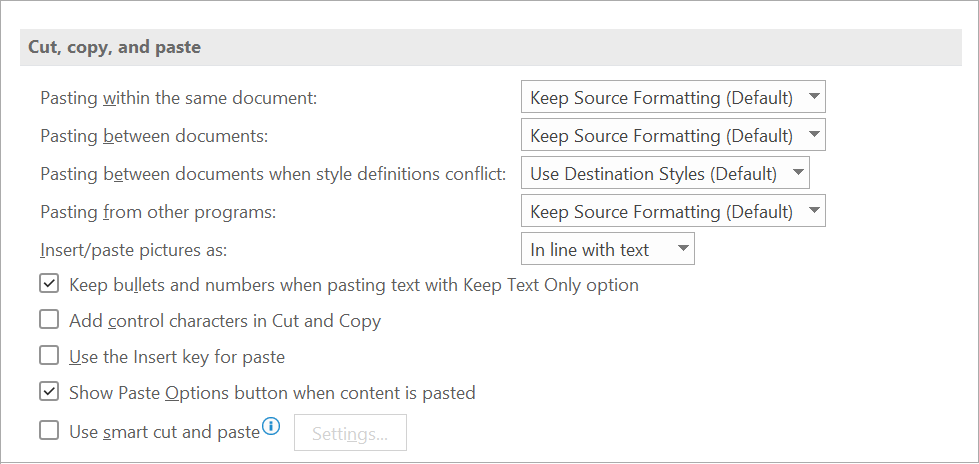 |
Pasting within the same document - This option displays the default behavior when you paste content into the same document from which you copied the content.
Pasting between documents - This option displays the default behavior when you paste content that was copied from another document in Word. In the drop-down list, select one of the following:
Pasting between documents when style definitions conflict -
Pasting from other programs - This option displays the default behavior when you paste content that was copied from another program. In the drop-down list, select one of the following:
Insert/paste pictures as - In line with text This option inserts the graphic in a paragraph as if it were text. The graphic moves as you add or delete text. You can drag the graphic to reposition it the same way that you drag text.
Keep bullets and numbers when pasting text with Keep Text Only option - Select this option to convert numbering and bullets into text symbols.
Add control characters in Cut and Copy -
Use the Insert key for paste - Select this option to use the INSERT key to insert the contents of the Office Clipboard into a document.
Show Paste Options buttons when content is pasted - Select this option to display the Paste Options button when you paste content. You can use the Paste Options button to override or modify the settings you make in this section of the Word Options dialog box.
Use smart cut and paste - Select this option to automatically adjust the formatting of content that is pasted in to match that of the destination document. After you select this check box, you can click Settings to set additional options for pasting.
Settings - Click this to open the Settings dialog box. Use this dialog box to control spacing and formatting when merging, cutting, and pasting text. Only enabled when the check box is ticked.
Settings Dialog Box
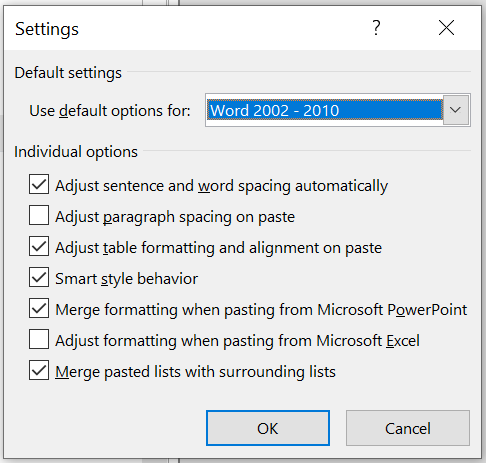 |
Adjust sentence and word spacing automatically -
Adjust paragraph spacing on paste -
Adjust table formatting and alignment on paste -
Smart style behavior -
Merge formatting when pasting from Microsoft PowerPoint -
Adjust formatting when pasting from Microsoft Excel -
Merge pasted lists with surrounding lists -
Link Handling
 |
Open supported hyperlinks to Office files in Office desktop apps -
Pen
 |
Use pen to select and interact with content by default - (Added in 365)
Image Size Quality
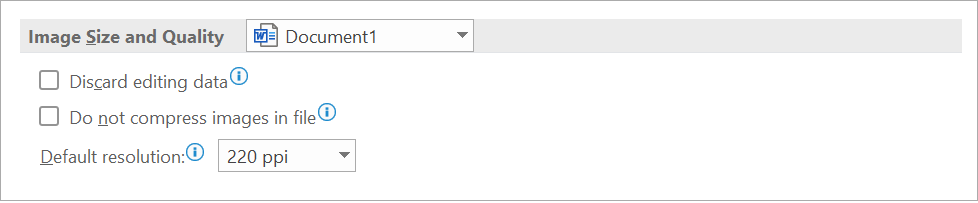 |
Image size and quality -
Discard editing data - When an image is inserted the image dimensions get changed to fit into the document. It is possible that the image being inserted already has some information relating to editing perfomed previously. This option will remove any previous editing data. If you have made changes to a picture (eg cropping, brightness etc) the information to reverse this change is saved in the file. You can reduce the size of a file by removing this edited data.
Do not compress images in file - By default images are automatically compressed to help reduce the file size. If you want to keep the maximum picture quality then you can switch picture compression off.
Default resolution - Allows you to control the picture resolution for all the pictures in the chosen document. The default is 220 ppi.
Chart
 |
Properties follow chart data point - (Added in 2013) Custom formatting and data labels follow data points as they move or change in the chart.
Show Document Content
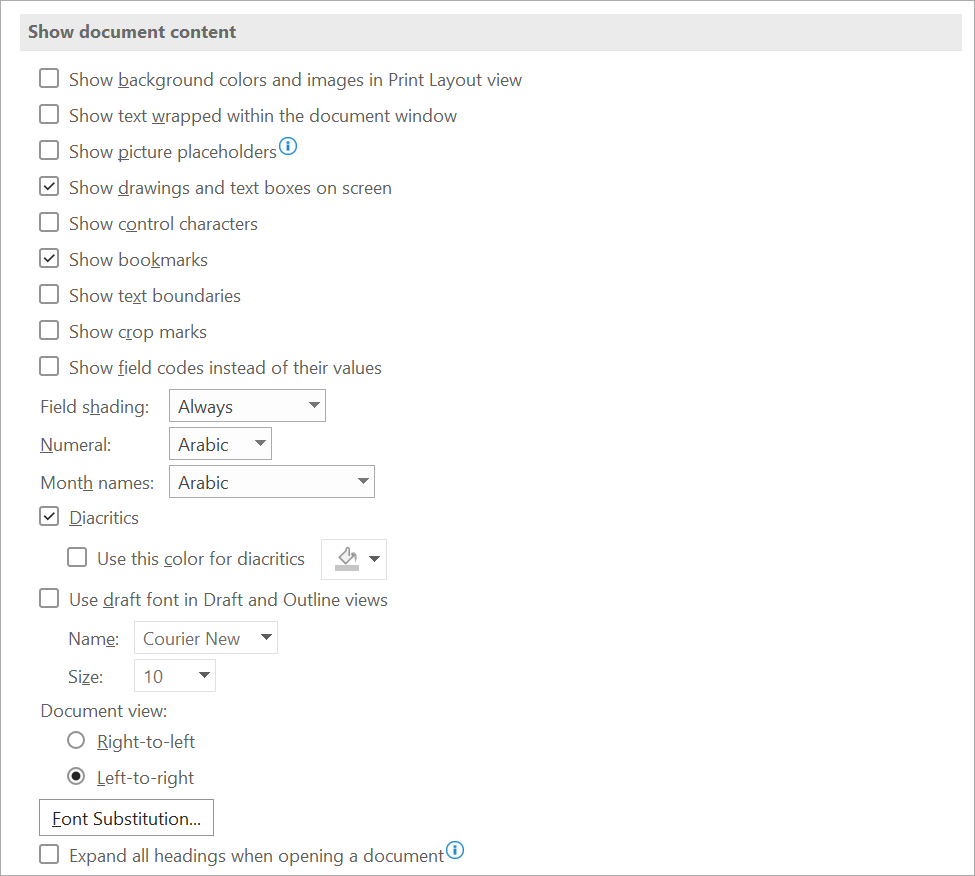 |
Show background colors and images in Print Layout view - (Document specific) Select this option to display background colors and images.
Show text wrapped within the document window - (Document specific) Select this option to wrap text to the document window, so that it is easier to read on the screen.
Show picture placeholders - Select this option to display an empty box in place of each picture in your documents. This option speeds the process of scrolling through a document that contains a large number of pictures. Only applicable in Print Layout View.
Show drawings and text boxes on screen - (Document specific) Select this option to display objects that are created with the Word drawing tools in Print Layout view or Web Layout view. Clear this check box to hide drawings and possibly speed the display of documents that contain many drawings. Drawings will be printed even if you clear this check box.
Show control characters - (Added in 365)
Show bookmarks - (Document specific) Select this option to display bookmarks on the screen. If you assign a bookmark to an item, the bookmarked item appears in brackets ([..]). If you assign a bookmark to a location, the bookmark appears as an I-beam. The brackets and the I-beam do not appear in printed documents.
Show text boundaries - (Document specific) Select this option to display dotted lines around text margins, columns, and paragraphs. The boundaries are for layout purposes; they do not appear in printed documents.
Show crop marks - (Document specific) Select this option to display the corners of the margins. Crop marks are also known as margin marks.
Show field codes instead of their values - This is a document setting and the last change is the default next time. Select this option to display field codes instead of field results in your documents. For example, you may see { TIME @\"MMMM, d, YYYY" } instead of February 4, 2008. Clear this check box to view field results. If the document is protected this option is disabled. If protected documents are open then this setting only gets updated when you close an reopen Word.
Field shading - This option displays whether and when fields are shaded. In the list, select Always or When Selected to shade your fields. Shading fields makes them easy to identify. The shading appears on the screen but not in the printed document.
Numeral - (Added in 365)
Month names - (Added in 365)
Diacritics - (Added in 365)
Use this color for diacritics - (Added in 365)
Use draft font in Draft and Outline views - (Document specific) On computers with extremely limited resources, select this option to speed the screen display of documents.
Name - Select the font to use for drafts of your documents. This option is available only when you select the Use draft font in Draft and Outline views check box.
Size - Select the point size of the draft font. This option is available only when you select the Use draft font in Draft and Outline views check box.
Document view - (Added in 365) Either Right-to-Left or Left-to-Right.
Font Substitution - Click this to open the Font Substitution dialog box. Use this option to determine whether the active document uses any fonts that are not available on your computer. If the document uses fonts that are not on your computer, you can use the dialog box to specify a substitute font.
Expand all headings when opening a document -
Display
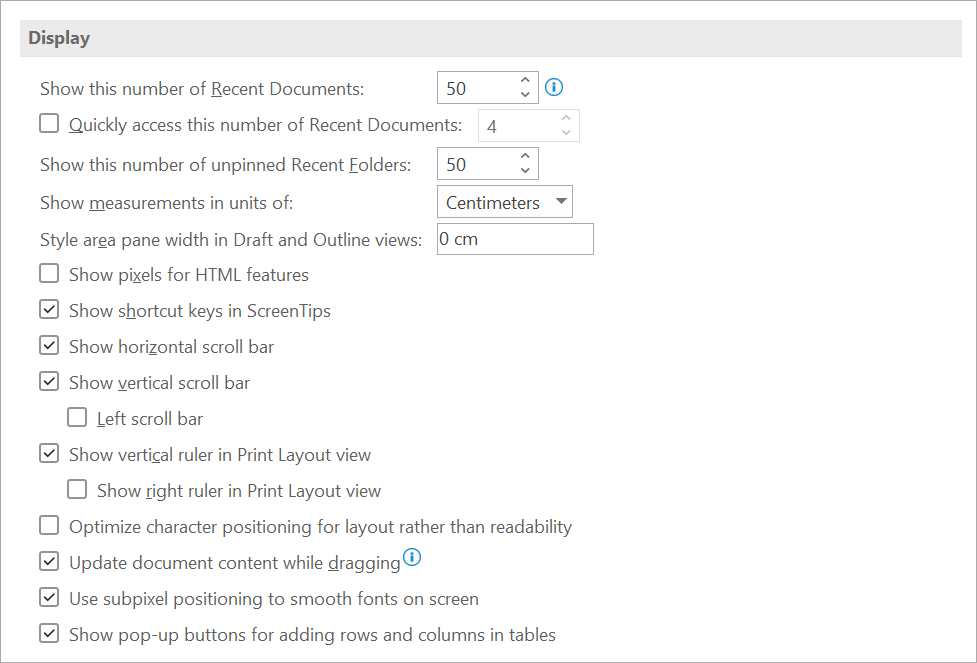 |
Show this number of Recent Documents - Enter the number of items, between 1 and 50, to display in the Recent Documents list.
Quickly access this number of Recent Documents - (Added in 2013)
Show this number of unpinned Recent Folders - (Added in 2013)
Show measurements in units of - Select the measurement unit that you want to use for the horizontal ruler and for measurements that you type in dialog boxes.
Style area pane width in Draft and Outline views - Type a positive decimal, such as 0.5, in the box to open the style area, which displays the names of the styles applied to text. To close the style area, enter 0.
Show pixels for HTML features - Select this option to use pixels as the default unit of measurement in dialog boxes that are related to HTML features.
Show shortcut keys in ScreenTips - Select this option to display shortcut keys in ScreenTips.
Show horizontal scroll bar - Select this option to display the horizontal scrollbar at the bottom of the document window.
Show vertical scroll bar - Select this option to display the vertical scroll bar at the side of the document window.
Left scroll bar - (Added in 365)
Show vertical ruler in Print Layout view - Select this option to display the vertical ruler at the side of the document window. Make sure that you also select the Ruler check box in the Show/Hide group on the View tab of the Ribbon.
Show right ruler in Print Layout view - (Added in 365)
Optimize character positioning for layout rather than readability - Select this option to display character positioning accurately as it will appear in the printed document with respect to blocks of text. Spacing between characters may be distorted when this option is turned on. For best readability on the screen, turn this option off.
Update document content while dragging - (Added in 2013)
Use subpixel positioning to smooth fonts on screen - (Added in 2013)
Show pop-up buttons for adding rows and columns in tables - (Added in 365)
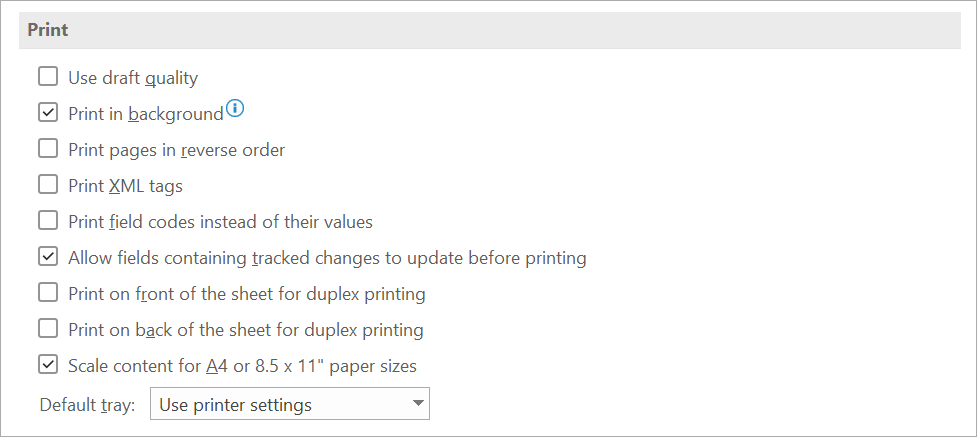 |
Use draft quality - Select this option to print the document with minimal formatting, which may speed the printing process. Many printers do not support this function.
Print in background - Select this option to print documents in the background, which allows you to continue to work while you print. This option requires more available memory to allow you to work and print at the same time. If working with your document while printing becomes unacceptably slow, turn this option off.
Print pages in reverse order - Select this option to print pages in reverse order, beginning with the last page in your document. Do not use this option when you print envelopes.
Print XML tags - Select this option to print the XML tags for the XML elements that are applied to an XML document. You must have a Schema attached to the document, and you must apply elements that are provided by the attached Schema. The tags appear in the printed document.
Print field codes instead of their values - Select this option to print field codes instead of field results - for example, { TIME @\"MMMM, d, YYYY" } instead of February 4, 2008.
Allow fields containing tracked changes to update before printing - (Added in 365)
Print on front of the sheet for duplex printing - Select this option to print the front of each sheet when printing on a printer that does not have duplex capability. Pages will print in reverse order so that when you flip the stack to print on the back, the pages will print in the proper order.
Print on back of the sheet for duplex printing - Select this option to print the back of each sheet when printing on a printer that does not have duplex capability. Pages will print in ascending order so that they correspond to a stack of pages that were printed on the front in reverse order.
Scale content for A4 or 8.5 x 11" paper sizes - Select this option to automatically adjust documents that are designed for 8.5-by-11-inch paper to fit A4 paper and to adjust documents that are designed for A4 paper to fit 8.5-by-11-inch paper. This option takes affect only if the A4 or 8.5-by-11-inch paper in the printer does not match the paper size that is set on the Page Layout tab of Word. This option affects printouts only; it does not affect formatting.
Default tray - This option displays the printer tray that is used by default. To follow the settings in your printer, select Use printer settings. To choose a particular tray, select it in the list. The choices in the list depend on your printer's configuration.
When Printing This Document
 |
When printing this document - Select the document that these printing settings apply to. In the list, select the name of a document that is already open, or select All New Documents to make the setting apply to all documents that you will create.
Print PostScript over text - Select this option to print PostScript code when a document contains PRINT fields.
Print only the data from a form - Select this option to print the data that is entered into an online form without printing the form.
Save
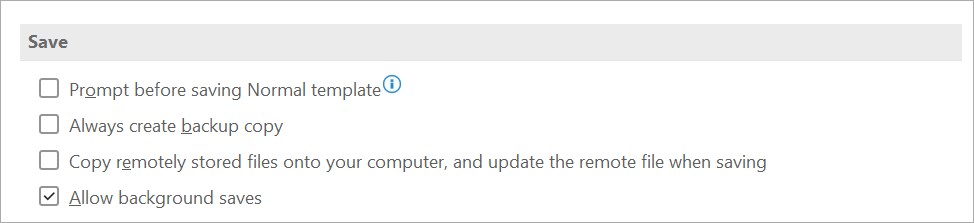 |
Prompt before saving Normal template - Select this option to display, when you close Word, a message that asks if you want to save any changes that were made to the default template. Because changes to the default template will affect any new documents that you create, you may want to be alerted when the template has changed. Clearing this check box automatically saves changes without prompting you.
Always create backup copy - Select this option to create a backup copy of a document each time you save the document. Each backup copy replaces the previous backup copy. Word adds the phrase "Backup of" to the file name and applies the file extension .wbk to all backup copies. The backup copies are saved in the same folder as your original document.
Copy remotely stored files onto your computer, and update the remote file when saving - Select this option to temporarily store a local copy of a file that you store on a network or removable drive. When you save the local copy, Word saves your changes to the original copy. If the original file is not available, Word prompts you to save the file in another location to avoid data loss.
Allow background saves - Select this option to save your document while you work. A progress meter appears in the status bar when Word performs a background save.
Preserve Fidelity
 |
Preserve fidelity when sharing this document - Select the document that these settings apply to. In the list, select the name of a document that is already open, or select All New Documents to make the setting apply to all documents that you will create.
Save form data as delimited text file - Select this option to save the data that is entered into an online form as a single, tab-delimited text file in plain text format. You can then import the contents of that file into a database.
Embed linguistic data - Select this option to save linguistic data, such as speech and handwritten text.
General
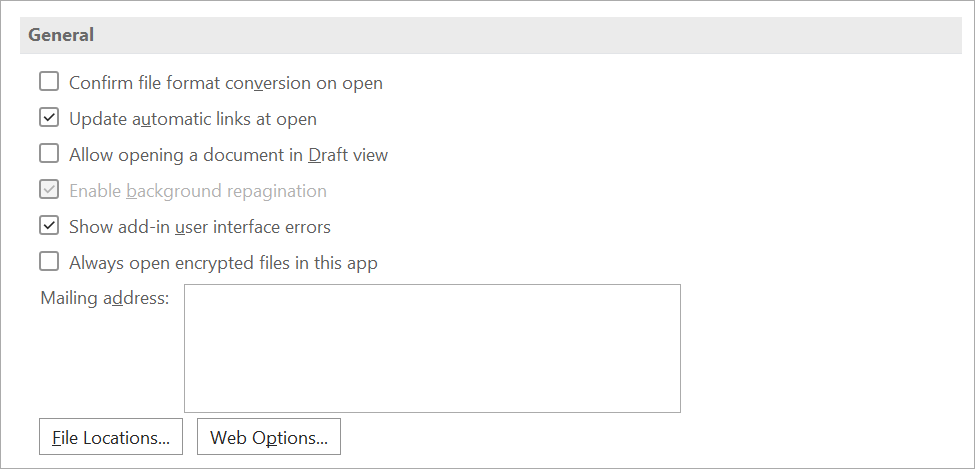 |
Confirm file format conversion on open - Select this option to choose the file converter that Word uses to open files that were created in another program. Clear this check box if you want Word to select a converter automatically.
Update automatic links at open - Select this option to automatically update any content that is linked to other files each time you open a document.
Allow opening a document in Draft view - Select this option to be able to open a document in Draft view.
Enable background repagination - Select this option to repaginate documents automatically as you work. This option is available in Draft and Outline views only. Clearing this check box prevents page numbers from updating (when displayed in the status bar) until you switch to Print Layout view.
Show add-in user interface errors - Select this option to display error messages from programs that customize the user interface. This option is especially useful for authors of software solutions, because it provides information for debugging customizations to the user interface.
Always open encrypted files in this app - (Added in 365)
Mailing address - Type the address that you want Word to use as the default return address for envelopes and letters.
File Locations - Click this to see the default storage location for documents, templates, and other items that you create and use in Word. In the File Locations dialog box, click the item you want to change, and then click Modify to set a new default location. The default locations for templates and the Startup folder are treated as trusted locations. If you change the location, be sure that the new folder is a secure location.
Web Options - Click this to open the Web Options dialog box. Use this dialog box to set options for using Word to create Web pages.
Layout Options
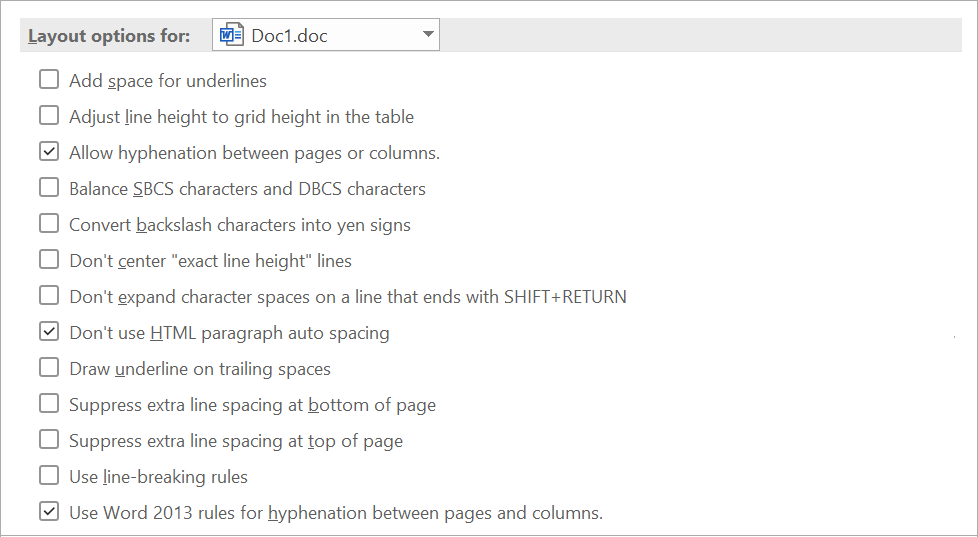 |
Add space for underlines -
Adjust line height to grid height in the table -
Allow hyphenation between pages or columns -
Balance SBCS characters and DBCS characters - Not used in U.S. English Word.
Convert backslash characters into yen signs - Not used in U.S. English Word.
Don't center "exact line height" lines - This option changes the vertical position of text between the top of the line space and the bottom of the line space. With this option turned off, any extra space is split between the ascender and descender. With the option turned on, all the extra space goes to the descender.
Don't expand character spaces on a line that ends with Shift + Return -
Don't use HTML paragraph auto spacing - If you have Auto set for Paragraph Spacing Before/After, and you turn this option on, Word adjusts Paragraph Spacing Before/After to 5 pt.
Draw underline on trailing spaces -
Suppress extra line spacing at bottom of page - WordPerfect suppresses any extra line spacing from the last line on a page. For example, if line spacing is set to double, the final line on the page does not display white space below it.
Suppress extra line spacing at top of page - This option prevents Word from adding extra line spacing at the top of a page. If the line spacing for the line at the top of a page is set for more than single spacing, Word ignores the extra spacing, so that the top margin does not increase.
Use line breaking rules - This option controls line breaks in a Thai language document.
Use Word 2013 rules for hyphenation between pages and columns -
Compatibility Options
 |
Compatibility options for - Select the document that these settings apply to. In the list, select the name of a document that is already open, or select All New Documents to make the setting apply to all documents that you will create.
© 2026 Better Solutions Limited. All Rights Reserved. © 2026 Better Solutions Limited TopPrevNext