Copying
Copy As Picture
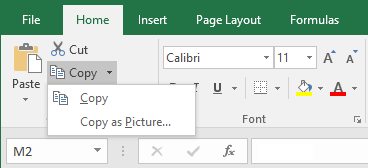 |
Camera Tool
This allows you to create a linked picture of a group of cells in your workbook.
Select Options > Customise
Change the "choose command from" to All Commands
Scroll down and add Camera to your Quick Access Toolbar.
Enter the values (5,10,15,20) into cells B2, B3, C2 and C3 respectively.
Select the range "B2:C3" and press Camera
Click on cell E3.
This has created a linked picture to your cell range.
Drag this picture to a different position.
Select cell "C2" and change the value to 30.
When you press Enter you will see that the picture is also updated.
Keep The Copy
Lets you copy cells and before you paste, you can perform other tasks.
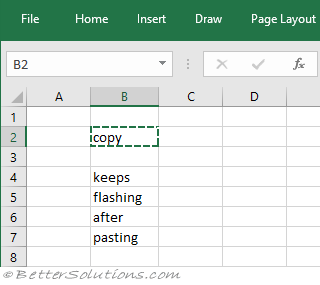 |
You can even use the undo, and then paste if you accidentally paste it in the wrong cell.
Clipboard
Like all the Microsoft Office applications you can cut (or copy) cells from one location to another.
The easiest way to cut, copy and paste values is to use the Office clipboard. This is just a temporary storage area.
All the Microsoft Office applications share the Office clipboard which makes it very easy to cut and paste between applications.
When you cut (or copy) data you are just placing it on the clipboard.
You can cut, copy and paste data between different worksheets and workbooks using the clipboard.
Every time you cut or copy an item a short representation of that item appears on the Office clipboard.
You can display the Office clipboard at any time by pressing (Ctrl + C) twice with the same cells selected.
The clipboard task pane allows you to cut or copy two or more different ranges and then paste them back possibly in a different order.
Clipboard Task Pane
© 2026 Better Solutions Limited. All Rights Reserved. © 2026 Better Solutions Limited TopPrevNext