Moving
Using (Home tab, Cut )
There are several ways you can cut the current selection and place it on the clipboard.
1) Using the (Home tab, Cut) command.
2) Using the shortcut key (Ctrl + X).
3) Using the Cell Shortcut Menu and selecting Cut.
When you cut your data and place it on the clipboard the data does not actually disappear from its original location (until it is pasted).
This can actually be a useful feature as it allows you to cancel the operation by pressing the Escape key.
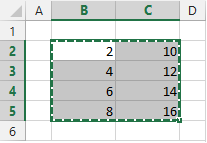
When you cut a cell (or range of cells) a dotted black line appears around the cut area to help identify the area.
 |
You can only cut a single range of cells at a time.
If any formulas contain "relative" references to any cells that you cut and paste these formulas are changed automatically to match the new cell address.
If you cut a cell that contains a "relative" formula the formula does change.
Using (Home tab, Copy)
There are several ways you can copy the current selection and place it on the clipboard.
1) Using the (Home tab, Copy) command.
2) Using the shortcut key (Ctrl + C).
3) Using the Cell Shortcut Menu and selecting Copy.
When you copy data it is not removed but a copy is placed on the clipboard.
Any formulas that refer to cells in the area that is being copied will automatically get adjusted.
When you copy a cell (or range of cells) a dotted black line appears around the cut area to help identify the area. This area is also known as the marquee.
The selected cells will remain on the clipboard until you either press ESC or you perform an operation that automatically clears the clipboard.
You can copy non adjacent blocks of cells at a time.
If you copy a non contiguous range of cells and paste it to a different location the data is pasted as a single range of cells and any missing cells are ignored.
If you copy a cell that contains a "relative" formula the formula does not change.
When pasting a block cells it is always best to select the top left cell before pasting.
Moving Data
If you copy a range of cells to the clipboard. You can highlight twice as many cells before pasting to obtain a duplicate set of data. For example if you copy two cells, highlight four cells and then paste, the data will be duplicated.
You can quickly copy the contents of the first cell in a selection to all the other cells by pressing F2 followed by (Ctrl + Enter).
You can move through a text string one word at a time by pressing Ctrl and then the Left or Right arrow keys.
To paste a range of cells as a picture into another application, select the cells and then hold down Shift while selecting (Edit > Copy Picture).
If you have a large range of cells and you need to copy the formulas without the references changing you can replace the equal signs with hashes..
Highlight the cells, press (Edit > Replace), choose "=" with "#".
Then copy and paste the references. Press (Edit > Replace), choose "#" with "=".
There is a quicker way to freeze formulas to values on a worksheet than using the Edit Copy, then Edit Paste Special and choosing the Values option.
After making a selection, right click its edge and drag it away slightly.
Then place it back in its original position. When you do that, a popup menu appears.
Select the Copy Here as Values option and you are finished.
Remember
Any formulas that refer to cells that have been cut and pasted elsewhere will have there cell references automatically changed.
You cannot cut any non contiguous selections.
It is possible to copy non contiguous selections though assuming the cells are in the same rows and columns.
You can use the Ctrl and Shift keys together to copy and insert cells.
If you are dragging large blocks of cells to specific locations on a worksheet it may be useful to reduce the current display of the worksheet by reducing the Worksheet Zoom percentage.
Dragging
Left Mouse Button
You can drag and drop cells to quickly move them.
This is only possible if your setting allows it, so check your (Tools > Options)(Edit tab, Allow cell drag and drop).
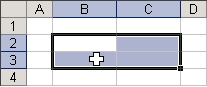 |
If you select a cell (or range of cells) and move the mouse pointer to the edge of the selection, it changes from a plus sign to a pointer.
If this option is switched off then the cursor will not change to a pointer.
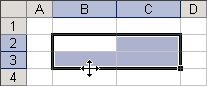
Your mouse cursor will change when you are over the edge of your selection.
 |
This will allow you to move the contents of the cells by holding down the Left mouse button.
Pressing the left mouse button over the border of the selection will change the cursor to an arrow.
When the cursor has changed to an arrow pointer you can drag the cells to another location (keeping the left mouse button pressed).
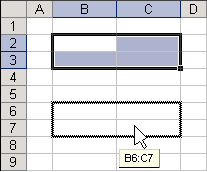 |
A dotted line will appear to indicate where the cells will be placed if you release the mouse button.
If you drag cells to a destination where any of the cells contain data you will be prompted asking you if you want to replace the contents of these cells.
If you do not get a prompt then check your (Tools > Options)(Edit tab, Alert before overwriting cells).
Right Mouse Button
It is also possible to perform a drag and drop using the Right mouse button (as opposed to the left).
Releasing the mouse button when the cells are in there new location will display a shortcut menu.
This shortcut menu gives you several more options.
For more information about this shortcut menu, refer to the Shortcut Menus page.
Holding Down Ctrl
Holding down the Ctrl key as you drag a cell range with the mouse will drag a copy of the cell range instead of moving it.
Be aware that when using this technique you will not be prompted.
The cells are always overwritten regardless of your "Alert before overwriting cells" option.
Holding Down Shift
Holding down the Shift key as you drag a cell range will move the cells.
Any cells that contain formulas will automatically have their formulas copied and adjusted.
This is referred to an a Relative Copy.
Try to use absolute references and/or named ranges when copying formulas that refer to particular cells or ranges.
Remember
You can drag your cells onto different worksheets by holding down the Alt key.
You cannot drag multiple cell ranges at any one time.
You cannot drag non contiguous selections using the mouse.
© 2026 Better Solutions Limited. All Rights Reserved. © 2026 Better Solutions Limited TopPrevNext