Pasting
There are several ways you can paste the current clipboard entry onto your worksheet.
1) Using the (Home tab, Paste) command
2) Using the shortcut key (Ctrl + V). An alternative to this is just to press Enter.
3) Using the Cell Shortcut Menu and selecting Paste.
If you have copied a range of cells then it is easier to always select the top left cell as this tells Excel where to start pasting and will ensure that the source is pasted correctly.
Selecting cell B7 and pressing (Edit > Paste) will copy all the values to cells B7:C11.
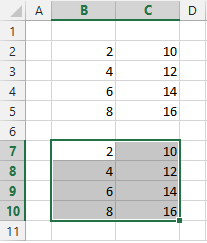 |
The top left corner of the selected paste area becomes the top left corner of the pasted cells.
If you select a range of cells that is a different size from the range of cells you have cut or copied the original range of cells is still pasted (overwriting cells that you have not selected).
Regardless of the size of the range you highlight before, Excel will always paste the original copied data whatever its size.
The contents and the formats of any cells in the range where you paste your data will be overwritten. To avoid losing data make sure there is enough blank cells below and to the right of the top left cell.
If you only want to copy certain attributes of the cell instead of everything you can use the Paste Special command.
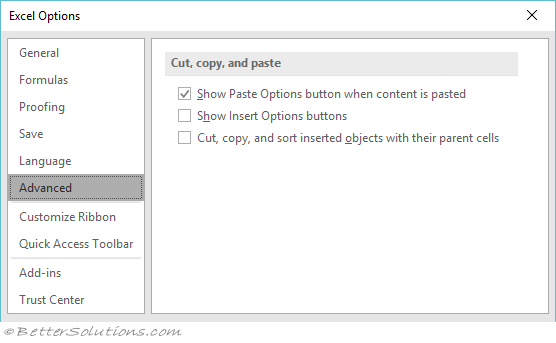
When you paste data into cells you may get the Paste Options Smart Tag displayed in the corner of the cell. This can be removed by changing your (Tools > Options)(Edit tab, "Show Paste Options button").
Pressing Enter to paste your data will not display this smart tag.
Pasting Multiple Times
It is possible to copy some data and paste it more than once. As long as the dotted line is still visible the information will still be on the clipboard.
Unlike dragging data you can copy it and then repeatedly paste it in different locations.
Using (Ctrl + V) will not actually empty the clipboard so you will be able to paste the contents more than once.
Using the Enter key though to paste your data will empty the clipboard meaning you can only press Enter once.
There are a few occasions where multiple pasting is not possible.
Cell Shortcut menu
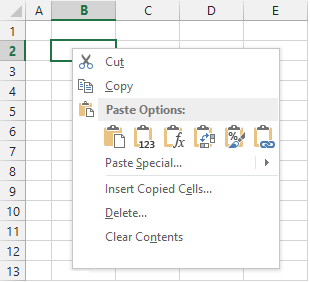
An alternative to using the (Edit) menu is to use the cell shortcut menu.
This can be displayed by selecting a cell and pressing the Right mouse button.
 |
Vertical List
Horizontal List
Transposing
It is possible to quickly change the orientation of a block of cells.
When you transpose a block of cells, the rows will become columns and the columns will become rows.
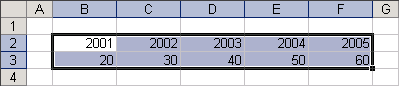
The following horizontal block of cells can be easily transposed to a vertical block.
Select the cells you want to transpose.
 |
Select (Edit > Copy) or press (Ctrl + C).
Paste Special Dialog Box
Select (Edit > Paste Special) and check the Transpose checkbox at the bottom of the Paste Special dialog box.
 |
Select the cell you want at the top left of your block of cells, in this case "B5".
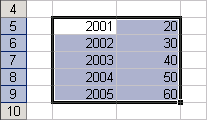 |
This cell cannot be a cell in your original selection. The transposed range cannot overlap the original block of cells.
Any cells containing formulas will be adjusted automatically and will still work even after they have been transposed.
Paste Special
The Paste Special dialog box is extremely useful.
The most useful feature is probably the ability to copy the values of cells without copying the formulas or formatting.
If you want to quickly access this dialog box using a shortcut key, press (Ctrl + Alt + V) followed by the letter in parentheses.
You can also use the shortcut key (Alt + E, S).
Paste Options
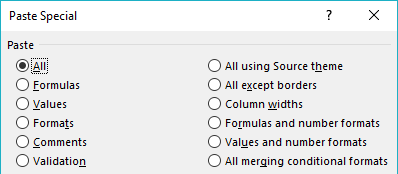 |
All - (A). Pastes all aspects of the cell, values, formulas, formats, formatting etc. This is the same as just using the Paste command.
Formulas - (F). Pastes only the formulas, any relative references are adjusted automatically.
Values - (V). Pastes only the static values and text or the displayed values resulting from formulas.
Formats - (T). Pastes only the format attached to the copied cells.
Comments - (C). Pastes only the comments attached to the copied range of cells.
Validation - (N). Pastes only the Data Validation rules attached to the copied range of cells.
All Using Source Theme - (L). (Added in 2007). Pastes all cell contents in the document theme formatting that is applied to the copied data.
All Except Borders - (X). Pastes only the data, the borders or formatting are not changed.
Column Widths - (W). Pastes only the column widths from the copied range of cells.
Formulas and Number Formats - (R). Pastes only the formulas and their number formats. This is useful when copying values to cells that are already formatted.
Values and Number Formats - (U). Pastes only the values and their number formats. This does not copy the formulas.
All merging conditional formats - (Added in 2010). Merges conditional formatting.
Operations
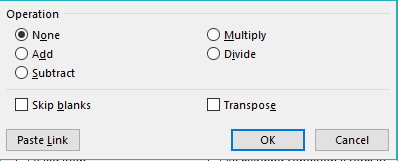 |
These four operations allow you to combined the contents of the copy area and the paste area.
The data is not overwritten but is combined to produce new values.
None - This is the default and no mathematical operations are performed on the current selection.
Add - (D). Adds the value (or values) that have been copied to the current selection.
Subtract - (S). Subtracts the value (or values) that have been copied from the current selection.
Multiply - (M). Multiplies the current selection by the value (or values) that have been copied.
Divide - (I). Divides the current selection by the value (or values) that have been copied.
Skip Blanks - (B). This will ignore any blank cells that have been included in the copied range. If you are copying data onto existing data then any blank cells in the copy range will not be pasted. This prevents you from pasting in a blank value over a cell that already contains something. This is useful as it allows you to overwrite selected cells without overwriting all the cells.
Transpose - (E). If you transpose cells that contain formulas then the formulas are automatically adjusted.
Transposing your rows and columns can be easily done. Copy the cell range you wish to transpose and before pasting choose (Edit > Paste Special) and select the Transpose check box. The paste area must be outside the copy area.
If you want to transpose cells containing formulas, then the formulas and cell references and adjusted. If you don't want the formulas adjusted then make sure your formulas are absolute references.
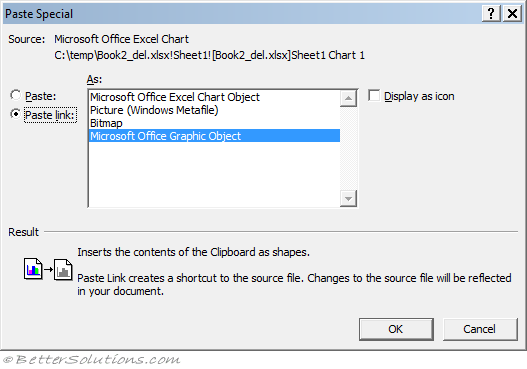
Paste Link - (L). Links the pasted data from the copied cell or range to the new cell or range.
Copying Between Cells, Worksheets and Workbooks
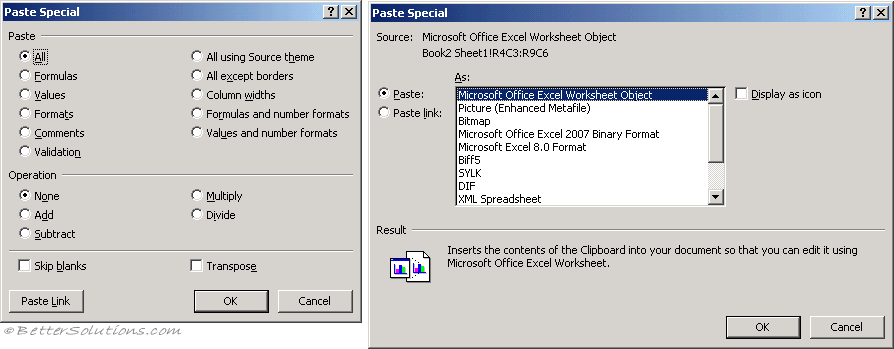
Depending on what is on the clipboard and where it was copied from will influence what dialog box is displayed.
When you copy data between cells, worksheets and workbooks in the same session of Excel the Paste Special dialog box will always be the dialog box displayed on the left.
If the data has been copied from a different Excel session or from a different application altogether and you display the Paste Special dialog box then the dialog box on the right will be displayed.
 |
Remember
You cannot use the Paste Special after you have cut data, only when you have copied it.
To leave the formulas unaffected when you transpose a block of cells make sure the cell references are absolute.
The Skip Blanks option will prevent you pasting any blank cells on top of existing cells.
If you do not use Paste Special when pasting values created by formulas in a different worksheet you will get a #REF! error message.
Paste Link
 |
Paste Drop-Down
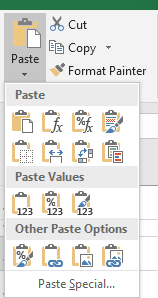
The first command on the Home Tab is a Paste button and drop-down.
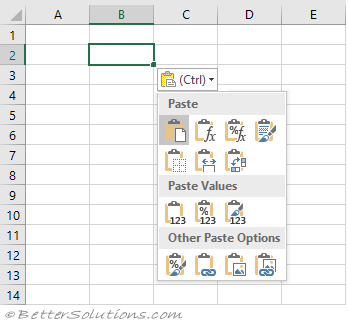
These commands are the same ones that appear on the Paste Smart Tag.
Copying Cells
These are the commands available when you copy a cell or range.
 |
Paste
Paste - (P) (Paste Special, All). Pastes the value (or formula) with the number format. Any formatting that matches the theme colours.
If you are copying and pasting within the same workbook then all the formatting is the same.
If you are copying and pasting from a different workbook that has the same theme colours then all the formatting is the same.
If you are copying and pasting from a different workbook that has different theme colours then the index position is maintained but the colours will be different.
Formulas - (F) (Paste Special, Formulas). Pastes the value (or formula) without the number format. Any formatting ???
Formulas & Number Formatting - (O) (Paste Special, Formulas and Number Formats). Pastes the value (or formula) with the number format. Any other formatting is not copied across.
Formulas & Source Formatting - (K). Pastes the value (or formula) with the number format. The theme colours from the original are kept intact.
If you are copying and pasting within the same workbook then all the formatting is the same.
If you are copying and pasting from a different workbook that has the same theme colours then all the formatting is the same.
If you are copying and pasting from a different workbook that has different theme colours then ???
Formulas & No Borders - (B) (Paste Special, All except borders). Pastes everything except borders. This is identical to "Formula & Source Formatting" except that all the borders are removed.
Formulas & Keep Source Column Widths - (W). Pastes everything including the column widths. This is identical to "Formula & Source Formatting" except that the column widths are pasted as well.
Transpose - (T) (Paste Special, Transpose). Pastes the cells but with the orientation changed. Rows become columns and columns become rows.
Merge Conditional Formatting -
Paste Values
Values - (V) (Paste Special, Values). Pastes the values (or the result from any formulas).
Values & Number Formatting - (A) (Paste Special, Values & Number Formatting).
Values & Source Formatting - (E). This the same as Values except
Other Paste Options
Formatting - (R ) formatting only
Paste Link - (N) link cells
Picture - (U) Pastes only the pictures from the clipboard.
Linked Picture - (I) Pastes a link to a picture.
Paste Smart Tag
The Paste Options smart tag will not appear unless you have chosen to display the Paste Options buttons.
Check your (Excel Options)(Advanced tab, Show Paste Options buttons when content is pasted).
 |
Displaying the Smart Tag
This will appear whenever you paste anything into a cell.
The drop-down menu will appear in the bottom right corner of the cell.
 |
Paste - (P) (Paste Special, All). Pastes the value (or formula) with the number format. Any formatting that matches the theme colours.
If you are copying and pasting within the same workbook then all the formatting is the same.
If you are copying and pasting from a different workbook that has the same theme colours then all the formatting is the same.
If you are copying and pasting from a different workbook that has different theme colours then the index position is maintained but the colours will be different.
Formulas - (F) (Paste Special, Formulas). Pastes the value (or formula) without the number format. Any formatting ???
Formulas & Number Formatting - (O) (Paste Special, Formulas and Number Formats). Pastes the value (or formula) with the number format. Any other formatting is not copied across.
Formulas & Source Formatting - (K). Pastes the value (or formula) with the number format. The theme colours from the original are kept intact.
If you are copying and pasting within the same workbook then all the formatting is the same.
If you are copying and pasting from a different workbook that has the same theme colours then all the formatting is the same.
If you are copying and pasting from a different workbook that has different theme colours then ???
Formulas & No Borders - (B) (Paste Special, All except borders). Pastes everything except borders. This is identical to "Formula & Source Formatting" except that all the borders are removed.
Formulas & Keep Source Column Widths - (W). Pastes everything including the column widths. This is identical to "Formula & Source Formatting" except that the column widths are pasted as well.
Transpose - (T) (Paste Special, Transpose). Pastes the cells but with the orientation changed. Rows become columns and columns become rows.
Values - (V) (Paste Special, Values). Pastes the values (or the result from any formulas).
Values & Number Formatting - (A) (Paste Special, Values & Number Formatting).
Values & Source Formatting - (E). This the same as Values except
Formatting - (R ) formatting only
Paste Link - (N) link cells
Picture - (U) Pastes only the pictures from the clipboard.
Linked Picture - (I) Pastes a link to a picture.
Remember
The Smart tag will only appear when data has been copied and pasted. It will not appear when data has been cut and pasted.
Changing Default
This is possible by adding a macro called Paste to your workbook
Public Sub Paste()
   MsgBox "my new paste"
End Sub
© 2026 Better Solutions Limited. All Rights Reserved. © 2026 Better Solutions Limited TopPrevNext