Code Snippets
Named ranges can be very useful when using macros.
A specific cell or range of cells referred to in VBA code will become invalid if any rows or columns are inserted or deleted in front of it.
The advantage of referring to named ranges is that this does not happen and the cells are still valid.
Named Ranges can be particularly useful in VBA code when you need to refer to a particular cell or range of cells.
It is also easy to change the definition of a named range using VBA code to allow for any changes that you might make to the cells.
Removing the Equal Sign
This doesn't work you must use:
sValue = ActiveSheet.Names("MyNamedRange").RefersTo
or remove the equal sign from the front
sValue = ActiveSheet.Names("MyNamedRange").Value
sValue = Right(sValue,Len(sValue)-1)
Resizing
Sheets("--").Range("A4").Resize("Range("---").Rows.Count, Range("---").Columns.Count + 1).Name = "-----"
Changing the Name
It is possible that after a named range has been created, you might want to change the actual name.
This can be done by using the Name property of a Name object.
Dim objName As Excel.Name
Activeworkbook.Names.Add Name:="MyRange1", _
                         RefersTo:=2
Set objName = Activeworkbook.Names("MyRange1")
objName.Name = "MyRange2"
MsgBox ActiveWorkbook.Names("MyRange2").Value
You can return the cell range of a named range by using string =Sheets("SheetName").Range("NamedRange").Address.
If you reference Range("D4").Value in your VBA code it will be safer to create a names for the range "D4" and refer to that.
If rows or columns get inserted / deleted then your VBA code will still work.
Creating Names
objRange = "Worksheeets("Sheet1").Range("A2:E6")
objRange.CreateNames Left:=True
Creates names in the specified range, based on text labels in the sheet.
If you don't specify one of Top, Left, Bottom, or Right, Microsoft Excel guesses the location of the text labels, based on the shape of the specified range.
It is possible to hide a named range after it has been created.
Names.("VisibleName").Visible = False
If a named range is created with the same name then the previous one will be over-written. This can be prevented by protecting the worksheet.
Hidden Named Ranges
It is possible to create hidden named ranges that do not appear in the Name Manager dialog box.
These can be a useful way to store worksheet and workbook specific information which the user cannot see.
ActiveSheet.Names.Add Name:="HiddenName", _
                      RefersTo:="$B$4", _
                      Visible:=False
This technique can be useful for storing worksheet passwords.
Resizing Named Ranges
Range("NamedRange").Resize(3,3).Name = "NamedRange"
Using the Evaluate Method
It is possible to use the Evaluate method to obtain the value for a specific named range.
Dim sValue As String
sValue = Application.Evaluate(MyNamedRange1)
sValue = Application.Evaluate("wbklevel")
sValue = Application.Evaluate("wshlevel")
Debug.Print sValue
How Many Named Ranges ?
Public Sub HowMany()
    MsgBox ActiveWorkbook.Names.Count
End Sub
Updating a Named Range
Private Sub btnUpdate_Click()
Dim sformula As String
Dim snewformula As String
   sformula = ActiveWorkbook.Names("MyFormula").Value
   snewformula = Replace(sformula, "'05'", "'04'")
   ActiveWorkbook.Names("MyFormula").RefersTo = snewformula
End Sub
Equal Sign Abbreviation
An alternative to using the Range method is to just include an equal sign.
Workbook Level:
Names.Add Name:="MyNamedRange2", _
          RefersTo:=Range("A1")
Names.Add Name:="MyNamedRange2", _
          RefersTo:="=A1"
Worksheet Level:
Names.Add Name:="MyNamedRange3", _
          RefersTo:=Range("'" & ActiveSheet.Name & '!" & saddress)
Names.Add Name:="MyNamedRange3", _
          RefersTo:="=" & "'" & ActiveSheet.Name & "'!" & saddress
Constants and Formulas
How to detect a formula or a constant ?
Does the refers to contain an exclamation mark (!) if it does then it must refer to a cell range.
When you use a named range to store a numeric or string value you should not prefix the RefersTo parameter with an equal sign (=).
If you do, it is assumed to be a formula and not a constant.
Workbook Constant
Dim lnumber As Long
lnumber = 200
ActiveWorkbook.Names.Add Name:="RandomNo", _
                         RefersTo=lnumber
Worksheet Constant
Dim lnumber As Long
lnumber = 200
ActiveSheet.Names.Add Name:="RandomNo", _
                      RefersTo=lnumber
You can retrieve this value by using the Evaluate method:
lnumber = [RandomNo]
Workbook Formulas
Application.Names.Add Name = "Formula", _
                      RefersTo:="=COUNT($D:$D)"
This named range can then be used on any worksheet to return the total number of items in column D
Worksheet Formulas
Worksheets("Sheet1").Names.Add Name = "Formula", _
                     RefersTo:="=COUNT($E:$E)"
This named range can only be used on the Sheet1 worksheet to return the total number of items in column E.
Remember
You text strings cannot exceed more than 255 characters.
Hidden Named Ranges
Application.ActiveWorkbook.Names.Add Name:="MyNamedRange1", _
                                     RefersTo:="Sheet1!$A$1:$B$8"
                                     Visible:=False
Application.Names.Add Name:="MyNamedRange1", _
                      RefersTo:="Sheet1!$A$1:$B$8"
                      Visible:=False
Since Application is the default member you could abbreviate it and use:
ActiveWorkbook.Names.Add Name:="MyNamedRange1", _
                               RefersTo:="Sheet1!$A$1:$B$8"
                               Visible:=False
Names.Add Name:="MyNamedRange1", _
               RefersTo:="Sheet1!$A$1:$B$8"
               Visible:=False
Show Hidden Named Ranges
This subroutine will display any hidden named ranges so they can be viewed in the Name Manager dialog box.
Public Sub HiddenToVisible()
Dim nameRge As Excel.Name
Dim lcount As Long
   For Each nameRge In ActiveWorkbook.Names
      If (nameRge.Visible = False) Then
         nameRge.Visible = True
         Application.StatusBar = "Visible - " & nameRge.Name
         lcount = lcount + 1
      End If
   Next nameRge
   Application.StatusBar = False
   Call MsgBox("'" & lcount - 1 & "' hidden named ranges are now visible")
End Sub
Determining if a range name exists
This function will return true if a named range exists
Private Function BET_RangeNameExists(nname) As Boolean
Dim n As Name
    BET_RangeNameExists = False
    For Each n In ActiveWorkbook.Names
        If UCase(n.Name) = UCase(nname) Then
            BET_RangeNameExists = True
            Exit Function
        End If
    Next n
End Function
Removing Named Ranges
Public Sub DeleteNamedRanges()
Dim lcount As Long
Dim sname As Name
Dim smessage As String
   For lcount = ActiveWorkbook.Names.Count To 1 Step -1
      smessage = lcount

      On Error Resume Next
      Set sname = ActiveWorkbook.Names(lcount)

      If (InStr(sname.RefersTo, "#REF") > 0) Then
         smessage = sname.Name & " - deleted"
         ActiveWorkbook.Names(lcount).Delete
         Debug.Print smessage
      Else
         Debug.Print sname.Name
      End If

   Next lcount
End Sub
Workbook Specific
Public Sub DeleteNamedRanges()
Dim sname as Name
   For Each sname in ActiveWorkbook.Names
      ActiveWorkbook.Names(sname.name).Delete
   Next sname
End Sub
Identifying worksheet level named ranges
For Each objName In ActiveWorkbook.Names
   If objName.Name = worksheet!namedrange
Next objName
Worksheet Specific
Public Sub DeleteNamedRanges()
Dim inamecount As Integer
   For inamecount = 1 To ActiveSheet.Names.Count
      ActiveSheet.Names(1).Delete
   Next inamecount
End Sub
Workbook Names Collection
Global named ranges belong to the Names collection associated with a workbook
To access named ranges in the active workbook you can use:
Application.ActiveWorkbook.Names()
Since ActiveWorkbook is the default member of the Application object you can also use:
Application.Names()
Since Application is the default member you could abbreviate it and use:
ActiveWorkbook.Names()
Names()
If you have multiple workbooks open at the same time you can access the named ranges in a specific workbook by using:
Workbooks("Wbk1.xls").Names()
Creating Workbook Specific Names
You can create workbook specific named ranges in a number of different ways
Most workbook specific named ranges will often refer to a specific worksheet but allow the named range to be used from any worksheet within the workbook.
Application.ActiveWorkbook.Names.Add Name:="MyNamedRange1", _
                                     RefersTo:=Range("Sheet1!$A$1:$B$8")
Since ActiveWorkbook is the default member of the Application object you can also use:
Application.Names.Add Name:="MyNamedRange1", _
                      RefersTo:=Range("Sheet1!$A$1:$B$8")
Since Application is the default member you could abbreviate it and use:
ActiveWorkbook.Names.Add Name:="MyNamedRange1", _
                         RefersTo:=Range("Sheet1!$A$1:$B$8")
Names.Add Name:="MyNamedRange1", _
          RefersTo:=Range("Sheet1!$A$1:$B$8")
When your worksheet names contain spaces then you must surround the worksheet name with single apostrophes.
ActiveWorkbook.Names.Add Name:="MyNamedRange1", _
                         RefersTo:=Range("'Sheet 2'!$A$1:$B$8")
Names.Add Name:="MyNamedRange1", _
          RefersTo:=Range("'Sheet 2'!$A$1:$B$8")
Relative References
When you create a named range you should always make the cell references absolute by using the dollar sign ($).
If a named range is created without an absolute cell reference the address will refer to a cell address relative to the cell that was active when the name was created.
Creating the following named range WILL NOT create a named range that refers to cell "A2".
Names.Add Name:="MyNamedRange1", _
          RefersTo:=Range("Sheet1!A2")
The cell which this named range actually refers to will depend on the active cell when the line of code is run.
Referring to the Active Worksheet
Workbook specifc named ranges can be created so that they always refer to the active worksheet.
This can be achieved by not referring to a specific worksheet in the RefersTo parameter.
ActiveWorkbook.Names.Add Name:="MyNamedRange1", _
                         RefersTo:=Range("!$A$1:$B$8")
Names.Add Name:="MyNamedRange1", _
                 RefersTo:=Range("$A$1:$B$8")
Whenever the named range is used it will reference the active worksheet.
Using the Range Object
There is a much quicker way to create workbook specific named range.
It is possible to use the Name property of the Range object.
Range("A2:G6").Name = "Sheet1!MyNamedRange1"
You can also declare a workbook specific named range to refer to the current selection.
Selection.Name = "'Sheet 2'!MyNamedRange1"
It is important to remember that using the Add method is the only way to create named ranges that refer to constants and formulas.
Selecting Workbook Specific Names
You can use Range("WorkbookLevelNamedRange").Select
Sheets("MySheet").Select
Range("MyNamedRange1").Select
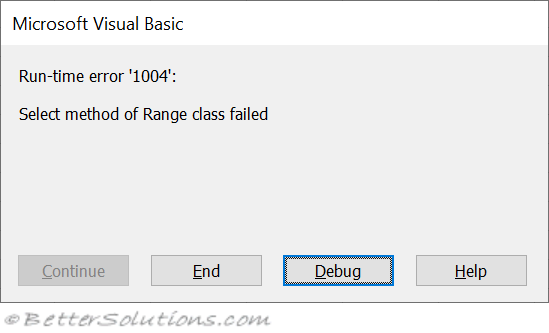
You must have the corresponding worksheet selected first before trying to select a workbook level named range.
If not, you will get the following error message:
 |
You can also use the Application.GoTo method.
Using this method does not require you to have the worksheet selected first.
This method will activate the corresponding worksheet and select the range.
Application.Goto Reference:="MyNamedRange1"
Obtaining the Value
Dim sFormula as String
sFormula = Names("MyNamedRange1").RefersTo
Obtaining the Range
Dim rgeRange As Range
Set rgeRange = Names("MyNamedRange1").RefersToRange
Remember
When you use a reference such as Application.Names or just Names you are referring to the Names collection of the active workbook.
The Add method is the only way to create named ranges that refer to numbers, strings or formulas.
Worksheet Names Collection
Local named ranges belong to the Names collection associated with a particular worksheet.
Worksheet level named ranges are worksheet specific and are normally only used on the worksheet where they have been defined.
To access named ranges in a particular worksheet you can use:
Application.ActiveSheet.Names()
Since Application is the default member you could abbreviate it and use:
ActiveSheet.Names()
It is also possible to refer to the named ranges in a particular worksheet.
ActiveWorkbook.Worksheets("Sheet1").Names()
If you create worksheet level named ranges it is possible to use the same name on more than one worksheet in the same workbook although this is not recommended.
Creating Worksheet Specific Names
You can create worksheet specific named ranges in a number of different ways.
From a Worksheet Object
All worksheet specific named ranges can only be used when a particular worksheet is active
Worksheets("Sheet1").Names.Add Name:="MyNamedRange2", _
                               RefersTo:=Range("$A$1:$B$8")
It is also possible to create a worksheet specific named range for the active worksheet.
ActiveSheet.Names.Add Name:="MyNamedRange2", _
                      RefersTo:=Range("$A$1:$B$8")
From a Workbook Object
You can also create a worksheet specific named range using the Workbook object.
You must prefix the name of the named range with the name of the specific worksheet.
In this case we are creating a worksheet specific named range for the worksheet called "Sheet1".
ActiveWorkbook.Names.Add Name:="Sheet1!MyNamedRange2", _
                         RefersTo:=Range("Sheet1!$A$1:$B$8")
When your worksheet names contain spaces then you must surround the worksheet name with single apostrophes.
ActiveWorkbook.Names.Add Name:="'Sheet 2'!MyNamedRange1", _
                         RefersTo:=Range("'Sheet 2'!$A$1:$B$8")
Relative References
When you create a named range you should always make the cell references absolute by using the dollar sign ($).
If a named range is created without an absolute cell reference the address will refer to a cell address relative to the cell that was active when the name was created.
Creating the following named range WILL NOT create a named range that refers to cell "A2".
If you select cell "B2" and run the following line of code you will actually get the named range "=Sheet1!B3".
Worksheets("Sheet1").Names.Add Name:="MyNamedRange2", _
                               RefersTo:=Range("A2")
The very odd thing is that when you select the named range it re-defines itself to refer to the cell below the active cell.
Using the Range Object
Range("A1:B8").Name ="Sheet1!MyRangeName"
Cells(1,1).Resize(8,2).Name = "range_name"
Using Worksheet Specific Names
Range("Sheet1!namedrange").Value = 30
Range("my_name").Value = "text"
[my_name].Value = "text"
Remember
When you use a reference such as Activesheet.Name or Worksheets("Sheet2").Names you are referring to the Names collection of that particular worksheet.
The Add method is the only way to create named ranges that refer to numbers, strings or formulas.
© 2026 Better Solutions Limited. All Rights Reserved. © 2026 Better Solutions Limited TopPrev